Microsoft Dynamics GP to QuickBooks Online
With Microsoft retiring GP, where do you go next? A clean Microsoft Dynamics GP to QuickBooks Online migration moves your data to the cloud, maps your account segments, and ties every balance out to GP.
Dynamics GP specifics
Great Plains has real conversion rules to respect
Great Plains — Microsoft Dynamics GP — is a mid-market ERP with a segmented account framework and modules for GL, AR, AP, inventory, purchasing and payroll. Moving to QuickBooks, most historical transactions come across as journal entries (invoices and bills stay as invoices and bills), and the segmented GP accounts are mapped to QuickBooks accounts and classes. Several things need explicit handling: GP payroll data does not convert and is re-established separately, bank reconciliations do not carry over and are set up fresh, budgets are not converted, and because QuickBooks will not allow multiple AR or AP accounts on one transaction, GP entries that do are split into several.
We map the account framework, convert the history cleanly — watching the date-format traps that silently drop rows — and reconcile the trial balance, AR and AP to your GP reports before go-live.
If you run Dynamics GP, the clock is now part of the conversation. Microsoft has confirmed it will end support for GP, and that has thousands of businesses weighing where to go next. For many, the answer is not another complex ERP — it is the cloud. Moving from Microsoft Dynamics GP to QuickBooks Online gives smaller teams the accounting they actually use, without the cost and overhead GP carried.
This guide explains why GP users are switching, what the end-of-life dates really mean, exactly what data moves, how the migration works step by step, and the mistakes to avoid — so your move off GP is clean and your numbers still tie out.
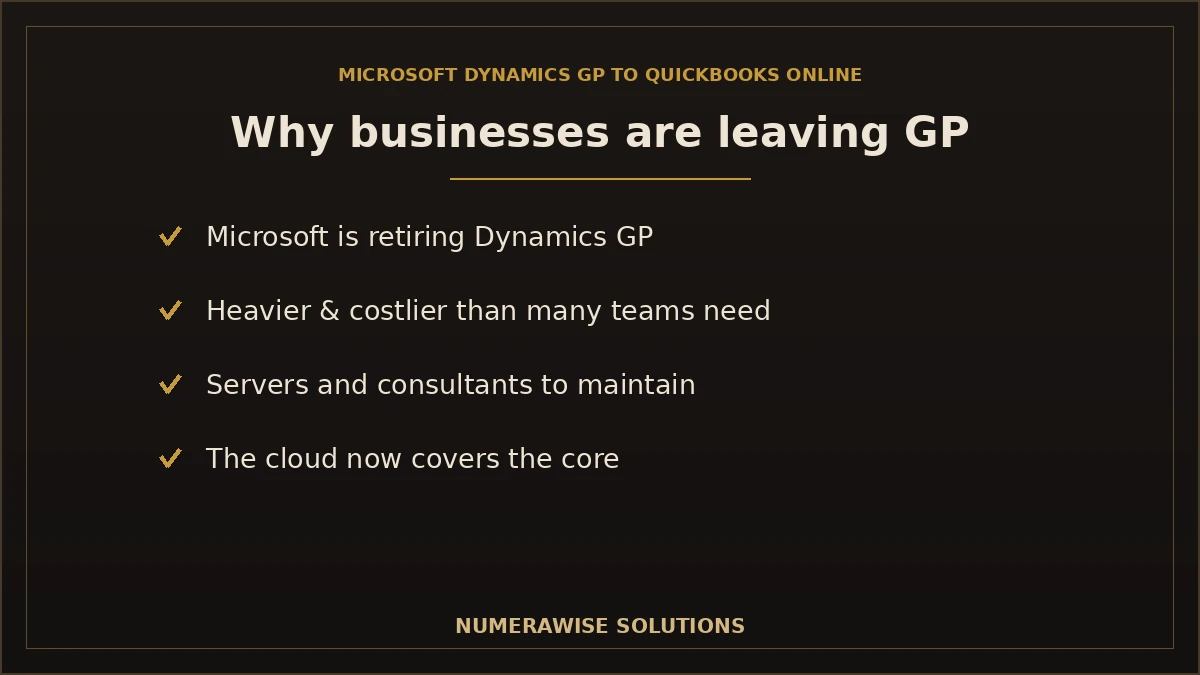
Why businesses are leaving Dynamics GP
Dynamics GP has been a solid mid-market ERP for decades, but two forces are pushing businesses off it:
- Microsoft is retiring GP. New feature development has stopped, and the product is on a published end-of-support path.
- It is heavier than many teams need. GP’s modules, SQL Server backend, and IT overhead are more than a lot of small businesses use.
- Cost and maintenance. Licensing, servers, and consultants add up, especially for a system in wind-down.
- The cloud has caught up. QuickBooks Online now handles the core accounting most former GP users rely on, from anywhere.
Microsoft’s own path steers GP customers toward Dynamics 365 Business Central, but many smaller businesses find that too big and expensive for their needs and choose QuickBooks Online instead. It is a fit decision — matching the tool to how the business actually runs.
What the Dynamics GP end-of-life dates mean
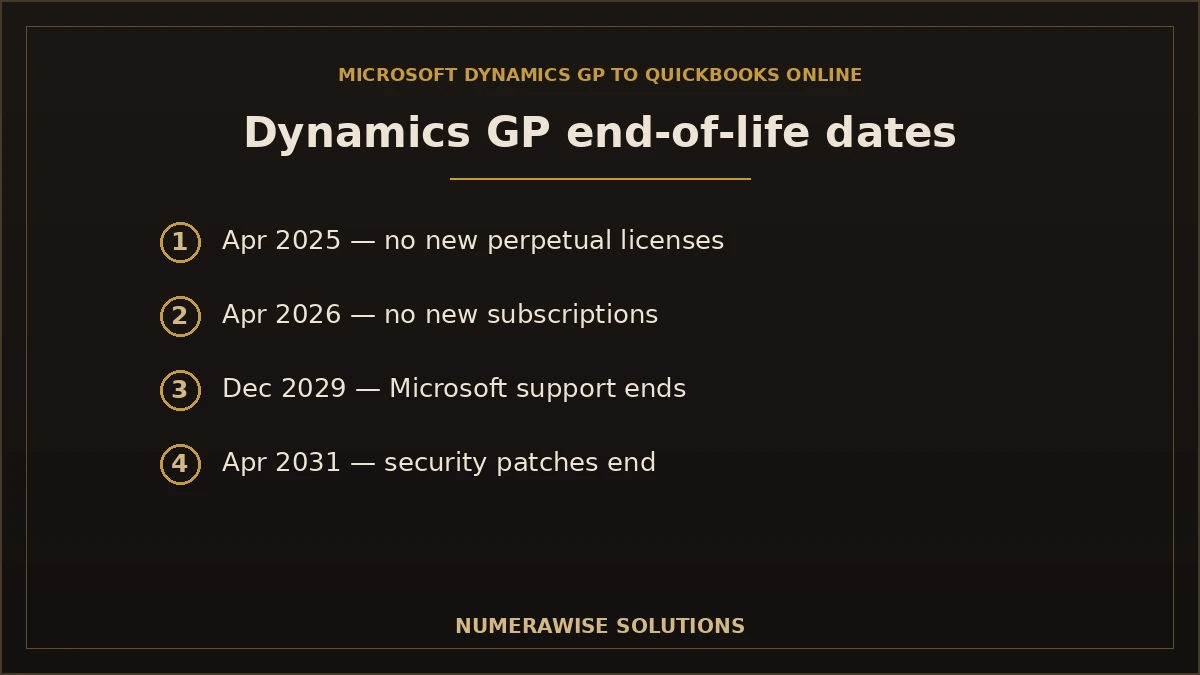
You do not need to panic, but you do need to plan. Here are the milestones Microsoft has published:
| Date | What happens |
|---|---|
| April 1, 2025 | No new customers for GP perpetual licenses |
| July 14, 2026 | GP 2016 and 2016 R2 reach end of life (no more security updates) |
| April 1, 2026 | No new customers for GP subscription licenses |
| December 31, 2029 | Microsoft ends support: enhancements, tax updates, and technical support |
| April 30, 2031 | Critical security patches end |
The takeaway: GP still runs, but it is a system with a countdown. Waiting until 2029 to plan a migration means rushing it; moving on your own schedule means doing it cleanly. You can confirm the current dates on Microsoft’s official lifecycle documentation.
Is QuickBooks Online enough to replace Dynamics GP?
For most former GP small businesses, yes — but it is the right question to ask honestly. GP is a full ERP; QuickBooks Online is powerful accounting software with a huge app ecosystem. The fit depends on what you actually use GP for.
| If you rely on GP for... | QuickBooks Online fit |
|---|---|
| Core GL, AR, AP, reporting | Strong — covers it well |
| Basic inventory | Good, or add an app |
| Multiple entities / heavy manufacturing | May need apps or a larger platform |
| Simple payroll | Handled with QuickBooks Payroll |
If your needs are heavier — complex manufacturing, deep multi-entity consolidation — a bigger platform may fit better. But the majority of GP users at the small-business end find QuickBooks Online does everything they need with far less overhead. An honest review up front prevents a wrong turn.
What data transfers from Dynamics GP to QuickBooks Online
A well-run migration brings across the records you need to keep running and reporting accurately:
| Data | Transfers? | Notes |
|---|---|---|
| Chart of accounts | Yes | GP segmented accounts mapped to a clean QuickBooks structure |
| Customers & vendors | Yes | Details and open balances |
| Open invoices & bills | Yes | So receivables and payables stay accurate |
| Historical transactions | Usually | Depth chosen based on your needs |
| Trial balance | Yes | Reconciled to match GP at cutover |
| Inventory items | Often | Where applicable, with review |
| Payroll history | Limited | Usually re-set up in QuickBooks Online |
GP’s multi-segment account framework is the piece that needs the most thought. Those segments — department, division, location — usually map to QuickBooks classes and locations rather than a longer account number. Getting that mapping right is what makes your new reports meaningful.
How the migration works, step by step
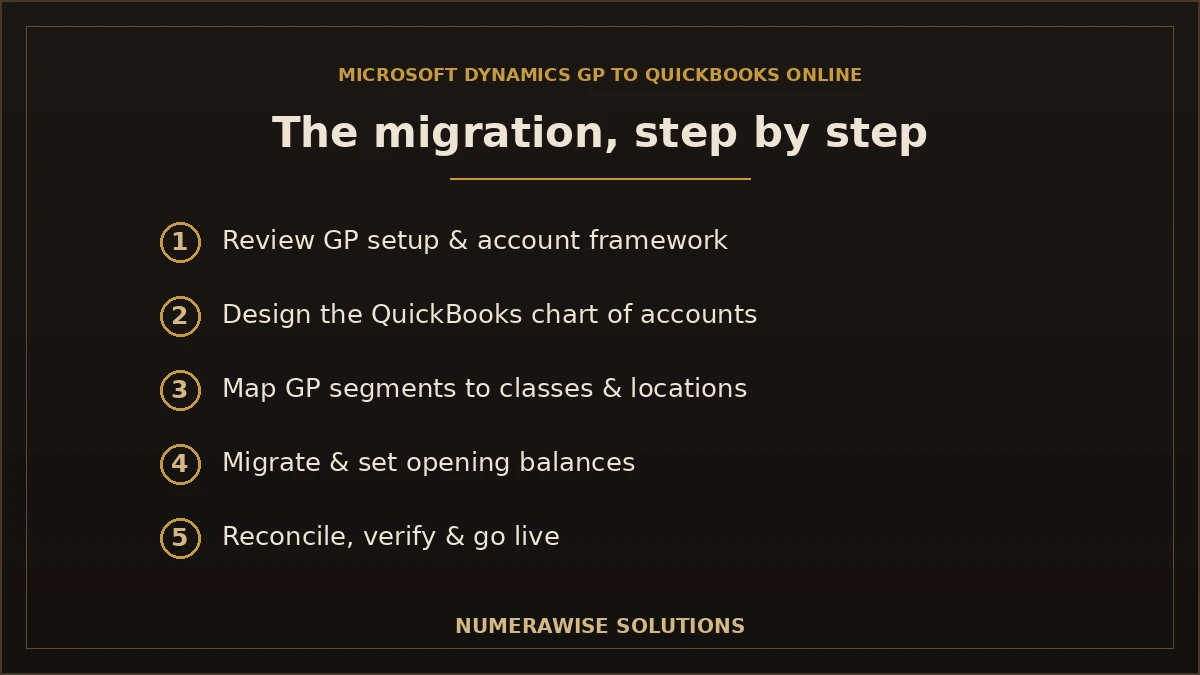
Moving from a full ERP to cloud accounting is a project, not an export button. A clean migration follows this order:
- Review your GP setup. Understand your account framework, modules, and what history matters.
- Decide scope. Choose your QuickBooks Online plan and how much history to bring across.
- Design the chart of accounts. Map GP segments to QuickBooks accounts, classes, and locations.
- Clean the data. Fix errors in GP before moving, not after.
- Migrate and set opening balances. Move the data and set balances as of the cutover date.
- Reconcile and verify. Confirm trial balance, A/R, A/P, and bank balances match GP exactly.
- Go live with support. Start in QuickBooks Online with help through the first close.
Because GP data lives in SQL Server, exporting it cleanly often takes specialist tools and know-how — another reason a professional conversion services is worth it for a GP move. The verify step is non-negotiable: if the QuickBooks trial balance does not tie to GP at the cutover date, the migration is not finished.
Choosing a cutover date
Timing makes the move cleaner. The easiest cutover is the start of a new financial year or quarter, so you carry over closing balances and start fresh in the cloud — less history to reconcile and a natural line in your reporting. Many businesses close their final GP period, verify it, then open the new period in QuickBooks Online. Avoid switching during year-end close or a busy stretch so you have room to verify balances without pressure.
If the open question is whether to renew the enhancement plan at all, the Dynamics GP renewal worksheet prices each of the renewals left before the December 2029 deadline against a QuickBooks subscription and a one-time conversion.
Dynamics GP vs. QuickBooks Online: what changes
Moving from an ERP to cloud accounting is a real shift, and knowing it shortens the learning curve:
- Simpler navigation. QuickBooks Online drops GP’s module-heavy structure for a lighter interface.
- Segments become classes. GP account segments map to QuickBooks classes and locations.
- No server to maintain. The cloud replaces GP’s SQL Server and manual updates.
- Apps add capability. Functions handled by GP modules may move to connected apps.
Most teams find the day-to-day quicker once they adjust, and the loss of server maintenance and manual updates is a relief for the people who ran them.
Benefits of moving from Dynamics GP to QuickBooks Online
- Off a retiring platform. You move to software with a future, not a countdown.
- Lower total cost. No servers, big licenses, or heavy consultant hours.
- Access from anywhere. Cloud books for you and your accountant.
- Less IT overhead. Automatic updates and backups replace manual maintenance.
- A cleaner setup. Migration is a chance to simplify an overgrown chart of accounts.
- A bigger app ecosystem. Add only the tools you actually need.
Common migration mistakes to avoid
- Waiting too long. Rushing a move as support ends invites errors; plan ahead.
- Not verifying the trial balance. If QuickBooks does not tie to GP, the move is incomplete.
- Mapping segments poorly. Sloppy account mapping produces reports you cannot trust.
- Migrating a messy system. Old errors follow you into the cloud.
- Assuming QBO fits without checking. Confirm it covers what you actually use GP for.
- Deleting GP too soon. Keep read-only access for history and audit.
Best practices for a clean GP migration
- Start planning well before support deadlines pressure you.
- Confirm QuickBooks Online fits your real requirements first.
- Map GP segments to QuickBooks classes and locations deliberately.
- Clean the GP data before moving anything.
- Migrate at a natural cutover — a new year or quarter.
- Reconcile trial balance, A/R, A/P, and bank to the penny.
- Keep the GP system accessible read-only after go-live.
How long does a Dynamics GP migration take?
GP migrations usually take longer than a small-business move because ERP data is more complex. A rough guide:
| Situation | Typical timeline | What drives it |
|---|---|---|
| Small GP setup, clean data | One to two weeks | Fewer modules, less history |
| Typical GP business | Two to four weeks | Segment mapping, inventory, more history |
| Complex / multi-entity GP | Several weeks | Consolidations, heavy data, custom setup |
Most of the time goes to designing the chart of accounts, mapping GP segments, and verifying balances — not the raw export. That planning is exactly what keeps a full ERP move from turning into months of cleanup afterward.
What about payroll and multiple entities?
Two GP features need extra thought. Payroll history rarely transfers cleanly, so it is common to carry over year-to-date summary figures and set payroll up fresh in QuickBooks Online for going forward, reconciling the year-to-date totals for tax. Multiple entities are the other consideration: QuickBooks Online handles one company per subscription, so a multi-entity GP setup usually becomes several linked QuickBooks companies rather than one. That is very workable, but it needs planning up front so your consolidation and reporting still make sense after the move.
Keeping your GP data safe during the move
Your GP system holds years of financial history, so protect it. A good migration takes a full backup of the GP database before anything is extracted, works from copies, and never treats the move as final until the numbers are verified. Keep GP and its backup accessible read-only after go-live — you may need it for historical detail, audit support, or reference. Once you are live, QuickBooks Online stores your data encrypted in the cloud with automatic backups, removing the burden of maintaining and securing your own server.
What a Dynamics GP to QuickBooks Online migration costs
There is no flat price because GP setups vary widely. Cost tracks the number of modules and entities, how much history you keep, the complexity of your account framework, and how much cleanup the data needs. A small, tidy GP file is a defined project; a complex multi-entity setup with years of history and custom modules takes more. Extracting data cleanly from SQL Server and mapping segments correctly are the specialist parts — and the best investment, because they decide whether your new reports are trustworthy. Ask for a quote based on your actual GP system.
Getting started with your move off GP
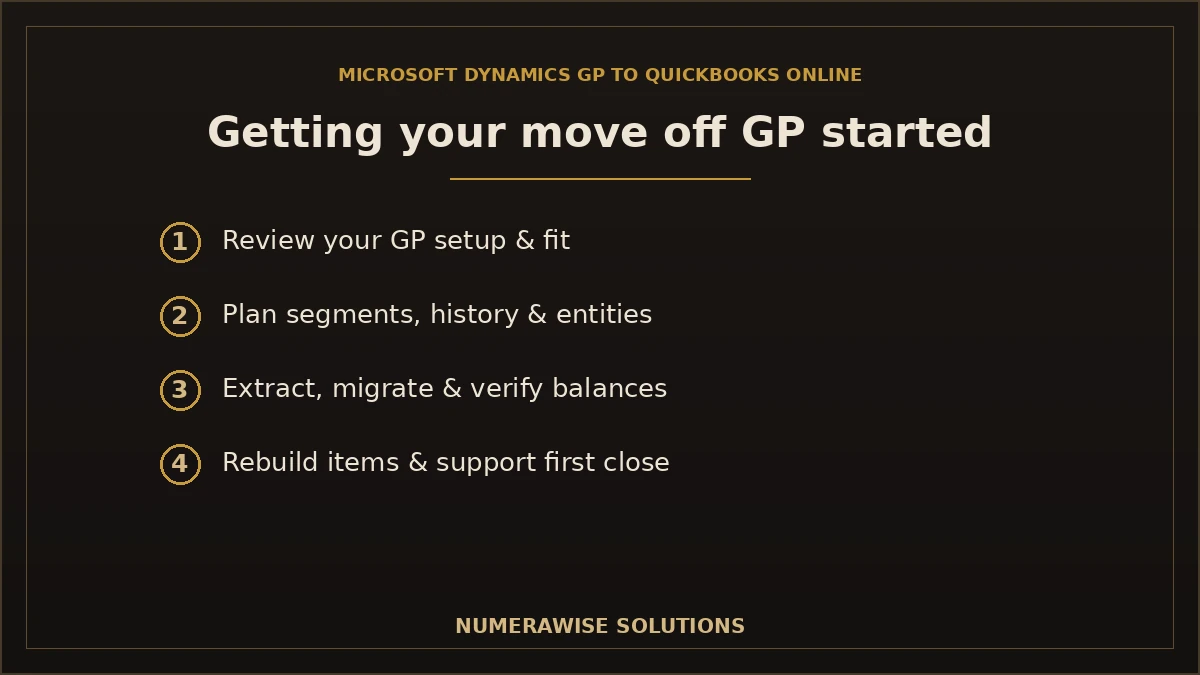
Getting started is simple. We review your Dynamics GP setup, confirm whether QuickBooks Online fits your real requirements, and build a migration plan — including segment mapping, history depth, and any multi-entity or payroll considerations. From there we extract, clean, migrate, and verify every balance against GP, then support you through your first close. Whether you run a single GP company or a complex multi-entity setup, the first step is the same: a short review of your GP system and a clear plan for the move.
Will your reports still match after the move?
They should — when the migration is verified and your GP segments are mapped thoughtfully. Your income, expenses, receivables, payables, and equity carry across, so your financial position in QuickBooks Online matches what GP showed at the cutover date. Where reporting looks different, it is usually structure, not numbers: GP built reports around its multi-segment accounts, while QuickBooks Online uses classes and locations to slice the same data. That is why the mapping step matters so much — done well, you can still report by department, division, or location, just through a cleaner mechanism. If a core total does not tie to GP after migration, treat it as a sign the reconciliation is unfinished, not a quirk to accept. A specialist confirms the numbers match before calling the move complete, so you never wonder whether the new books tell the truth.
Why choose Numerawise for your Dynamics GP to QuickBooks Online migration
At Numerawise Solutions, migrations are core work. We handle the whole move off GP — reviewing your account framework, confirming QuickBooks Online is the right fit, mapping segments to classes and locations, extracting and cleaning the data, and reconciling opening balances so they tie out to GP exactly. Our conversion services cover Dynamics GP and dozens of other platforms, and we can continue with ongoing bookkeeping services once you are live so nothing slips during the switch.
We work remotely through secure tools, so you get a specialist who has moved businesses off GP before — not a first attempt on your live books. Because Dynamics GP grew out of Great Plains, our Great Plains to QuickBooks Online conversion covers the same product family and is a useful companion read. Whatever your GP version, the outcome is the same: a clean QuickBooks Online file, verified numbers, and support through your first close.
The bottom line on Microsoft Dynamics GP to QuickBooks Online
With Microsoft winding GP down, the question is not whether to move but when and where. For most small and mid-sized businesses, QuickBooks Online is the practical landing spot — lighter, cheaper, and cloud-based, with the core accounting they actually use. Do it in the right order: confirm the fit, map your GP segments carefully, clean the data, migrate, and verify every balance against GP before you go live. Plan it early and the move is calm; wait until the deadline and it is a scramble. Done right, a Microsoft Dynamics GP to QuickBooks Online migration takes you off a retiring ERP and onto a platform built for where accounting is going — with your history and balances fully intact.
Key takeaways
- Microsoft is retiring GP — support ends December 31, 2029, so plan your move early.
- QuickBooks Online fits most former GP small businesses; confirm it covers your real needs.
- Map GP account segments to QuickBooks classes and locations for meaningful reports.
- Verify the trial balance against GP — that proves the migration worked.
- Keep GP read-only after go-live for history and audit.
Quick answers.
What is a Microsoft Dynamics GP to QuickBooks Online migration?
A Microsoft Dynamics GP to QuickBooks Online migration moves your accounting data — chart of accounts, customers, vendors, transactions, and balances — from Dynamics GP into the cloud version of QuickBooks. It involves mapping GP's segmented accounts to a QuickBooks structure, choosing how much history to keep, and reconciling opening balances so they tie out to GP at the cutover date.
Why are businesses moving off Dynamics GP?
Microsoft is retiring GP: new feature development has stopped and support ends December 31, 2029, with critical security patches ending in 2031. GP is also heavier and costlier than many small businesses need, with servers and consultants to maintain. Rather than move to a larger ERP, many former GP users choose QuickBooks Online for lighter, cloud-based accounting that covers what they actually use.
When does Microsoft Dynamics GP support end?
Microsoft ends Dynamics GP support — enhancements, tax updates, and technical support — on December 31, 2029, with critical security patches continuing until April 30, 2031. New perpetual licenses stopped April 1, 2025, and new subscription licenses stop April 1, 2026. GP still runs after 2029, but without updates or support, so planning a migration early is wise.
Can QuickBooks Online really replace Dynamics GP?
For most small and mid-sized former GP businesses, yes. QuickBooks Online covers core general ledger, receivables, payables, reporting, basic inventory, and payroll, with a large app ecosystem for more. Very complex manufacturing or heavy multi-entity consolidation may need a larger platform. An honest review of what you actually use GP for tells you whether QuickBooks Online is the right fit before you commit.
What data transfers from Dynamics GP to QuickBooks Online?
Your chart of accounts, customers, vendors, open invoices and bills, trial balance, and usually historical transactions transfer. Inventory moves where applicable. Payroll history is limited and often re-set up in QuickBooks Online. GP's multi-segment accounts are mapped to QuickBooks classes and locations. The financial data that matters comes across; some formatting and history are rebuilt or deliberately left behind.
How are GP account segments handled in QuickBooks Online?
Dynamics GP uses a multi-segment account framework — department, division, location, and more. QuickBooks Online does not use long segmented account numbers; instead, those segments map to classes and locations. Done well, you can still report by department or location, just through a cleaner mechanism. Thoughtful segment mapping is one of the most important parts of a successful GP migration.
How long does a Dynamics GP migration take?
A small, clean GP setup can move in one to two weeks. A typical GP business usually takes two to four weeks, and a complex or multi-entity setup can take several weeks. Most of the time goes to designing the chart of accounts, mapping segments, and verifying balances — not the raw export. That planning is what keeps an ERP move from becoming months of cleanup.
What happens to multiple GP entities?
QuickBooks Online handles one company per subscription, so a multi-entity GP setup usually becomes several linked QuickBooks companies rather than one file. This is very workable, but it needs planning up front so your consolidation and cross-entity reporting still make sense afterward. A specialist maps the structure before migrating so you are not surprised by how entities are separated.
How do I know the migration was successful?
Verify the numbers. Compare the QuickBooks Online trial balance, accounts receivable, accounts payable, and bank balances against GP as of the cutover date — they should match exactly. Because GP data lives in SQL Server, clean extraction matters, and verification is what proves it worked. If a balance is off, the migration is not finished, not something to accept.
Do I need a specialist to move from GP to QuickBooks Online?
It is strongly recommended. GP stores data in SQL Server and uses a segmented account framework, so clean extraction and correct mapping take specialist tools and experience. A professional plans the move, maps segments, migrates and verifies the data, and rebuilds what does not transfer — on experience, not a first attempt on your live books. The cost is far less than fixing a botched ERP migration.
Get a free scoping call.
Tell us what you’re working on. We respond same business day.

Ram · Founder & Principal
Founder of Numerawise Solutions, established MMXXIV in Atlanta. Intuit ProAdvisor Gold tier. Former Intuit Technical Support engineer. Has personally led two hundred accounting software conversions for US small businesses since founding the practice. Reachable directly at [email protected].
Free: The Clean-Cutover Checklist
The step-by-step checklist we use to migrate businesses to QuickBooks without losing data — bank rec, opening balances, payroll YTD, and the validation tie-out. Get it in your inbox.
No spam — just the checklist and the occasional QuickBooks tip.