It is Thursday afternoon, paychecks go out tomorrow, and QuickBooks will not accept your payroll credentials. The password worked last pay period. Now you are staring at a sign-in loop, a “not authorized” message, or a confirmation code that never arrives.
QuickBooks Desktop payroll login issues are among the most common — and most stressful — problems we help clients through, because they always seem to strike right before a pay run. The frustrating part? Most of them come down to one misunderstanding: QuickBooks Desktop payroll actually involves three different logins, and troubleshooting the wrong one wastes hours.
This guide sorts out which login is failing, walks through the fixes in the order most likely to work, and shows you how to keep payday from ever depending on a password reset again.

First, know which login is actually failing
This is the step nearly everyone skips. QuickBooks Desktop payroll touches three separate credential systems, and they fail in different ways:
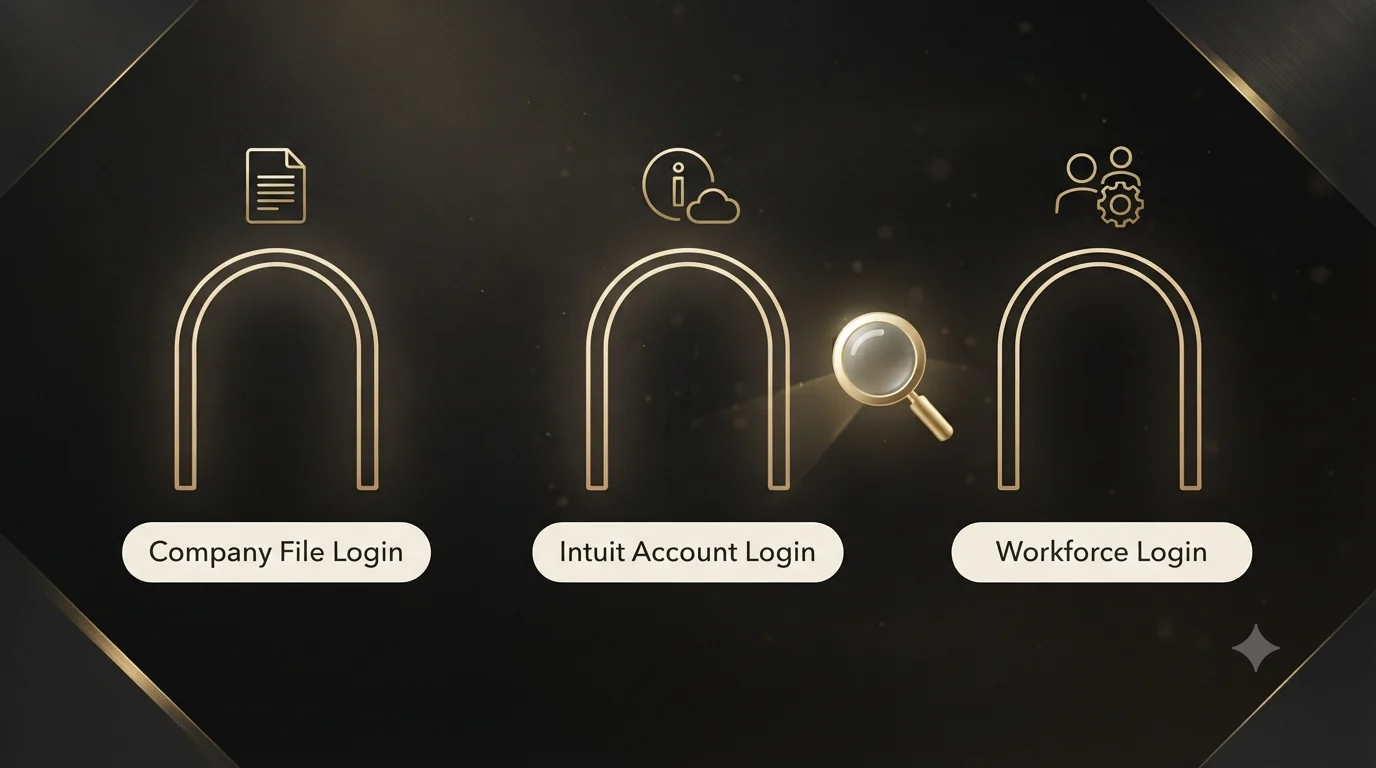
| Login type | What it opens | Typical failure sign |
|---|---|---|
| Company file login | Your .QBW file (Admin or named user) | “Incorrect password” at file open; one user can log in, another cannot |
| Intuit account login | Payroll subscription, billing, service management | Sign-in prompt inside QuickBooks; confirmation-code loops; “not authorized” |
| QuickBooks Workforce login | Employee pay-stub access online | Employees cannot see paychecks; invite emails fail |
Your company file password and your Intuit account password are not the same thing, even if you chose identical passwords for both. Intuit’s own documentation is explicit on this point. Identify which wall you are hitting, then jump to the matching section below.
Fixing Intuit account sign-in problems (the most common case)
Most QuickBooks Desktop payroll login issues live here. QuickBooks periodically forces you to sign in to your Intuit account to verify the payroll subscription — often at the worst possible moment.
Step 1: Reset the password from the source
Skip guessing. Go to Intuit’s account-recovery page in a web browser (not inside QuickBooks), enter your registered email or user ID, and follow the reset flow. If the account locked after several failed attempts, wait 15 minutes before trying again — hammering a locked account extends the lockout.
Step 2: Solve confirmation-code problems
If the code never arrives, check spam and any email-forwarding rules. If the code goes to an email or phone number you no longer control — common after staff turnover — use the “Confirm my account a different way” option on the sign-in screen. When that fails too, only Intuit can re-verify ownership, and they will ask for business documents like your EIN. Start that process early; it is not instant.
Step 3: Confirm you are using the right Intuit account
Businesses often have multiple Intuit accounts: one that bought QuickBooks, one tied to payroll, one an ex-employee created. Sign in at the Intuit account manager in a browser and check whether this account actually shows the payroll subscription. A correct password on the wrong account produces the same failure as a wrong password.
Step 4: Check authorized-user status
Seeing “not authorized” even with a valid login? Your user is not listed as an authorized contact on the payroll account. The primary admin must add you as an authorized user through the Intuit account settings. This trips up firms constantly after the person who originally set up payroll leaves the company.
Fixing company file login problems
If QuickBooks rejects your password before the file even opens, the problem is local.
- Check the basics first. Caps Lock, Num Lock, and keyboard-language settings cause more “wrong password” errors than actual wrong passwords.
- Run QuickBooks as administrator. Close QuickBooks, right-click the desktop icon, and choose Run as Administrator. Windows permission problems masquerade as login failures.
- Run Verify Data. A damaged company file can corrupt stored user login IDs — including the Admin’s. Go to File > Utilities > Verify Data. If it finds problems, run Rebuild Data (after backing up). This fixes broken admin login records more often than people expect.
- Recreate a damaged user. If one user can log in and another cannot, log in as Admin and delete-and-recreate the failing user profile.
- Reset the Admin password if lost. Use the “I forgot my password” link on the file login screen, which verifies you through your Intuit account details.
If Verify Data reports damage that Rebuild cannot clear, stop — repeated rebuilds risk making things worse. That is the point where our QuickBooks repair services team should look at the file before another repair attempt runs.
Fixing payroll connection and service errors
Sometimes the login succeeds but payroll still will not connect — you will see “Payroll Service Server Error” or a PS-series error code when sending payroll or downloading tax tables. Work through these:
- Switch to single-user mode. QuickBooks requires it when sending payroll data. File > Switch to Single-user Mode.
- Check your system date and time. A wrong system clock breaks the secure connection to Intuit’s servers. It sounds trivial; it is a real and regular cause.
- Download the latest tax table. Employees > Get Payroll Updates > Download Entire Update. Outdated tax tables block payroll authentication.
- Verify the subscription is active. Employees > My Payroll Service > Account/Billing Info, then sign in. If the subscription lapsed — an expired card is the usual culprit — no password on earth will get payroll working.
- Add QuickBooks to your firewall exceptions. Security software silently blocking Intuit’s servers is one of the top causes of payroll connection failures. Add the QuickBooks program files and Intuit domains as exceptions, or test briefly with protection paused.
- Update QuickBooks itself. Help > Update QuickBooks Desktop > Update Now. Then restart and retry.
One cause nobody wants to hear: a discontinued version
If you are running QuickBooks Desktop 2022 or earlier, Intuit has ended service for your version — and that includes payroll. The software still opens, but payroll subscriptions, tax-table updates, and direct deposit stop working entirely. No troubleshooting fixes this; it is a policy wall, not a technical one. The options are upgrading Desktop or moving to QuickBooks Online, and our QuickBooks migration services handle both paths with payroll history intact.
Fixing QuickBooks Workforce login issues
When employees cannot log in to view pay stubs, the problem usually sits on the employer side:
- Re-send the invite from Employees > Manage Payroll Cloud Services, and confirm the email address on the employee record is exactly right.
- Have the employee accept from the invite email, not by creating a fresh account at the Workforce site — mismatched accounts are the classic failure.
- Confirm payroll data is being sent to Intuit. Workforce only shows paychecks that were uploaded. If you process payroll but skip the send step, employees see nothing.
Common mistakes that make login problems worse
- Resetting the wrong password. Resetting your company file password five times will not fix an Intuit account problem, and vice versa. Identify the failing login first.
- Sharing one Intuit login across the office. Intuit’s security policy is one login per person, and shared credentials trigger verification challenges at unpredictable times. Each user needs their own authorized login.
- Leaving the payroll admin tied to a departed employee. When the only authorized contact leaves, you inherit a lockout with document-verification recovery. Transfer admin rights before people leave.
- Retrying a locked account immediately. Failed attempts extend lockouts. Wait the 15 minutes.
- Ignoring the problem until payday morning. Login issues that involve Intuit’s verification process can take days to resolve. The Thursday discovery of a Monday problem is a very different situation than the reverse.
Best practices that prevent the payday panic
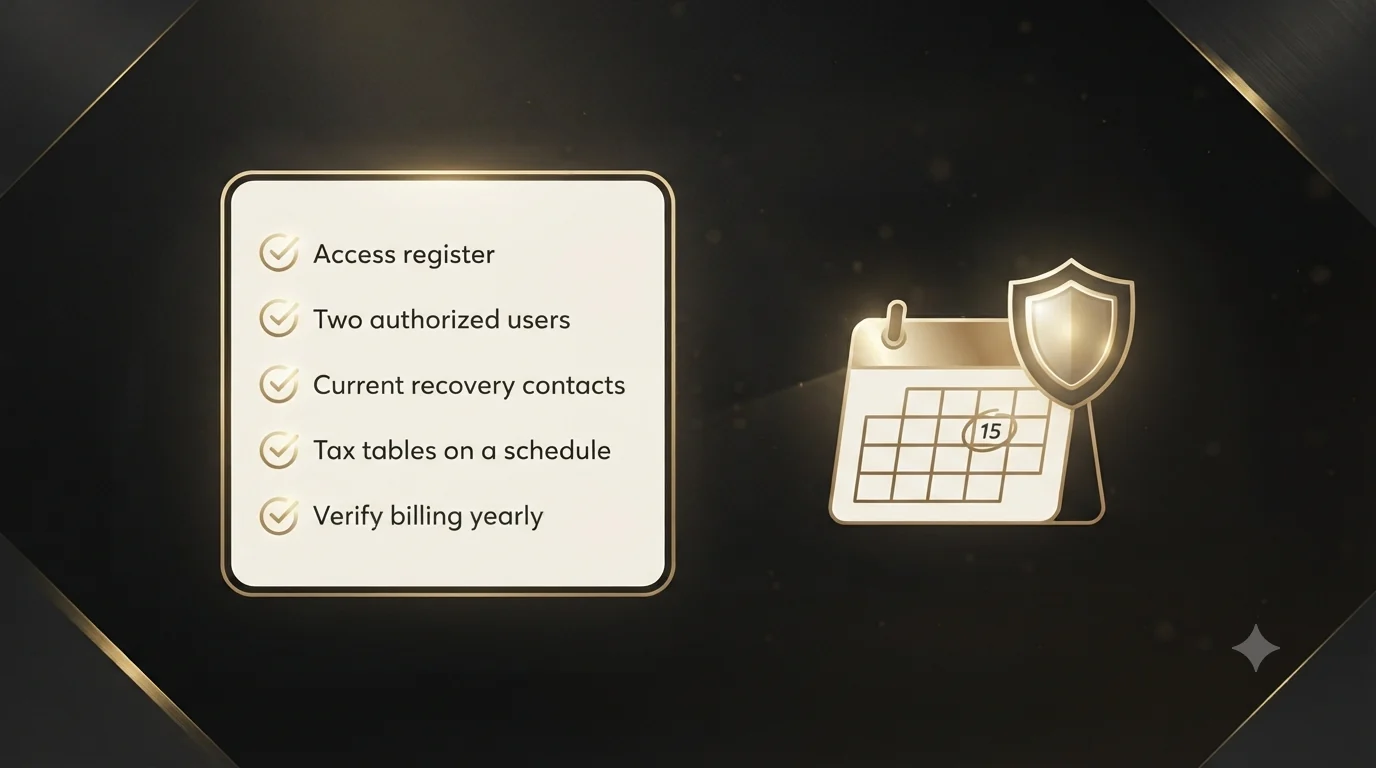
- Keep an access register. One document listing every login (company file users, Intuit account, Workforce admin), who holds it, and the recovery email and phone on each. Review it quarterly.
- Assign two authorized users on the Intuit payroll account, so one departure or lost phone never locks the business out.
- Keep recovery contacts current. The moment a phone number or email changes, update it in the Intuit account — before you need a confirmation code sent there.
- Update tax tables on a schedule, not just when payroll fails. The IRS updates withholding requirements throughout the year, and current tax tables keep both your logins and your calculations healthy.
- Run payroll a day earlier than the deadline when possible. Buffer time turns emergencies into inconveniences.
- Verify subscription billing annually. Expired cards are the quietest way to lose payroll access.
Why choose Numerawise Solutions
Login problems look technical, but the expensive part is what they interrupt: tax deposits with real deadlines, direct deposits employees are counting on, and filings that do not wait for password resets. That is why payroll troubleshooting belongs with people who run payroll, not just people who fix software.
At Numerawise Solutions, our payroll services team processes payroll for contractors, real estate firms, and multi-entity businesses week in and week out — so we have resolved every flavor of this problem, from broken admin credentials in damaged company files to Intuit account lockouts after staff turnover. We fix the access issue, confirm the pay run and tax deposits went through correctly, and then close the gap that caused it.
Clients who hand us payroll entirely stop having this problem at all: we maintain the credentials, monitor the subscription, and own the deadlines. And when login trouble is a symptom of a company file that is aging out, our outsourced bookkeeping services and file-health reviews catch it before the next lockout.
Final thoughts
Nearly all QuickBooks Desktop payroll login issues trace back to one of three doors: the company file login, the Intuit account, or Workforce. Figure out which door is stuck, and the fix is usually a fifteen-minute job — a password reset done in the right place, an authorized user added, a firewall exception, or a tax-table update.
The cases that turn painful share a pattern: recovery contacts pointing at people who left, one shared login for the whole office, and problems discovered hours before a deadline instead of days. Those are all preventable with an access register and a second authorized user — twenty minutes of setup that buys years of quiet paydays. If you are locked out right now with a pay run due, start with the Intuit account-recovery flow and the subscription-status check. And if the login failure came with data-damage warnings, get the file assessed before payday depends on it.
Key takeaways
- QuickBooks Desktop payroll involves three separate logins — company file, Intuit account, and Workforce. Diagnose which one is failing before resetting anything.
- Most sign-in failures are Intuit account problems: wrong account, expired recovery contacts, missing authorized-user status, or lockouts from repeated attempts.
- Verify Data can repair corrupted login credentials stored inside a damaged company file, including the Admin’s.
- Payroll connection errors often trace to single-user mode, system-clock errors, outdated tax tables, lapsed subscriptions, or firewall blocks — not passwords at all.
- Discontinued Desktop versions (2022 and earlier) lose payroll access entirely. No troubleshooting restores it; only an upgrade or migration does.
- An access register plus a second authorized user prevents almost every payday lockout.