QuickBooks Desktop to QuickBooks Online Migration
Run it as a project, not a click. A phased QuickBooks Desktop to QuickBooks Online migration — plan, prepare, migrate, validate — keeps every balance accurate and your team working without a gap.
Plenty of migrations go wrong for the same reason: someone treats a QuickBooks Desktop to QuickBooks Online migration as a button to press instead of a project to run. The export tool is only one step. Around it sits the real work — preparing the file, choosing the right plan, validating the numbers, and getting your team comfortable in the cloud. Handle those well and the switch is smooth; skip them and you spend the next quarter fixing balances.
This guide walks through the migration as a project, phase by phase: how to plan it, a pre-migration checklist, what happens on migration day, how to validate the results, and how to support your team afterward. Follow it and your move lands clean the first time.
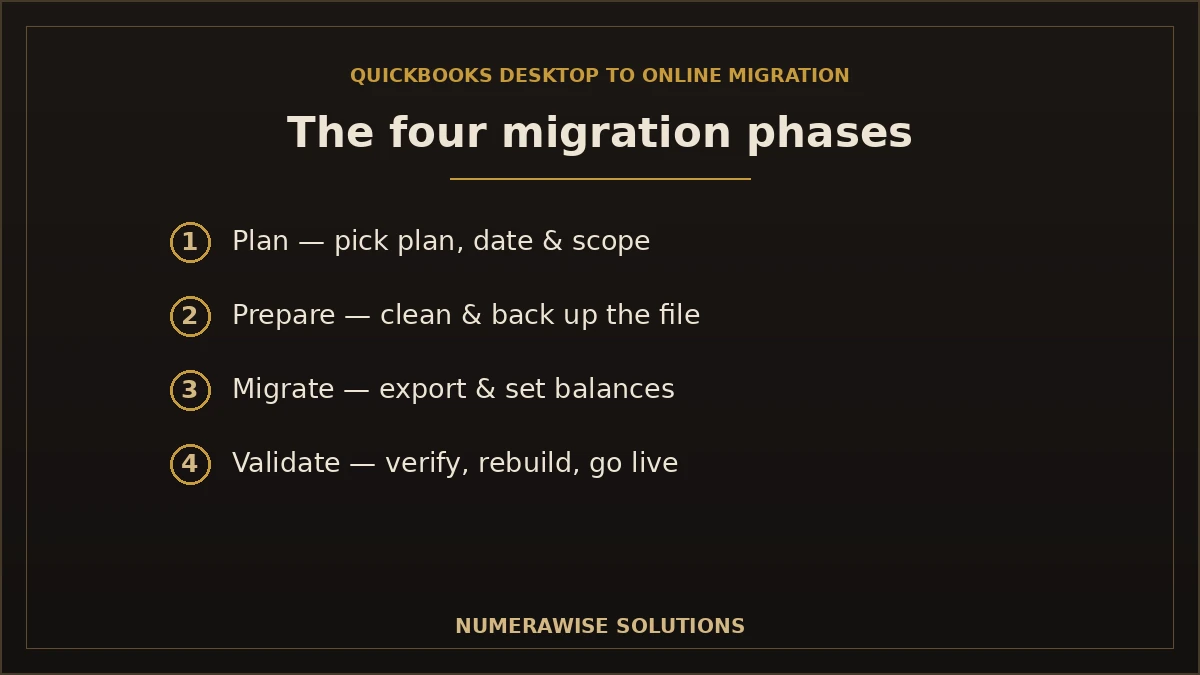
The four phases of a QuickBooks Desktop to QuickBooks Online migration
Every clean migration moves through the same four phases. Rushing or skipping one is where problems start.
| Phase | Goal | Key work |
|---|---|---|
| 1. Plan | Decide the what and when | Pick the plan, set a cutover date, scope the file |
| 2. Prepare | Get the file migration-ready | Update, clean, and back up the Desktop file |
| 3. Migrate | Move the data | Run the export, set opening balances |
| 4. Validate & go live | Prove it worked | Verify balances, rebuild items, train the team |
Think of the export itself as the shortest phase. The value is in the preparation and validation that bracket it — that is what turns a risky data dump into a controlled migration.
Phase 1: Planning your migration
Good migrations are decided before any data moves. Planning answers four questions:
- Which plan? Choose a QuickBooks Online tier that supports your users and features so you do not have to switch again.
- When? Pick a cutover date — ideally the start of a new quarter or financial year — when the shop is quiet.
- How much history? Decide how many years you truly need in the cloud versus kept in the Desktop file.
- Who owns it? Name a point person, or hand the project to a specialist so nothing falls through the cracks.
A one-page plan that answers those questions is worth more than any shortcut. It keeps everyone aligned and stops the move from stalling halfway.
Phase 2: The pre-migration checklist
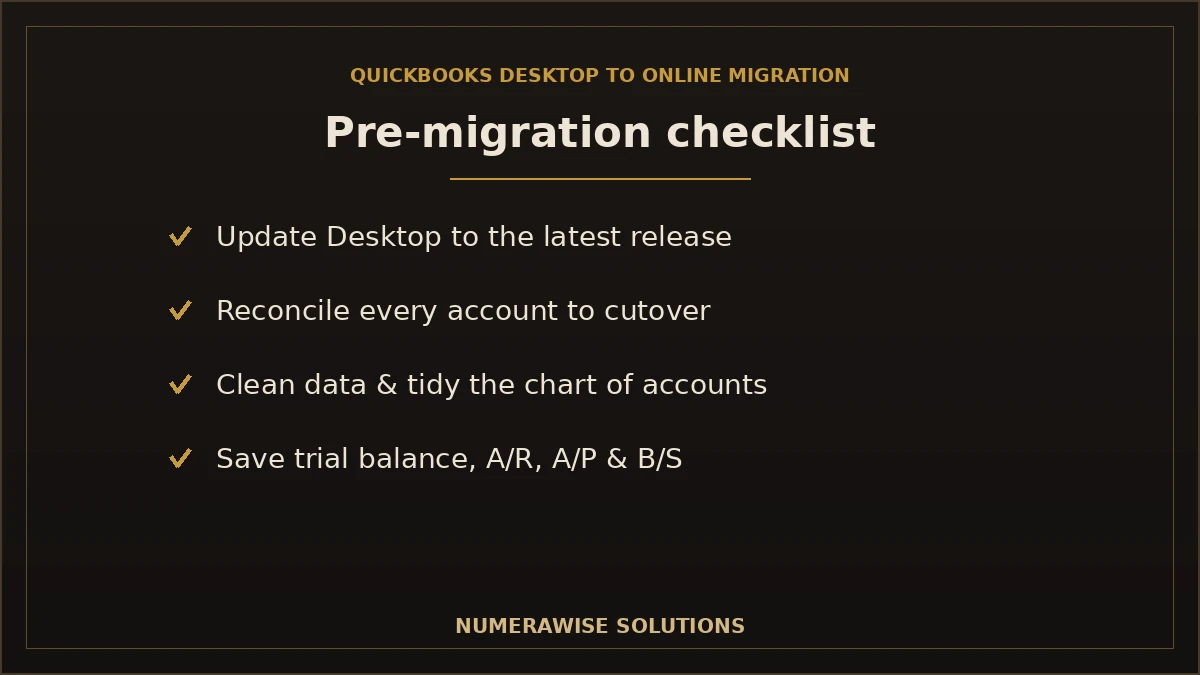
Preparation is where most of the real work lives. Before you export anything, run this checklist in QuickBooks Desktop:
- Update to the latest release. Run the migration on a current version of Desktop.
- Reconcile everything. Bank and credit card accounts should be reconciled up to the cutover date.
- Clean the data. Merge duplicates, fix miscodings, and tidy the chart of accounts.
- Resolve open items. Clear or note stale invoices, bills, and undeposited funds.
- Run key reports. Save the trial balance, A/R, A/P, and balance sheet as of the cutover — your proof to validate against later.
- Back up the file. Take a full backup and store it safely before anything changes.
That saved trial balance is the single most useful thing you produce in this phase. It is the yardstick you will hold the new cloud file against.
Phase 3: Migration day
With a clean, backed-up file and a plan, the move itself is straightforward. Intuit’s built-in tool exports the company file to the cloud, and for a reasonably sized file it runs in a few hours. On the day:
- Stop entering data in Desktop once you begin, so nothing is lost between systems.
- Run the export using Intuit’s migration tool into your new QuickBooks Online company.
- Set opening balances as of the cutover date so the cloud file starts where Desktop ended.
- Do a first-pass check that the data landed and the file opens cleanly.
Large or complex files can hit the tool’s limits and need condensing or specialist handling — another reason planning matters. You can review Intuit’s official migration documentation for the tool’s current specifics.
Phase 4: Validation and going live
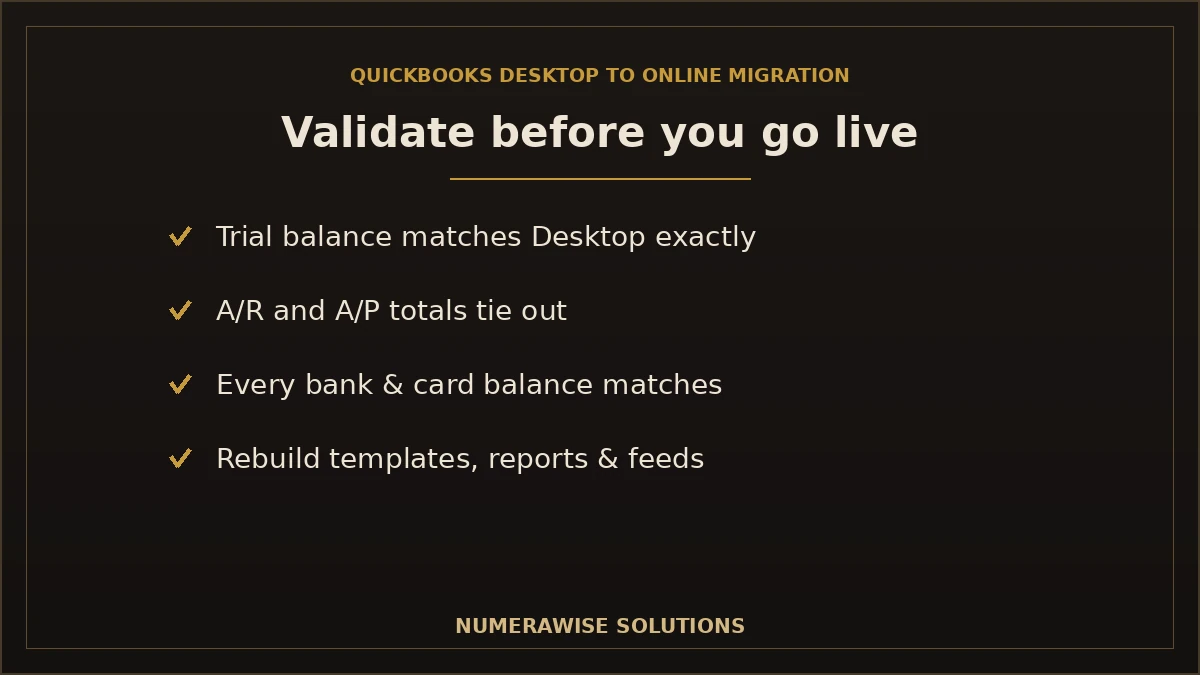
This is the phase people skip and regret. Validation proves the migration actually worked. Compare the new QuickBooks Online file against the reports you saved in Phase 2:
| Check | What to compare | Pass condition |
|---|---|---|
| Trial balance | Desktop vs. Online at cutover | Matches exactly |
| Accounts receivable | Open invoices & A/R total | Same balance |
| Accounts payable | Open bills & A/P total | Same balance |
| Bank & card balances | Each account | Ties to Desktop |
| Inventory | Item counts & value | Matches or explained |
If everything ties, you rebuild what did not transfer — custom templates, memorized reports, and bank-feed connections — and then go live. If something is off, you fix it before relying on the file. A migration is not finished the moment data moves; it is finished when the numbers are proven.
Training your team after the move
The cloud interface is different, and a little training prevents a frustrating first week. Show your team where day-to-day tasks live, how bank feeds and rules replace manual entry, and where the reports they rely on now sit. Give them a quick reference and a person to ask. Most teams are comfortable within a couple of weeks, and the anywhere-access quickly wins people over. Skipping this step is a common reason a technically perfect migration still feels rocky.
Benefits of a well-run migration
- No lost data. A planned move protects every balance and transaction.
- No downtime. A clean cutover means you keep working without a gap.
- Trustworthy books from day one. Validation proves the numbers before you rely on them.
- A confident team. Training turns the switch into an upgrade, not a disruption.
- Cloud advantages, immediately. Anywhere access, live collaboration, and automatic backups.
- A clean foundation. The prep phase leaves your books tidier than they were.
Common migration mistakes to avoid
- Treating it as one click. The export is one phase of four; the others protect your books.
- Skipping the saved reports. Without a Phase 2 trial balance, you cannot validate the move.
- Migrating a messy file. Prep first — the cloud will not fix Desktop’s errors.
- Entering data mid-migration. Work in one system at a time to avoid mismatches.
- No training. A perfect data move still frustrates an unprepared team.
- Deleting Desktop immediately. Keep it read-only for history and audit.
Best practices for a smooth migration
- Write a one-page plan: plan, date, history, owner.
- Run the full pre-migration checklist before exporting.
- Save trial balance, A/R, A/P, and balance sheet at cutover.
- Migrate at a quiet time — a new quarter or year if possible.
- Validate every balance against the saved reports.
- Rebuild templates, reports, and bank feeds before going live.
- Train the team and keep Desktop read-only as backup.
How long does the migration project take?
The export runs in hours, but the full project — planning, prep, validation, and training — is what sets the real timeline. A rough guide:
| File | Typical project timeline | What drives it |
|---|---|---|
| Small, clean file | A few days | Little history, quick validation |
| Growing business | About a week | Payroll, inventory, more checks |
| Large / complex file | One to two weeks | Size limits, cleanup, rebuilds, training |
Most of the calendar goes to preparation and validation, not the data move itself. That is by design — the careful bracketing is exactly what keeps the migration from becoming a months-long cleanup later.
What happens to payroll during the migration?
Payroll needs the most careful handling in any migration. Historical payroll does not always transfer cleanly, so it is common to carry over year-to-date summary figures and set payroll up fresh in QuickBooks Online for going forward. Those year-to-date totals are reconciled carefully because they drive tax filings. If you run payroll, schedule the migration around the start of a payroll quarter or year so employee totals stay clean and no filing is disrupted. It is the one area where slowing down always pays off, since payroll errors are visible to both staff and tax authorities.
Should you run Desktop and Online in parallel?
A short overlap can build confidence, but running both systems for long doubles your work and invites mismatched records. The cleaner approach is a validated cutover on a set date, with the Desktop file kept read-only for reference. If you do overlap, keep it to a single period and pick one system as the source of truth so you are not entering everything twice. Once validation passes, there is little reason to keep working in Desktop.
What a migration project costs
Intuit’s migration tool is free, but a managed migration has a cost that reflects the project around it: planning, cleaning and preparing the file, running and validating the move, rebuilding what does not transfer, and training. A small, tidy file is a modest project; a large or messy file with payroll and inventory takes more. The preparation and cleanup portion is usually the biggest variable and the best investment, because it decides whether you launch on a clean file or drag old problems into the cloud. Ask for a quote based on your actual file.
Getting started with your migration
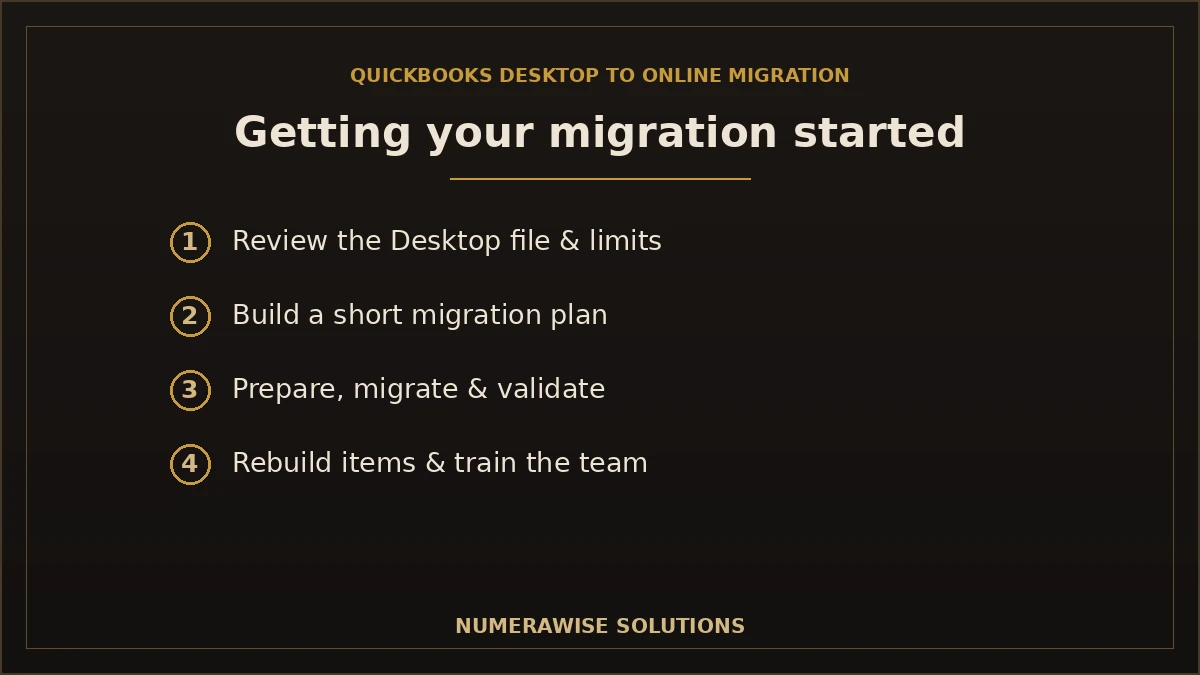
Getting started is simple. We review your Desktop file, confirm the right QuickBooks Online plan, and build a short migration plan — including whether the file needs cleanup or is within the tool’s limits. From there we prepare, migrate, and validate every balance, then rebuild what did not transfer and support your team through the first close. Whether you run a single Desktop file or a complex setup with payroll and inventory, the first step is the same: a quick review of your file and a clear plan for the move.
Keeping your data secure during the move
Your company file is your financial history, so guard it through the migration. Take a full backup before the export, work from copies rather than your only file, and never treat the move as final until validation passes. Keep the Desktop file and its backup accessible read-only after go-live for reconciliation history and audit support. Once you are live, QuickBooks Online stores your data encrypted in the cloud with automatic backups, so you no longer carry the risk of a single computer holding your only copy. You keep ownership of both files throughout, and nothing is deleted until the new file is proven complete.
What a smooth migration looks like in practice
Picture a small services firm on QuickBooks Desktop moving at the start of a new quarter. The week before, they update Desktop, reconcile every account, tidy the chart of accounts, and save their trial balance, A/R, A/P, and balance sheet. On migration day they stop entering data, run the export, and set opening balances. The next morning, validation shows the cloud trial balance matches Desktop to the penny. They rebuild two custom invoice templates and reconnect the bank feeds, spend twenty minutes showing the team where things live, and go live. No lost data, no downtime, no scramble — because the project was run in the right order. That is the whole point of treating the switch as a migration, not a click.
Why choose Numerawise for your migration
At Numerawise Solutions, we run migrations as managed projects, not gambles. We plan the move, prepare and clean your Desktop file, run the export, and validate every balance against Desktop before you rely on the cloud file — then rebuild the templates, reports, and feeds that do not transfer and help your team settle in. Our conversion services cover Desktop-to-cloud moves of every size, including large files that exceed the automated tool’s limits.
We work remotely through secure tools, so you get a specialist who has managed this migration many times, not a first attempt on your live books, and we can continue with ongoing bookkeeping services once you are live. For the topic overview, see our QuickBooks Desktop to QuickBooks Online guide. Either way, the result is the same: a validated QuickBooks Online file, a team that knows how to use it, and no gap in your day-to-day.
The bottom line on QuickBooks Desktop to QuickBooks Online migration
A successful move to the cloud is a project with four phases: plan it, prepare the file, migrate the data, and validate the results before you go live. The export tool matters, but the preparation and validation around it are what protect your books and your peace of mind. Save your cutover reports, verify every balance, rebuild what does not transfer, and train your team — and the switch becomes an upgrade instead of a headache. For most businesses, the smart move is to let a specialist run the project while you keep working. Done right, a QuickBooks Desktop to QuickBooks Online migration is a one-time step that leaves you with cloud access, verified numbers, and a team ready to use them.
Key takeaways
- Run it as a project — plan, prepare, migrate, validate — not a single click.
- Save cutover reports first; the trial balance is your proof the move worked.
- Validate every balance in QuickBooks Online against Desktop before going live.
- Rebuild templates, reports, and feeds that the tool leaves behind.
- Train your team and keep Desktop read-only as a backup after go-live.
Quick answers.
What is a QuickBooks Desktop to QuickBooks Online migration?
A QuickBooks Desktop to QuickBooks Online migration is a planned project that moves your company file to the cloud in four phases: plan, prepare, migrate, and validate. It covers cleaning the Desktop file, running Intuit's export tool, verifying every balance ties out, rebuilding what does not transfer, and training your team — not just pressing an export button.
How do I prepare for the migration?
Run a pre-migration checklist in Desktop: update to the latest release, reconcile all accounts to the cutover date, clean the data, resolve open items, and back up the file. Most importantly, save your trial balance, A/R, A/P, and balance sheet as of the cutover. Those saved reports are your proof to validate the new cloud file against.
How do I know the migration was successful?
Validate the numbers. Compare the QuickBooks Online trial balance, accounts receivable, accounts payable, bank balances, and inventory against the reports you saved before migrating. Everything should match Desktop as of the cutover date. If a balance is off, the migration is not finished. Validation — not just running the export — is what proves your cloud books are accurate.
When is the best time to run the migration?
Choose a quiet window, ideally the start of a new quarter or financial year. That lets you carry over closing balances and start the new period fresh in the cloud, with less history to reconcile. Avoid tax season and busy stretches so you have time to validate balances and train your team without pressure.
What does not transfer during migration?
Your accounts, customers, vendors, transactions, and trial balance transfer. Reconciliation reports, memorized reports, custom templates, and the audit trail do not — they are rebuilt in QuickBooks Online. Payroll and some inventory move with limits. Planning to rebuild these items is part of the validation phase, so nothing feels missing after you go live.
How long does a QuickBooks Desktop to QuickBooks Online migration take?
The export itself runs in hours, but the full project usually takes a few days to a week for most businesses, and one to two weeks for large or complex files. Most of the time goes to preparation and validation, not the data move — and that careful bracketing is exactly what prevents a months-long cleanup later.
Can I run QuickBooks Desktop and Online at the same time?
A short overlap can build confidence, but running both for long doubles your work and invites mismatched records. The cleaner path is a validated cutover on a set date, with Desktop kept read-only for reference. If you overlap, keep it to one period and pick a single source of truth so you are not entering everything twice.
What happens to payroll during the migration?
Payroll history does not always transfer cleanly, so it is common to carry over year-to-date summary figures and set payroll up fresh in QuickBooks Online going forward. Those totals are reconciled carefully because they drive tax filings. Scheduling the migration around the start of a payroll quarter or year keeps employee totals clean and filings undisrupted.
Is my data safe during the migration?
Yes, when handled properly. A good process backs up the Desktop file before exporting, works from copies, and never treats the move as final until validation passes. The Desktop file stays accessible read-only afterward for history and audit. Once live, QuickBooks Online encrypts your data in the cloud with automatic backups, removing the risk of one computer holding your only copy.
Should I hire a specialist for the migration?
For a small, clean file the built-in tool may be enough. For larger files, payroll, inventory, or anything near the size limits, a specialist is strongly recommended. They run the project end to end — plan, prepare, migrate, validate, and train — on experience rather than a first attempt on your live books. The cost is usually far less than fixing a rushed migration afterward.
Get a free scoping call.
Tell us what you’re working on. We respond same business day.

Ram · Founder & Principal
Founder of Numerawise Solutions, established MMXXIV in Atlanta. Intuit ProAdvisor Gold tier. Former Intuit Technical Support engineer. Has personally led two hundred accounting software conversions for US small businesses since founding the practice. Reachable directly at [email protected].
Free: The Clean-Cutover Checklist
The step-by-step checklist we use to migrate businesses to QuickBooks without losing data — bank rec, opening balances, payroll YTD, and the validation tie-out. Get it in your inbox.
No spam — just the checklist and the occasional QuickBooks tip.