You are running your Friday backup to the external drive, and QuickBooks stops cold with a message: “A device which does not exist was specified.” That is QuickBooks error 0x800701b1, and despite where it shows up, it is not really a QuickBooks problem.
This is a Windows storage error. It means Windows tried to read from or write to a drive path it can no longer see. QuickBooks just happens to be the program that hit the wall — usually during a backup, restore, or when opening a company file stored on an external or network drive.
The fix is usually simple. But there is one thing to understand first: if the drive is failing, repeated retry attempts can corrupt your backup or your company file. So we will troubleshoot in an order that protects your data.
What is QuickBooks error 0x800701b1?
QuickBooks error 0x800701b1 is a Windows error code (common on Windows 10 and 11) that appears when the system cannot access the storage location QuickBooks is pointing to. The full message reads: “A device which does not exist was specified.” In plain terms, QuickBooks asked Windows for a drive — an external hard drive, USB stick, mapped network drive, or folder — and Windows answered that the drive is not there. You will typically see it when:
- Backing up the company file to an external or USB drive
- Restoring a backup from external media
- Opening a company file stored on a network or mapped drive
- Moving or copying the .QBW file between locations
The error message is literal. Something between QuickBooks and the physical storage — a cable, port, driver, drive letter, or permission — has broken the path.
Before you troubleshoot: protect your file first
Skipping this section is how a minor connection glitch turns into a data-recovery job. Do these three things before any fix:
- Close QuickBooks on every computer. If the file lives on a network, have all users log out of the company file.
- Copy the company file folder if you can reach it. Grab the .QBW file plus the .TLG and .ND files sitting next to it, and copy them somewhere safe on your local C: drive.
- Stop retrying if the drive keeps disconnecting. A drive that appears and disappears may be physically failing. Hammering it with backup attempts risks corrupting what is still readable.
With a safety copy in hand, you can troubleshoot freely.
What causes error 0x800701b1 in QuickBooks?
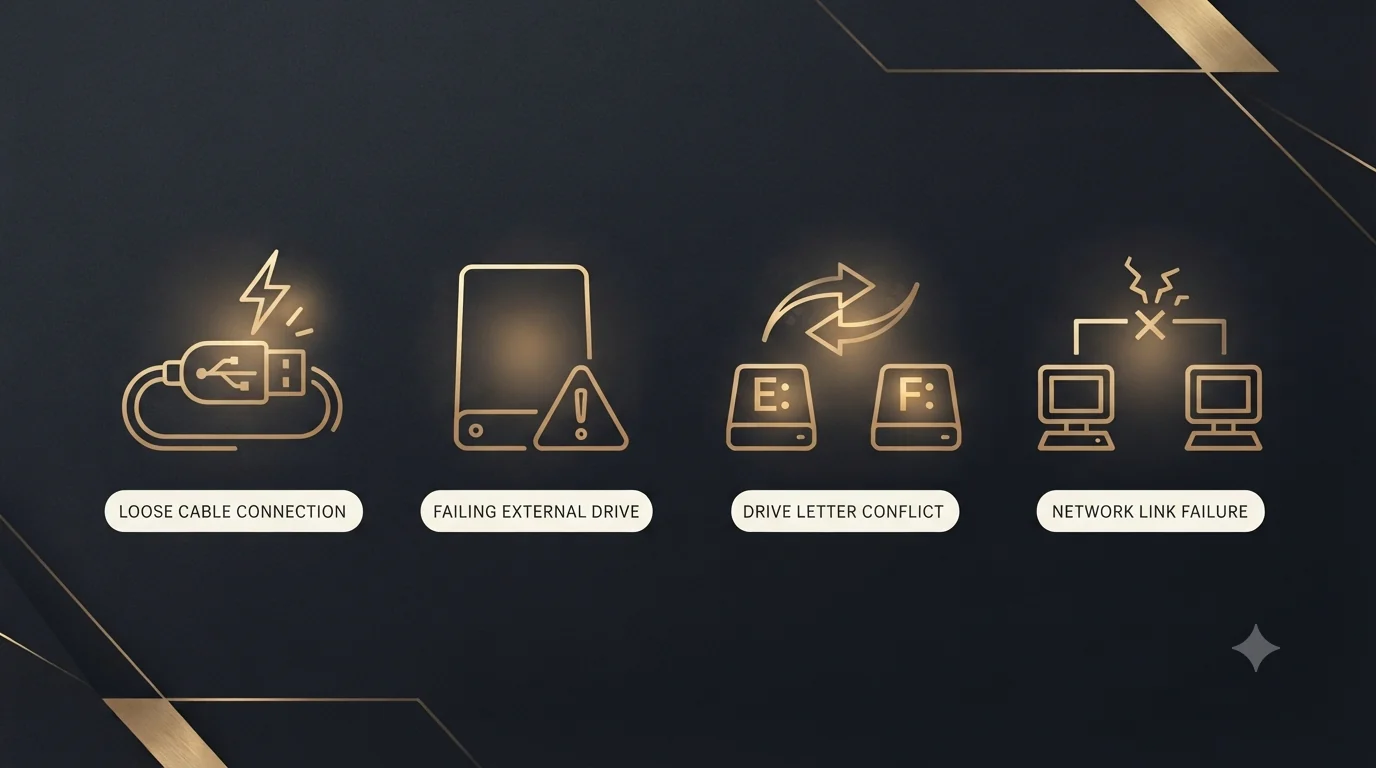
The same short list of culprits explains nearly every case we have handled for clients:
| Cause | How it happens | Quick test |
|---|---|---|
| Loose or failing USB connection | Worn port, bad cable, underpowered USB hub | Plug the drive directly into a rear USB port |
| Failing external drive | Bad sectors, aging hardware | Try the drive on another computer |
| Changed drive letter | Windows reassigned E: to F: after a reboot | Check Disk Management for the current letter |
| Outdated or corrupted USB/disk drivers | Missed Windows updates | Check Device Manager for warning icons |
| Broken mapped network drive | VPN change, reboot, or expired credentials | Open the mapped drive in File Explorer |
| Permission problems | File ownership changed; QuickBooks lacks write rights | Try creating a test folder in the destination |
| Antivirus interference | Security software blocks the file transfer | Temporarily pause real-time protection |
One detail worth knowing: old USB ports and drives sometimes work fine for small files but fail on QuickBooks backups, which are larger, sustained writes. A drive that “works for everything else” can still be the problem.
How to fix QuickBooks error 0x800701b1: step by step
Work through these in order. Each step ends with a retest, so stop as soon as the error clears.
Step 1: Confirm Windows can actually see the drive
Open File Explorer. Can you see the drive, open it, and create a new test folder inside it? If Windows cannot do that reliably, QuickBooks never had a chance. Reconnect the drive directly to the PC — no USB hubs — and prefer a rear port on a desktop, which delivers steadier power.
Step 2: Try a different port, cable, or computer
Swap to another USB port (ideally USB 3.0). If the error follows the drive to a second computer, the drive itself is the problem. If the drive works fine elsewhere, your original computer’s port or drivers are suspect.
Step 3: Rescan disks in Disk Management
Sometimes Windows loses track of a connected drive:
- Press Win + R, type diskmgmt.msc, and press Enter.
- Click the Action menu, then Rescan Disks.
- Wait for the scan to finish and retry your backup.
Step 4: Check for a changed drive letter
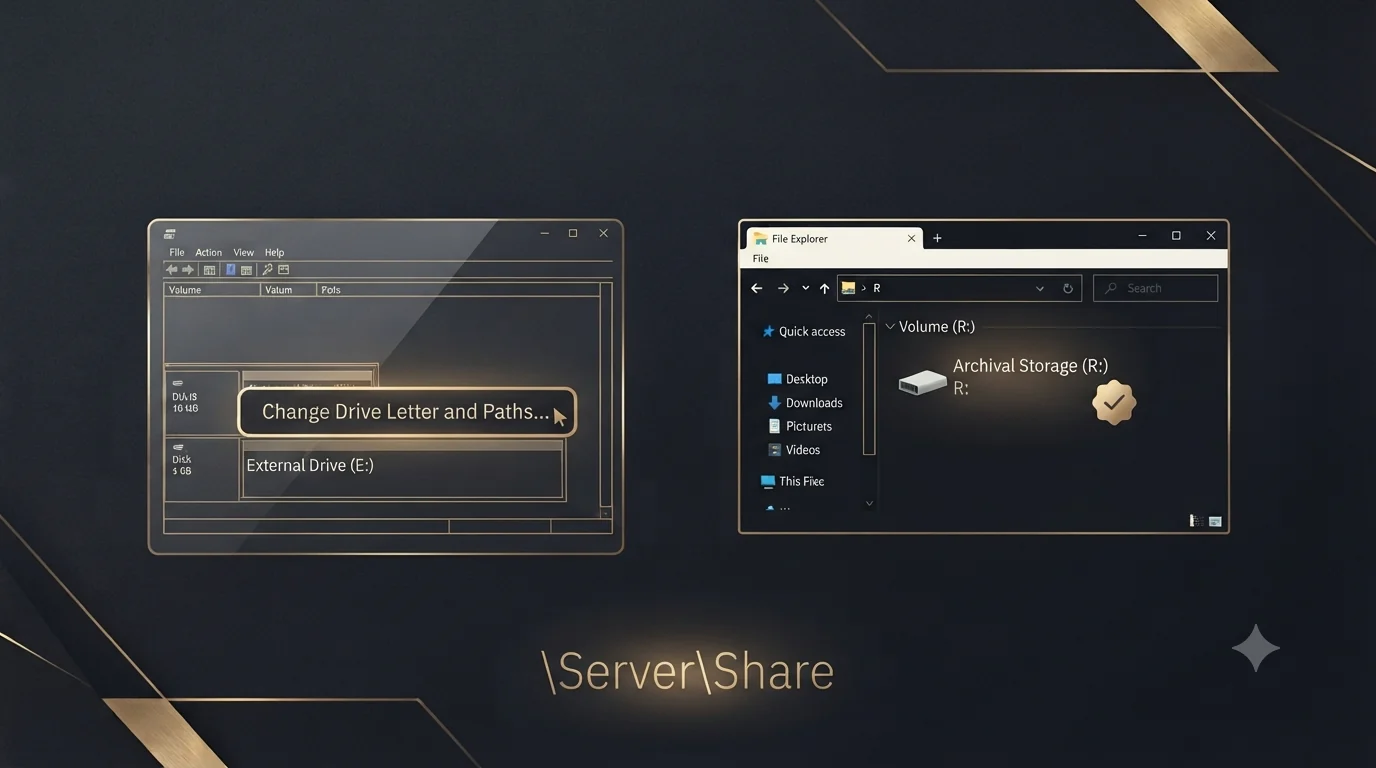
External drives sometimes come back after a reboot with a new letter. If your backup destination still points to the old one, Windows reports a device that does not exist. In Disk Management, right-click the drive, choose Change Drive Letter and Paths, and assign a stable letter far down the alphabet — something like R: or S: that Windows will not hand to the next USB stick you plug in. Then update your QuickBooks backup destination to match.
Step 5: Run CHKDSK and update drivers
Open Command Prompt as administrator and run chkdsk R: /f (using your drive’s letter). This repairs file-system errors on the drive. While you are at it, open Device Manager and update any USB or disk drivers showing warnings. Microsoft’s support documentation covers both tools in depth if you want the full reference.
Step 6: Fix the network path (for files on a server)
If the company file lives on a mapped network drive, disconnect and re-map the drive — or better, open the file using the UNC path (\\ServerName\SharedFolder) instead of a drive letter. Mapped letters break silently after reboots, VPN changes, and credential expirations. UNC paths do not. This single change resolves a surprising share of 0x800701b1 cases in multi-user setups.
Step 7: Test the file locally
Copy the .QBW and .TLG files to a simple local folder like C:\QBTEST and open the company file from there. If it opens cleanly, your file is healthy and the problem is confirmed as the storage path — network, external drive, or permissions. If the file will not open even locally, the file itself may be damaged, and that is a different repair entirely.
When the error points to something bigger
Most 0x800701b1 cases end at the steps above. But two situations call for a change of plan.
If the external drive is failing, retire it now. Drives rarely fail all at once — they degrade, and a backup written to a dying drive is a backup you cannot trust. Replace the hardware and verify your next backup restores properly.
If the company file will not open even from a local folder, you have likely got file damage layered on top of the drive problem. Interrupted writes during failed backup attempts are a known corruption trigger. At that point, stop running utilities and get the file assessed — our QuickBooks repair services team handles exactly this, and early intervention keeps recovery odds high.
Best practices to keep this error from coming back
- Stop backing up to USB drives you unplug daily. Constant connect/disconnect cycles cause drive-letter changes and wear out ports. Use a fixed internal or network location, or Intuit’s cloud backup.
- Follow the 3-2-1 rule: three copies of your data, on two different media types, with one offsite. A single external drive is one hardware failure away from zero backups.
- Assign permanent drive letters to any external drive you do use, as described in Step 4.
- Verify backups monthly by actually restoring one to a test folder. An unverified backup is a guess.
- Keep Windows and drivers updated. Many storage errors trace back to driver bugs that were patched months ago.
- Use UNC paths in multi-user environments instead of mapped drive letters.
Why choose Numerawise Solutions
Error codes like this one sit at the intersection of IT and accounting — and that is where problems get mishandled. An IT tech can restore the drive connection but will not notice the backup that has been silently failing for three months. A bookkeeper spots the gap but cannot fix the hardware path causing it.
At Numerawise Solutions, we work on both sides of that line. Our team manages QuickBooks environments for contractors, real estate firms, and multi-entity businesses daily, which means we have diagnosed this error across every setup: single-user desktops, hosted servers, and messy hybrid networks. When we resolve an error, we also verify the backups, confirm the balances, and document what changed.
If the error interrupted months of unrecorded work, our catch-up bookkeeping team can close the gap. And if recurring file and storage problems have you questioning QuickBooks Desktop altogether, our QuickBooks migration services can move you to a cloud setup where drive errors simply stop being your problem. Many clients hand us the whole function through outsourced bookkeeping services so file health gets watched every month, not just after an error.
Final thoughts
QuickBooks error 0x800701b1 looks alarming, but it is usually a broken path between Windows and a storage drive — not damage to your books. A loose USB connection, a reassigned drive letter, or an expired network mapping explains most cases, and the seven steps above resolve the vast majority of them in under an hour.
The real risk is not the error itself. It is what the error reveals: a backup routine that depends on a single aging external drive. If this message interrupted your backup, treat it as a free warning. Replace suspect hardware, verify that your backups actually restore, and consider moving to a backup destination that does not live on the end of a USB cable. And if the company file will not open even after the storage path is fixed, do not keep retrying — get the file professionally assessed before the damage compounds.
Key takeaways
- Error 0x800701b1 is a Windows storage error, not a QuickBooks defect — it means the destination drive cannot be accessed.
- It most often strikes during backups to external drives and when opening files on mapped network drives.
- Copy your .QBW and .TLG files to a safe local location before troubleshooting, and stop retrying if the drive keeps disconnecting.
- Changed drive letters, bad USB connections, and broken drive mappings cause most cases; UNC paths and permanent drive letters prevent repeats.
- A failing external drive should be replaced, not repaired — backups on dying hardware cannot be trusted.
- If the file will not open even locally, the file may be damaged and needs professional assessment, not more retry attempts.