Sage 50 to QuickBooks Enterprise Conversion Services
Numerawise Solutions migrates your accounts, balances, and complete transaction history from Sage 50 into QuickBooks Enterprise through our Sage 50 to QuickBooks Enterprise conversion service. Every figure is reconciled against the original file and verified before go-live, and the work is performed by Intuit ProAdvisors.
Complimentary file review · Fixed-price quote within 24 hours · Intuit ProAdvisor Gold
Definition
What is a Sage 50 to QuickBooks Enterprise conversion?
A Sage 50 to QuickBooks Enterprise conversion is the process of moving your company’s financial data — chart of accounts, customers, vendors, balances, and transaction history — out of Sage 50 (formerly Peachtree) and into QuickBooks Desktop Enterprise, then confirming that both systems agree.
Here’s the part most articles get wrong. QuickBooks Enterprise is a desktop product, so the free, official path for this move is the QuickBooks Desktop Conversion Tool from Intuit. You install it on the same computer as your data, point it at your Sage 50 company file, and pick Enterprise as the target.
You may have heard of Dataswitcher, Intuit’s migration partner. It’s a great tool — but it’s built for Sage 50 to QuickBooks Online, not Enterprise. If your goal is Enterprise, Dataswitcher isn’t your route. Mixing the two up is the fastest way to waste a weekend.
The case in 2026
Why move from Sage 50 to QuickBooks Enterprise?
Intuit stopped selling new Pro Plus, Premier Plus, and Mac Plus desktop subscriptions to US customers after September 2024. Enterprise is now the only desktop version still sold to brand-new customers, and it has no announced end date. Older desktop editions keep losing support on a rolling schedule, and desktop prices climbed again in February 2026. If you want the power of a desktop system without staying on Sage 50, Enterprise is the natural landing spot. Businesses usually switch for a mix of these reasons:
- Room to grow — far more list items, transactions, and simultaneous users
- Real job costing — cleaner cost tracking by customer and job
- Industry editions — Contractor, Manufacturing & Wholesale, Nonprofit, Retail
- Advanced inventory — bin locations, barcode scanning, multiple warehouses
- Better reporting — flexible, presentation-ready reports for owners and lenders
- A huge ecosystem — thousands of add-ons, and bookkeepers who know it everywhere
That last point matters more than people think. When your software is common, finding support — and a backup bookkeeper — is easy.
Scope
What data transfers in the conversion?
The conversion tool moves your core lists and a good chunk of history, but several important pieces have to be rebuilt by hand. Here’s a clear breakdown:
| Usually transfers automatically | Usually needs a manual rebuild |
|---|---|
| Chart of accounts and account balances | Payroll transactions and employee year-to-date totals |
| Customers and vendors | Payroll items (pay rates, deductions, tax setup) |
| Open invoices (A/R) and open bills (A/P) | Fixed asset items and depreciation schedules |
| General ledger transaction history | Budgets |
| Employee names and basic details | Memorized/recurring transactions |
| Inventory items (with some adjustments) | Bank reconciliation history |
| Trial balance figures | Closed or partly closed sales orders, POs, and estimates |
| — | Attachments and detailed audit trail |
A few technical rules to check before you run anything:
- Seven-digit account limit — QuickBooks Desktop rejects account numbers longer than seven digits; renumber long Sage 50 codes first
- Same region only — a US Sage 50 file converts to a US QuickBooks file
- Local drive, same PC — both programs and the data file on the local hard drive, not a network share
- Supported versions — US Sage 50 from 2015 or newer; older Peachtree, Sage 100/300, and industry editions move through Excel instead
The process
How the conversion works, step by step
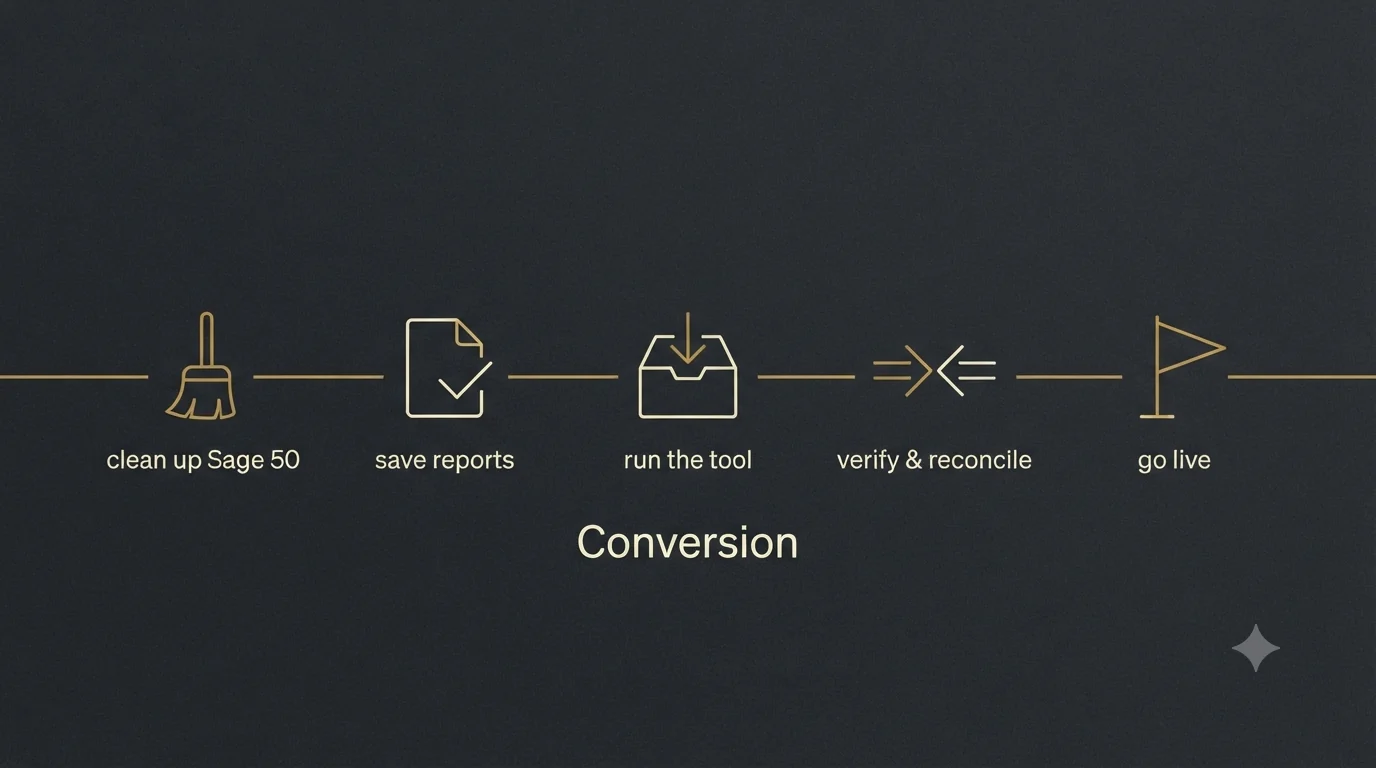
Here’s the workflow we follow to convert Sage 50 to QuickBooks without nasty surprises.
Clean up Sage 50 first
Run the data integrity check, fix errors, reconcile bank and credit card accounts, and close out the period. Garbage in, garbage out.
Back up and save your reports
Export trial balance, balance sheet, P&L, and A/R and A/P aging as of your cutoff date. These become your answer key.
Confirm the requirements
Check versions, shorten long account numbers, install QuickBooks Enterprise on the same computer, and keep both files on the local drive.
Run the Conversion Tool
Point the QuickBooks Desktop Conversion Tool at the Sage 50 file, enter the password, and select Enterprise as the target.
Read the failed-transaction log
The tool logs anything it couldn’t move. Don’t skip this — it’s your to-do list.
Rebuild the gaps
Re-enter payroll items and employee year-to-date totals, set up fixed assets and depreciation, recreate budgets, and rebuild memorized transactions.
Verify the numbers
Compare the new trial balance, balance sheet, P&L, and aging reports against your saved Sage 50 reports — they should match at the cutoff.
Reconcile and run parallel
Reconcile your QuickBooks accounts, then run both systems side by side for a short period before you retire Sage 50.
That parallel run is your safety net. If a balance drifts, you’ll catch it while you still have both systems to compare.
Why use a pro
Benefits of a professional conversion
You can handle a simple file yourself. But a professional QuickBooks Enterprise conversion service earns its fee when the books are complex:
- Books that tie out — your trial balance and financials match Sage 50
- No lost history — years of transactions stay searchable
- Fewer redo loops — someone who has done this avoids restart-causing errors
- Correct payroll setup — year-to-date totals rebuilt so year-end W-2s are right
- Clean job costing — your customer-and-job structure mapped correctly
- Less downtime — your team keeps working during the conversion
- Accountability — a person to call, not a help forum
Watch out
Common mistakes to avoid
- Skipping the Sage 50 cleanup — converting messy data just moves the mess
- Converting mid-period — a month- or year-end cutoff makes verification simpler
- Assuming payroll history comes over — it doesn’t; plan to rebuild it
- Ignoring the failed-transaction log — everything in it needs a manual fix
- Not reconciling afterward — if you don’t reconcile, you won’t know it’s right
- Deleting Sage 50 too soon — keep a read-only archive for the record
- Leaving long account numbers — seven-digit-plus codes break the tool
- Skipping the parallel run — no way to compare if you switch on day one
Get it right
Best practices for a smooth conversion
- Pick a clean cutoff — month-end or, better, fiscal year-end
- Save every key report first — trial balance, balance sheet, P&L, A/R and A/P aging
- Keep a Sage 50 archive — a read-only copy for later lookups
- Rebuild payroll year-to-date before your first live payroll
- Document your account mapping — how each Sage 50 account maps to QuickBooks
- Test in a copy before you commit to the live file
- Bring in your bookkeeper early — fixing a plan is cheap; fixing a botched file is not
Which destination
QuickBooks Enterprise or QuickBooks Online?
Both are valid destinations, and the right one depends on how you work.
Choose QuickBooks Enterprise (desktop) if you need advanced inventory, deep job costing, large customer and item lists, or you simply prefer keeping your data on your own machine. This path uses the QuickBooks Desktop Conversion Tool.
Choose QuickBooks Online if you want to log in from anywhere, share access with a remote team or accountant, and keep operations simple. This path uses Dataswitcher, and Intuit covers the cost to move your last two years of data (accrual basis only).
Not sure which fits? A short planning call usually settles it — the wrong platform is expensive to undo once you’ve built months of history on it.
Who performs the work
Led by an Intuit ProAdvisor

Ram — Founder & Principal
Ram is the founder of Numerawise Solutions in Atlanta. An Intuit ProAdvisor (Gold tier) and a former Intuit Technical Support engineer, he has personally led more than 200 accounting-software conversions, including Sage 50 and QuickBooks Enterprise engagements, for small and mid-market firms across the United States.
More about Ram Verified on UpworkCommon questions
Sage 50 to QuickBooks Enterprise conversion FAQs
How long does a Sage 50 to QuickBooks Enterprise conversion take?
The tool itself usually finishes in a few hours. The full project — cleanup, verification, rebuilding payroll and fixed assets, and reconciling — typically runs one to two weeks depending on file size and complexity. Simple books move faster; heavy job costing, inventory, and payroll history take longer. A short parallel run adds a little time but saves you from year-end surprises.
Does the conversion move my payroll history?
No. The conversion tool does not carry over paychecks or employee year-to-date totals, and payroll items such as pay rates, deductions, and tax setup have to be rebuilt in QuickBooks. This matters most for quarterly filings and W-2s. Re-enter year-to-date figures before your first live payroll so year-end tax forms come out correct.
Is the QuickBooks Desktop Conversion Tool free?
Yes. Intuit provides the QuickBooks Desktop Conversion Tool at no charge, and you can download it from Intuit’s official site. It moves Sage 50 (Peachtree) data into QuickBooks Desktop Pro, Premier, or Enterprise. The software is free, but the real cost of a conversion is the time spent cleaning data, rebuilding what doesn’t transfer, and verifying that your balances match.
Can I convert Sage 50 directly to QuickBooks Online instead of Enterprise?
Yes, but that’s a different path. Sage 50 to QuickBooks Online uses Intuit’s partner Dataswitcher, and Intuit covers the cost to move your last two years of data on an accrual basis. Enterprise, being a desktop product, uses the Conversion Tool instead. Pick your destination first, then use the matching tool — they aren’t interchangeable.
Will my reports match after the conversion?
They should, if you verify carefully. Save your Sage 50 trial balance, balance sheet, profit and loss, and aging reports as of your cutoff date, then compare them to the same reports in QuickBooks. Small timing differences can appear, but your balances should tie out. If they don’t, review the failed-transaction log and reconcile before you go live.
What versions of Sage 50 can be converted?
The QuickBooks Desktop Conversion Tool supports US editions of Sage 50 from 2015 or newer. Older Peachtree files, Sage 50 from 2014 or earlier, Sage 100, Sage 300, and Sage industry-specific editions are not supported by the tool. Those files can still be moved, but you’ll rebuild the data using Excel imports rather than the automated conversion.
Do I need to keep my old Sage 50 file after switching?
Yes. Keep a read-only backup of your Sage 50 company file even after a clean conversion. You’ll want it to look up historical detail, respond to audits, and support your tax records for the retention period recommended by the IRS. Treat the archive as part of your records, not something to delete once QuickBooks is running.
What's the best time to do the conversion?
The end of a fiscal period — ideally your fiscal year-end — is the cleanest time. A clear cutoff makes it far easier to confirm that opening balances and reports match. Avoid converting in the middle of a busy month or right before a filing deadline. Give yourself enough breathing room to prepare, run the tool, and verify the results.
Can I do the conversion myself, or should I hire a professional?
A small, tidy Sage 50 file with no payroll can often be a do-it-yourself job. But if you have payroll history, job costing, inventory, or multiple years of data, professional help usually pays for itself by preventing errors that force a restart. A specialist also verifies your numbers and rebuilds the pieces the tool leaves behind.
What data usually needs to be rebuilt by hand?
Plan to manually rebuild payroll items and employee year-to-date totals, fixed assets and depreciation, budgets, memorized transactions, bank reconciliation history, and any closed or partly closed sales orders, purchase orders, and estimates. Attachments and detailed audit trails also don’t transfer. Knowing this list up front is what keeps a Sage 50 to QuickBooks Enterprise conversion on schedule.
Begin
Ready to move from Sage 50 to QuickBooks Enterprise?
Provide a few details and we will email a fixed-price quote within one business day, with your Sage 50 history reconciled into a clean QuickBooks Enterprise file.