Sage One to QuickBooks Enterprise Conversion Services
Numerawise Solutions migrates your accounts, balances, and complete transaction history from Sage One into QuickBooks Enterprise through our Sage One to QuickBooks Enterprise conversion service. Every figure is reconciled against the original file and verified before go-live, and the work is performed by Intuit ProAdvisors.
Complimentary file review · Fixed-price quote within 24 hours · Intuit ProAdvisor Gold
Sage One → QuickBooks Enterprise
A managed conversion from Sage One to QuickBooks Enterprise
Sage One (Sage Business Cloud) is Sage's online accounting product for small businesses. Moving those records into QuickBooks Enterprise is considerably more involved than one-click importers suggest. Transaction detail is often collapsed into totals, bank reconciliations are broken, and entries are allocated to incorrect accounts, with the consequences typically emerging months later during reporting or an audit. Our Sage One to QuickBooks Enterprise conversion service removes that risk: the file is rebuilt correctly and reconciled against your existing records before the new system goes live.
Numerawise Solutions is an Atlanta-based practice of Intuit ProAdvisors (Gold tier) and experienced bookkeepers, with more than 200 completed conversions. The fee is fixed and agreed before the engagement begins, and your information remains confidential throughout.
A practical guide
Outgrowing Sage One, done right
Sage One is fine software for a very small business. It sends invoices, tracks expenses, and stays out of your way. The trouble starts when you add staff, carry inventory, or start bidding jobs, because the reports stop answering the questions you are asking. That is usually when owners start looking into a Sage One to QuickBooks Enterprise conversion.
We handle these migrations for a living, so here is the honest version: the move is very doable, but there is no magic button. Sage One data leaves as spreadsheet exports, and getting it into QuickBooks Enterprise cleanly takes mapping, structured imports, and careful verification. This guide covers what transfers, what does not, the exact steps, and the mistakes that turn a one-week project into a three-month headache. (And yes, if your login now says Sage Accounting, that is the same product — everything here applies.)
The basics

What is a Sage One to QuickBooks Enterprise conversion?
A Sage One to QuickBooks Enterprise conversion is the process of moving your chart of accounts, customer and vendor lists, products, open invoices and bills, account balances, and (optionally) transaction history out of Sage One into a new QuickBooks Desktop Enterprise company file, then verifying every number against your original Sage reports.
One thing catches people off guard. Intuit’s free Conversion Tool only works with Sage 50, the desktop product. It cannot read Sage One, which is cloud software with no company file to hand over. Sage One data comes out as CSV exports and report downloads, and it goes into Enterprise through structured imports. That is the real reason this is offered as a service rather than a download button.
Quick naming note, because Sage has not made this easy: Sage One was rebranded as Sage Business Cloud Accounting in 2018, and it is now marketed simply as Sage Accounting. Same product line, same migration approach.
Reasons to switch
Why businesses move from Sage One to QuickBooks Enterprise
Nobody switches accounting systems for fun. In our experience, the trigger is almost always one of four things: inventory, job costing, users, or reporting.
- You carry real inventory. Sage One offers basic stock tracking at best. Enterprise’s Advanced Inventory (Platinum and Diamond plans) handles FIFO costing, barcode scanning, and stock across multiple locations.
- You bid and track jobs. Contractors and service companies need job costing that Sage One simply was not built for. Enterprise has it natively, plus a dedicated Contractor edition.
- Your team grew. Per Intuit’s published specs, Enterprise supports up to 40 simultaneous users with role-based permissions across more than 115 activities. Sage One was designed for very small teams.
- Your reports feel thin. Enterprise ships with 200+ built-in reports plus Advanced Reporting for custom builds.
The short comparison
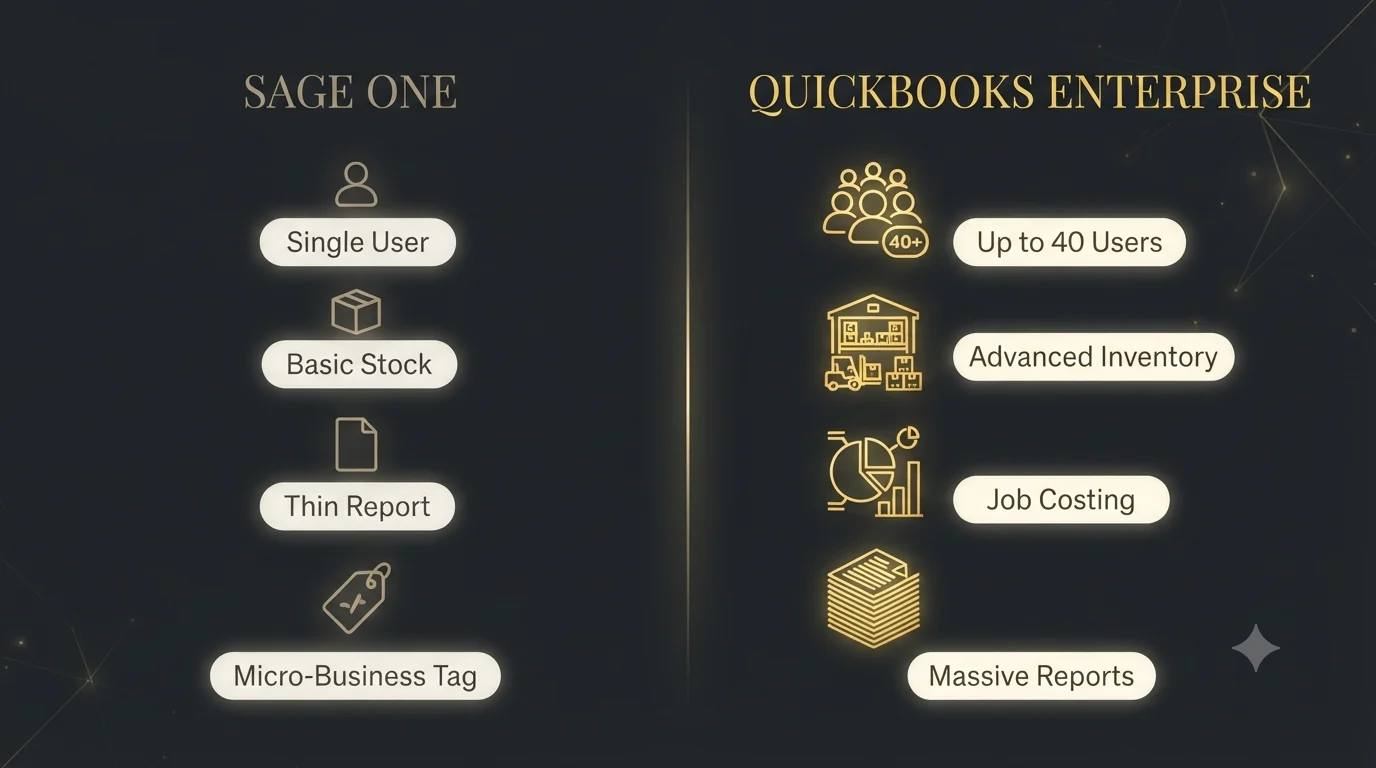
| Feature | Sage One (Sage Accounting) | QuickBooks Enterprise |
|---|---|---|
| Simultaneous users | Designed for very small teams | Up to 40 users with granular permissions |
| Inventory | Basic stock tracking on higher plans | Advanced Inventory: FIFO, barcodes, multi-location |
| Job costing | Minimal | Full job costing plus a Contractor edition |
| List capacity | Suited to small lists | Up to roughly 1 million names and items |
| Reporting | Standard report pack | 200+ reports plus Advanced Reporting |
| Best fit | Freelancers and micro-businesses | Product-based and project-based companies |
Worth knowing before you commit: Intuit no longer sells new QuickBooks Pro or Premier subscriptions. If you want QuickBooks on the desktop as a new customer, Enterprise is the product — which has quietly made this specific migration path much more common.
Scope of the migration
What converts, and what does not
Setting expectations here saves a lot of frustration later. Some data moves over; some has to be rebuilt by hand in the new file.
What transfers cleanly
- Chart of accounts
- Customer and vendor lists with contact details
- Products and services
- Open invoices and unpaid bills
- Account balances (via a trial balance as of your cutover date)
- Historical transactions, if you choose to bring them
What has to be rebuilt
- Bank feed connections
- Recurring and memorized transactions
- Invoice templates and custom forms
- User accounts, roles, and permissions
- Payroll history (entered as year-to-date summaries, not individual paychecks)
- Attachments and document links
- Budgets and third-party app integrations
None of the rebuild items are difficult. They are just work that has to be scheduled, and forgetting them is how businesses end up unable to invoice on Monday morning.
Our process
Our conversion process
Every clean migration we have delivered follows the same sequence. Skipping steps is where problems start.
Reconcile and clean up in Sage One first
Reconcile every bank and credit-card account, clear stale receivables and payables, and merge duplicate customers and items. Whatever mess exists today gets photocopied into the new system if you do not fix it now.
Pick a cutover date
The start of your fiscal year is cleanest. A month-end works well too. Save “as of” copies of your trial balance, AR aging, AP aging, open invoice list, and unpaid bills as of that date. These become your proof documents.
Export everything from Sage One
Chart of accounts, customers, suppliers, products and services, and transaction detail, all as CSV files, plus PDF copies of key reports. Sage’s own help documentation covers the export screens; download more than you think you need.
Build the Enterprise file properly
Company settings, fiscal year, sales tax items, user roles, and a chart of accounts mapped on purpose. This is your one chance to simplify a cluttered account structure instead of copying it.
Import in the right order
Lists first, then opening balances, then open transactions or history. Purpose-built import tools such as Transaction Pro are far safer for Desktop than raw IIF files, which skip validation. One trick from experience: bring opening balances in as a single journal entry under one reference number, so your import tool does not split it into fragments.
Verify against the source reports
The new trial balance should tie to the Sage trial balance to the penny. Then match AR aging customer by customer and AP aging vendor by vendor, and spot-check open invoices line by line. If something does not tie, fix it now, not at tax time.
Rebuild what does not transfer
Reconnect bank feeds, recreate recurring transactions and templates, set user permissions, and configure payroll with year-to-date figures.
Train the team and go live
Cautious clients run both systems in parallel for a week or two. After that, Sage One becomes read-only history and Enterprise is the book of record.
How long does the conversion take?
A balances-plus-open-items conversion typically takes 3 to 5 business days. Bringing over one or two years of transaction history usually stretches the project to one to three weeks, depending on volume. Multi-year history or heavy customization takes longer. The biggest variable is not the software, though — it is the condition of your books going in.
The payoff
Benefits of professional conversion services
Could a determined owner do this alone? Sometimes. Here is what a specialist adds:
- Verified accuracy. You receive tie-out reports proving the trial balance and agings match the Sage originals, which matters to your CPA and in any future audit.
- Almost no downtime. Cutover happens over a weekend or month-end close, so invoicing never stops.
- A cleaner file than the one you left. Conversions are the natural moment to fix a bloated chart of accounts and duplicate lists.
- Sales tax done right. Sage tax codes do not map one-to-one to QuickBooks sales tax items, and getting this wrong creates filing problems.
- Features working on day one. Inventory, job costing, and user permissions are configured, not just installed.
- Your time back. Your team keeps running the business instead of learning import file formats.
Pitfalls
Common mistakes to avoid
We get called in to rescue attempted migrations fairly often, and the same errors keep appearing:
- Migrating dirty books. Unreconciled accounts and duplicate customers do not improve by changing software.
- Canceling Sage before exporting everything. Cloud access ends with your subscription. Download every list and report first.
- Cutting over mid-month. It makes the first reconciliation in QuickBooks needlessly painful.
- Trusting raw IIF imports. They bypass QuickBooks’ validation and can quietly damage a company file.
- Assuming payroll history comes over. It does not. Plan for year-to-date entries and a fresh payroll setup.
- Comparing reports on different bases. Check both systems on the accrual basis, or the numbers will never appear to match.
- Skipping the tie-out. If nobody proves the balances match, you will discover the differences months later, when they are expensive to trace.
Do it right
Best practices for a smooth migration
- Freeze Sage One after the final export. Any transaction entered afterward must be logged and re-entered in QuickBooks, so keep a strict list.
- Archive your Sage records. The IRS expects businesses to keep records supporting income and deductions — generally three years, and longer for payroll. Save PDF and CSV copies before the subscription lapses.
- Decide your history depth up front. Full history, one to two years, or balances-only with archived reports. Each is valid; changing your mind mid-project is what costs money.
- Test with a small batch first. Import 20 transactions, check them, then load thousands.
- Budget time for training. The biggest mental shift for Sage users is QuickBooks’ item-driven workflow, where products and services drive the accounting behind the scenes.
Why Numerawise
Why choose Numerawise Solutions
Data migration is not a side offering for us. Numerawise Solutions is an Atlanta-based bookkeeping and accounting firm, and software conversions are core work we do every week. We have moved companies off Sage One, Sage 50, Xero, FreshBooks, and construction platforms like Foundation, so we have already hit and solved the import errors you would otherwise discover at 11 p.m. on cutover night. Working with us looks like this:
- A fixed process with documented tie-outs. You get before-and-after reports showing your trial balance, AR aging, and AP aging match the Sage originals.
- Cleanup handled where it matters. If your books need catch-up bookkeeping before they are fit to migrate, we do that first rather than importing the mess.
- Support after go-live. Many clients keep us on for outsourced bookkeeping in QuickBooks, so the file stays as clean as the day we delivered it.
- Honest scoping. Whether you need a balances-only transfer or a full-history QuickBooks data migration, we will tell you plainly which one your business actually needs, and why.
Final thoughts
Make the move without losing a number
Switching accounting systems feels risky because it is risky, when it is rushed. Done properly, a Sage One to QuickBooks Enterprise conversion is a controlled, verifiable project: clean exports, deliberate mapping, structured imports, and a trial balance that ties out to the penny before anyone works in the new file. The businesses that struggle are almost always the ones that treated migration as a weekend chore instead of an accounting project. If Sage One has stopped keeping up with your inventory, your job costing, or your team, waiting rarely makes the move easier — transaction volume only grows, and so does the cleanup. Pick a sensible cutover date, reconcile your books, archive your Sage records, and bring in someone who has done this many times before.
In short
Key takeaways
- There is no one-click tool for Sage One to QuickBooks Enterprise. Intuit’s free Conversion Tool only reads Sage 50 desktop files; Sage One data moves via CSV exports and structured imports.
- Lists, balances, open AR/AP, and optional history transfer. Bank feeds, templates, payroll history, attachments, and permissions must be rebuilt.
- Cut over at fiscal-year start or month-end, and never mid-month.
- Verification is non-negotiable: the new trial balance and agings must tie to the Sage originals to the penny.
- Export and archive everything from Sage One before canceling; access ends with the subscription, and the IRS expects supporting records to be kept.
- Typical timeline: 3 to 5 business days for balances and open items, one to three weeks with transaction history.
- Enterprise is the desktop path forward, since Intuit no longer sells new Pro or Premier subscriptions.
Who performs the work
Led by an Intuit ProAdvisor

Ram — Founder & Principal
Ram is the founder of Numerawise Solutions in Atlanta. An Intuit ProAdvisor (Gold tier) and a former Intuit Technical Support engineer, he has personally led more than 200 accounting-software conversions, including Sage One and QuickBooks Enterprise engagements, for small and mid-market firms across the United States.
More about Ram Verified on UpworkCommon questions
Sage One to QuickBooks Enterprise conversion FAQs
Is there a direct tool to convert Sage One to QuickBooks Enterprise?
No. Intuit’s free Conversion Tool only reads Sage 50, the desktop product, and the Dataswitcher service targets QuickBooks Online, not Enterprise. Sage One data exports as CSV files, which then need mapping, structured importing, and verification inside Enterprise. That is why most businesses use a Sage One to QuickBooks Enterprise conversion service instead of attempting a manual transfer with spreadsheets.
What data transfers during a Sage One to QuickBooks Enterprise conversion?
Your chart of accounts, customers, vendors, products and services, open invoices, unpaid bills, and account balances all transfer, along with historical transactions if you want them. Bank feed connections, recurring transactions, invoice templates, attachments, budgets, and user permissions do not carry over and are rebuilt in the new Enterprise file as part of the project.
How long does the conversion take?
A balances-and-open-items conversion usually takes 3 to 5 business days. Adding one to two years of transaction history typically extends the project to one to three weeks. The real drivers are transaction volume, how clean the Sage One data is, and how much customization the new Enterprise file needs, such as inventory setup or user roles.
Will I lose my transaction history?
No. You choose the depth: full history, a set number of years, or opening balances only with archived Sage reports for reference. Many businesses bring one to two years of detail into Enterprise and keep older years as PDF and CSV archives. Either way, nothing is lost as long as you export before your Sage subscription ends.
Does payroll data convert from Sage One?
Payroll history does not convert as individual paychecks. Instead, year-to-date totals are entered as summaries so W-2s and payroll tax filings stay accurate, and payroll is set up fresh in QuickBooks. Enterprise Gold, Platinum, and Diamond plans include payroll, so most businesses configure it during the conversion and run their first payroll in the new system.
Is Sage One the same as Sage Business Cloud Accounting?
Yes. Sage One was renamed Sage Business Cloud Accounting in 2018 and is now sold simply as Sage Accounting. It is the same cloud product line, so the migration approach is identical regardless of which name appears on your login screen. If you are on Sage 50, that is a different desktop product with its own conversion path.
When is the best time to switch from Sage One to QuickBooks Enterprise?
The start of your fiscal year is ideal because you begin the new file with a clean slate and simple opening balances. A month-end cutover is the next best option. Avoid mid-month conversions; they split a bank statement across two systems and make your first QuickBooks reconciliation harder than it needs to be.
Can I keep using Sage One during the conversion?
Yes, right up to your cutover date. After the final export, either freeze new entries or keep a strict log of anything entered so it can be re-entered in QuickBooks. A good conversion is scheduled around a weekend or month-end close, so your team keeps invoicing and paying bills with essentially no downtime.
What happens to my Sage One data after I cancel?
Your access ends when the subscription does, so export every list and report before canceling. Save trial balances, agings, transaction detail, and tax reports as both CSV and PDF. The IRS generally expects records supporting your returns to be kept for at least three years, and longer for payroll, so a complete archive protects you.
Do I actually need Enterprise, or would QuickBooks Online work?
It depends on the business. Heavy inventory, serious job costing, large lists, or a bigger team point to Enterprise. A simpler service business might do fine on QuickBooks Online. Since Intuit stopped selling new Pro and Premier subscriptions, Enterprise is the desktop option for new customers, which is exactly why we scope this with clients before recommending a path.
Begin
Ready to move from Sage One to QuickBooks Enterprise?
Provide a few details and we will email a fixed-price quote within one business day, with your Sage One history reconciled into a clean QuickBooks Enterprise file.