Established MMXXIV1445 Woodmont Ln NW, #768, Atlanta, GA 30318Intuit ProAdvisor Gold
(877) 290-4522 · [email protected]
(877) 290-4522Begin an Enquiry
ERP Migration Guide · Sage 50 to Sage 200

Sage 50 to Sage 200 Migration

Outgrowing Sage 50? A Sage 50 to Sage 200 migration moves your accounts, history, and lists into the Sage 200 ERP — here is what transfers, how the upgrade works, and how to plan a clean cutover.

By Ram Singh · Founder, Numerawise·Published 2026-07-25·10 min read
A Sage 50 to Sage 200 migration is the step a growing business takes when Sage 50 can no longer keep up. Sage 50 is small-business accounting software; Sage 200 is a mid-market ERP with more users, better stock control, project accounting, and stronger reporting. Done properly, a Sage 50 to Sage 200 upgrade carries your nominal accounts, customers, suppliers, and history across intact — so you gain room to grow without losing the records you rely on.

I have moved plenty of businesses off Sage 50 once they hit its ceiling — too many transactions, not enough users, or reports that could not answer the questions leadership was asking. The upgrade is very doable with a clear plan.

Why migrate from Sage 50 to Sage 200?
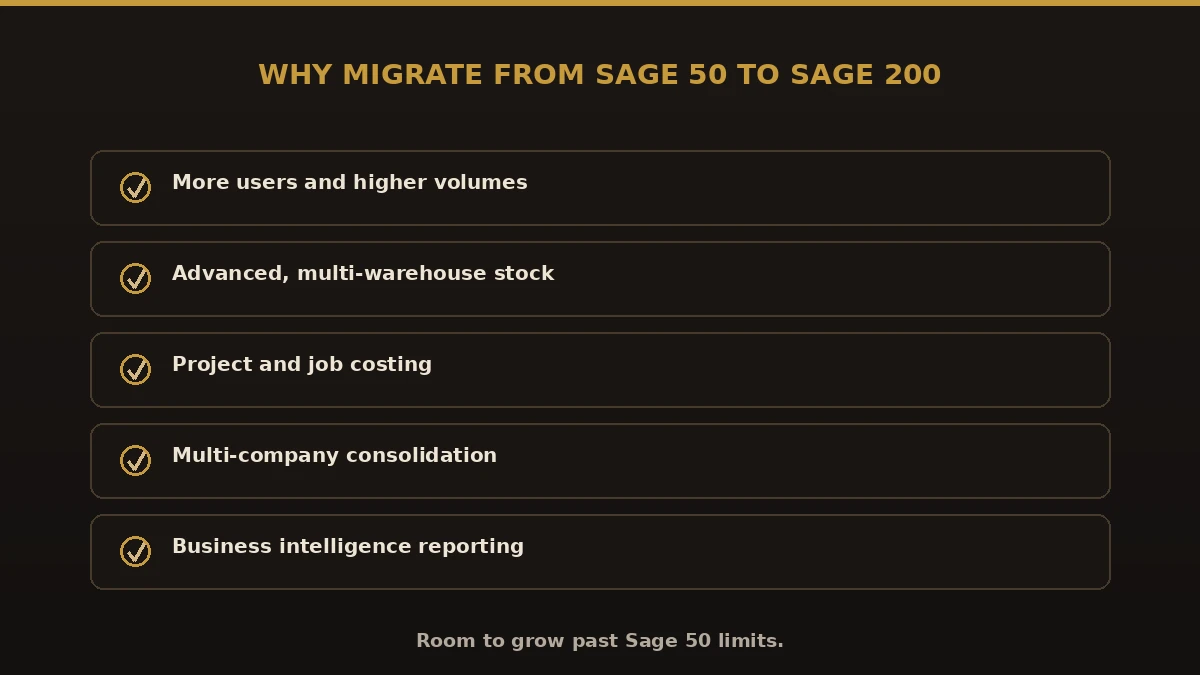
Why migrate from Sage 50 to Sage 200: more users, advanced stock, project costing, multi-company consolidation, business intelligence
Why businesses upgrade from Sage 50 to Sage 200.

Most businesses migrate from Sage 50 to Sage 200 for the same handful of reasons:

Sage 50 vs. Sage 200

Area Sage 50 Sage 200
Best forSmall businessesGrowing mid-market firms
UsersLimitedMany more
Stock controlBasicAdvanced, multi-warehouse
Multi-companyNoYes, with consolidation
ReportingStandardBI and custom reports

What moves in a Sage 50 to Sage 200 data migration
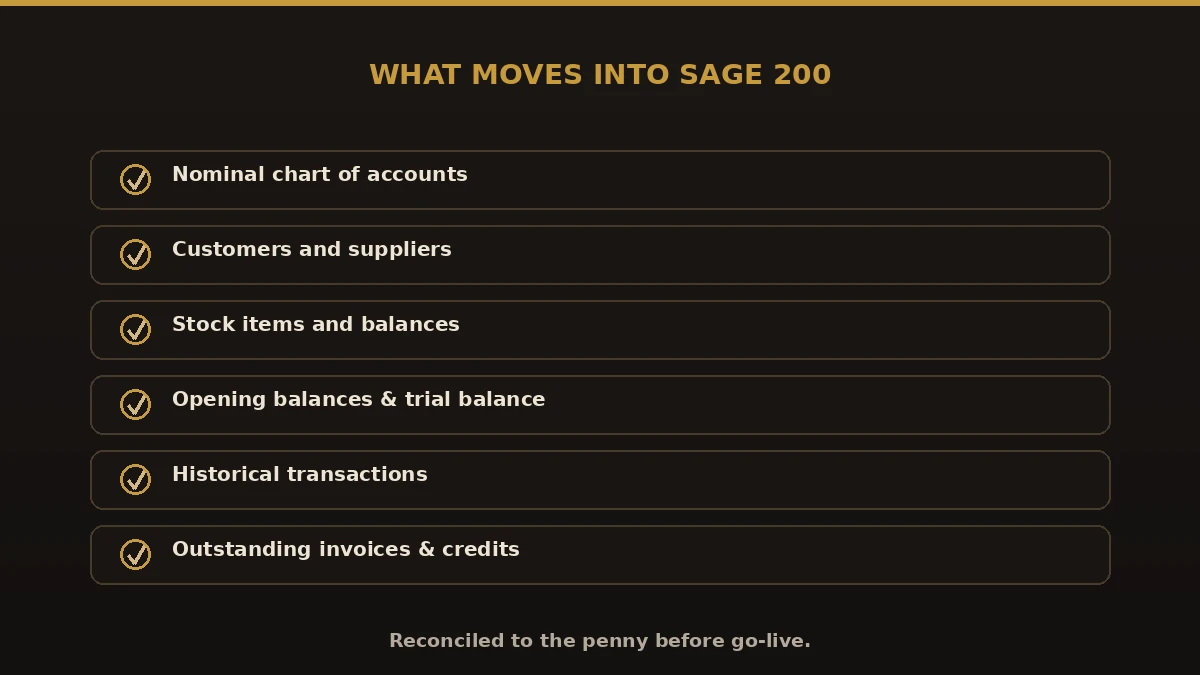
What moves into Sage 200: nominal chart of accounts, customers, suppliers, stock, opening balances, trial balance, transaction history, outstanding invoices
Everything that transfers into Sage 200.

A complete Sage 50 to Sage 200 data migration covers:

The Sage 50 to Sage 200 upgrade, step by step
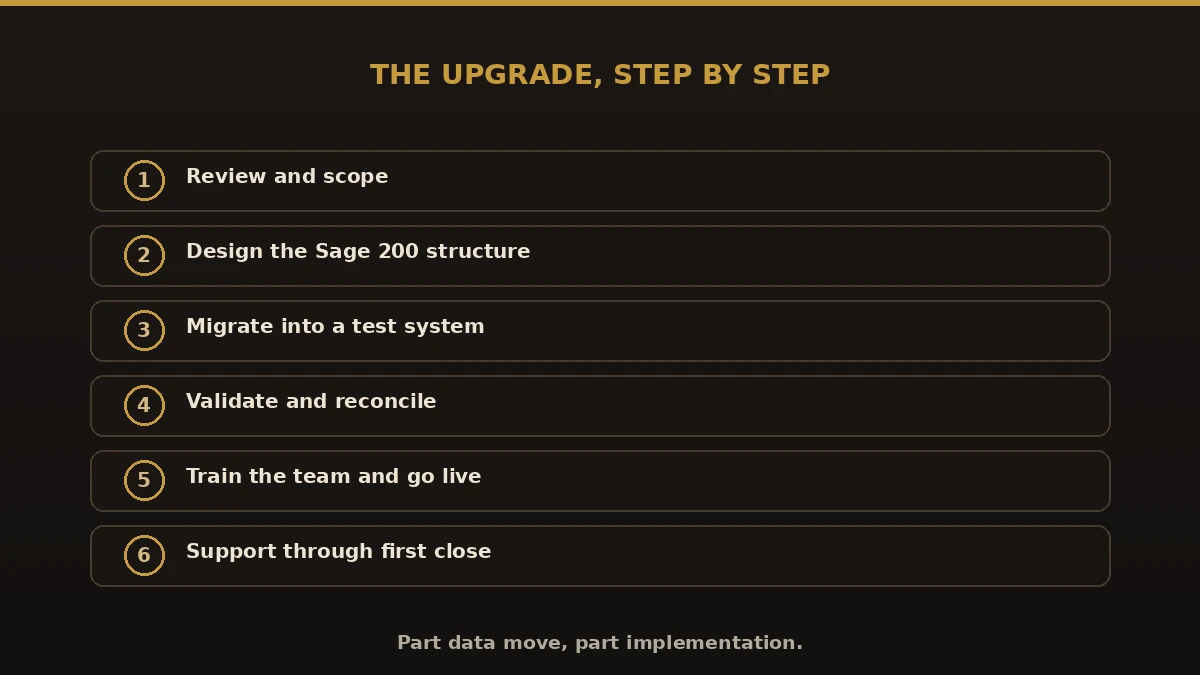
The Sage 50 to Sage 200 upgrade in six steps: review and scope, design, migrate to test, validate, train and go live, support
The upgrade process, step by step.
  1. Review and scope. We assess your Sage 50 data, version, and requirements.
  2. Design. We plan the Sage 200 chart of accounts, stock, and settings.
  3. Migrate. Data is converted and mapped into a Sage 200 test system.
  4. Validate. We reconcile balances and check the trial balance ties out.
  5. Train and go live. Your team learns Sage 200, then you cut over.
  6. Support. We stay on hand through the first close.

Because Sage 200 is a bigger system, a Sage 50 to Sage 200 implementation is part data move and part setup — treating it as both is what keeps a Sage 50 to Sage 200 ERP migration smooth.

Benefits of moving to Sage 200
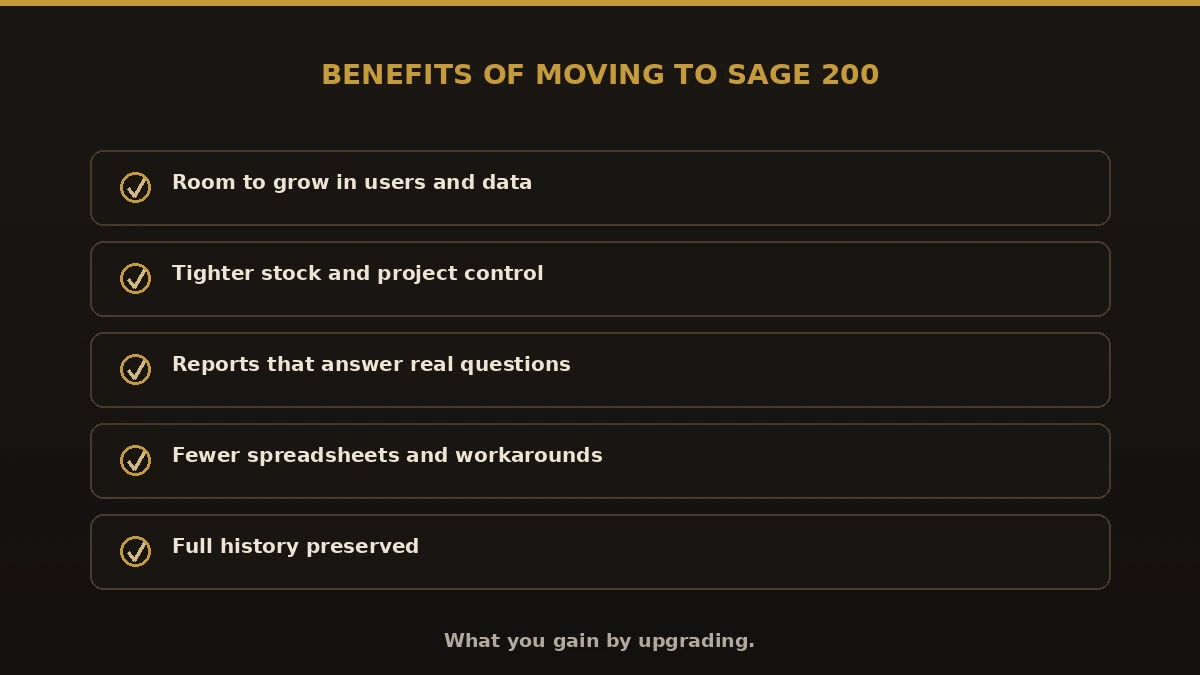
Benefits of moving to Sage 200: room to grow, tighter stock and project control, better reports, fewer spreadsheets, full history preserved
What you gain by moving to Sage 200.

Common mistakes to avoid

Best practices for a clean cutover

  1. Clean up your Sage 50 data before you move it.
  2. Design the Sage 200 chart of accounts and stock deliberately.
  3. Migrate into a test system and reconcile every balance.
  4. Pick a cutover at a clean break, like a period or year-end.
  5. Keep Sage 50 as an archive until Sage 200 reports match.

Why choose Numerawise for your Sage 50 to Sage 200 migration

We handle accounting data migrations end to end, mapping every account and reconciling to the penny before go-live. If you are weighing options, compare related paths like Sage 1000 to Sage 200, Sage Line 500 to Sage 200, and Sage 200 cloud migration, or see every option on our conversion hub.

Planning your Sage 50 to Sage 200 migration

A Sage 50 to Sage 200 migration is how a growing business breaks past the limits of small-business software without starting over. Clean your data, design the new structure, validate in a test system, and train your team before you go live. Do that, and the upgrade delivers what you came for: more room to grow, better control, and reporting you can trust — with all of your history carried safely across.

Questions, considered

Quick answers.

What is a Sage 50 to Sage 200 migration?

A Sage 50 to Sage 200 migration is the process of moving your accounting data out of Sage 50 and into the Sage 200 ERP. It transfers nominal accounts, customers, suppliers, stock, opening balances, and history, mapping them to how Sage 200 organizes data so your reporting still ties out after the upgrade.

Why should I migrate from Sage 50 to Sage 200?

Most businesses migrate from Sage 50 to Sage 200 when they outgrow Sage 50's limits on users, transaction volume, or reporting. Sage 200 adds advanced stock control, project accounting, multi-company consolidation, and business intelligence. If Sage 50 feels like it is holding you back, the upgrade gives you room to grow.

Is a Sage 50 to Sage 200 upgrade the same as a fresh install?

Not quite. A Sage 50 to Sage 200 upgrade is part data migration and part implementation. You move your existing data across, but Sage 200 is a larger system that also needs its chart of accounts, stock, and settings designed properly. Treating it as both is what makes the project succeed.

What data moves in a Sage 50 to Sage 200 data migration?

A full Sage 50 to Sage 200 data migration moves your nominal account structure, customers, suppliers, stock items and balances, opening balances, the trial balance, and historical transactions within scope. We map each item to Sage 200 and reconcile the balances against your original Sage 50 file before go-live.

How long does a Sage 50 to Sage 200 migration take?

Most projects take a few weeks to a couple of months, depending on data size, how much cleanup is needed, and how much Sage 200 configuration your business requires. After reviewing your Sage 50 data and requirements, we provide a firm timeline and fixed scope before any work begins.

Will I lose my transaction history when I convert Sage 50 to Sage 200?

No, not with a proper conversion. We migrate historical transactions within the agreed scope and reconcile them so your reports match. Some businesses choose to bring across summary history plus recent detail. We help you decide the right balance so you keep what matters without cluttering the new system.

Do we have to stop using Sage 50 during the migration?

No. You keep working in Sage 50 while we build and test your Sage 200 system. On go-live day you begin entering new transactions in Sage 200, and your Sage 50 data stays available as a read-only archive you can refer back to whenever you need it.

What are the biggest risks in a Sage 50 to Sage 200 implementation?

The main risks are migrating messy data, rushing the chart of accounts, skipping a test system, and underestimating training. Each is avoidable. We clean data first, design the structure deliberately, validate in a test company, and train your team, which keeps a Sage 50 to Sage 200 implementation on track.

Can you also move us from Sage 50 to QuickBooks instead?

Yes. Sage 200 is the right fit if you need mid-market ERP features, but some businesses prefer a simpler, lower-cost path. If that sounds like you, we also handle Sage 50 to QuickBooks conversions and can help you compare the two before you commit to a direction.

Begin

Get a free scoping call.

Tell us what you’re working on. We respond same business day.

Ram Singh, Founder of Numerawise Solutions LLC
Of the Author

Ram · Founder & Principal

Founder of Numerawise Solutions, established MMXXIV in Atlanta. Intuit ProAdvisor Gold tier. Former Intuit Technical Support engineer. Has personally led two hundred accounting software conversions for US small businesses since founding the practice. Reachable directly at [email protected].

Free: The Clean-Cutover Checklist

The step-by-step checklist we use to migrate businesses to QuickBooks without losing data — bank rec, opening balances, payroll YTD, and the validation tie-out. Get it in your inbox.

No spam — just the checklist and the occasional QuickBooks tip.