Starting Check Number in QuickBooks: Complete Setup Guide
QuickBooks printing checks at the wrong number? Learn how to set, change, and fix the starting check number in QuickBooks — in both Desktop and Online — so your records always match your checkbook.
If QuickBooks just printed a check as #1 when your checkbook is on #1051, you have met the starting check number in QuickBooks problem. It is one of the most common QuickBooks setup questions, and the fix is simple once you know where to look. This guide shows you exactly how to set, change, and troubleshoot check numbers in both QuickBooks Desktop and QuickBooks Online — and how to keep your numbering clean going forward.
Businesses keep check numbers in sequence for good reasons: it makes bank reconciliation faster, prevents duplicate payments, and creates a clean audit trail. When the numbering drifts — after a new bank account, an import, or a migration — it causes confusion at reconciliation time. This guide is written for small business owners, bookkeepers, accountants, and CPA firms using either version of QuickBooks. And if your numbering is already a mess, Numerawise Solutions can clean it up for you.
Need Help Fixing QuickBooks Check Number Issues?
Numerawise Solutions helps businesses with QuickBooks setup, cleanup, migration, bookkeeping, and accounting support. Contact us today.
Contact NumerawiseWhat is a starting check number in QuickBooks?
A starting check number is simply the number QuickBooks will put on the next check. When you write or print a check, QuickBooks assigns it a number and then increments by one for the next check — just like the pre-printed numbers on your paper check stock.
The purpose is to match your QuickBooks records to your physical checks one-to-one. Every paper check has a number printed on it; QuickBooks records that same number so the two stay aligned. When they match, your bank register in QuickBooks mirrors your real checkbook.
Here is the idea in one example:
Example
If your last check was #1050, your next check should be #1051. QuickBooks should assign 1051 automatically, then 1052, 1053, and so on. If it instead shows 1 or a random number, the starting check number needs to be corrected.
Proper numbering matters for bookkeeping because your bank statement lists checks by number. If QuickBooks and your bank use different numbers for the same check, reconciliation becomes guesswork. Keeping the numbers aligned is what makes the monthly close quick and accurate.
Why is check number sequence important?
Sequential check numbering is not just tidy — it protects your books in several concrete ways:
- Easier bank reconciliation. When QuickBooks numbers match your bank statement, checks clear and match in seconds instead of minutes of hunting.
- Better transaction tracking. A clean sequence lets you find any check by number instantly.
- Reduced duplicate entries. Sequential numbering makes it obvious if a number is repeated or missing.
- Improved audit records. Auditors expect an unbroken check sequence; gaps and duplicates raise questions.
- Fraud prevention. A missing or out-of-sequence check number is an early warning sign of an unauthorized or altered payment.
In short, the check number is a small field that does a lot of work. Getting it right up front saves hours of cleanup later — and a broken sequence is exactly the kind of thing our QuickBooks cleanup services untangle.
How to change the starting check number in QuickBooks Desktop
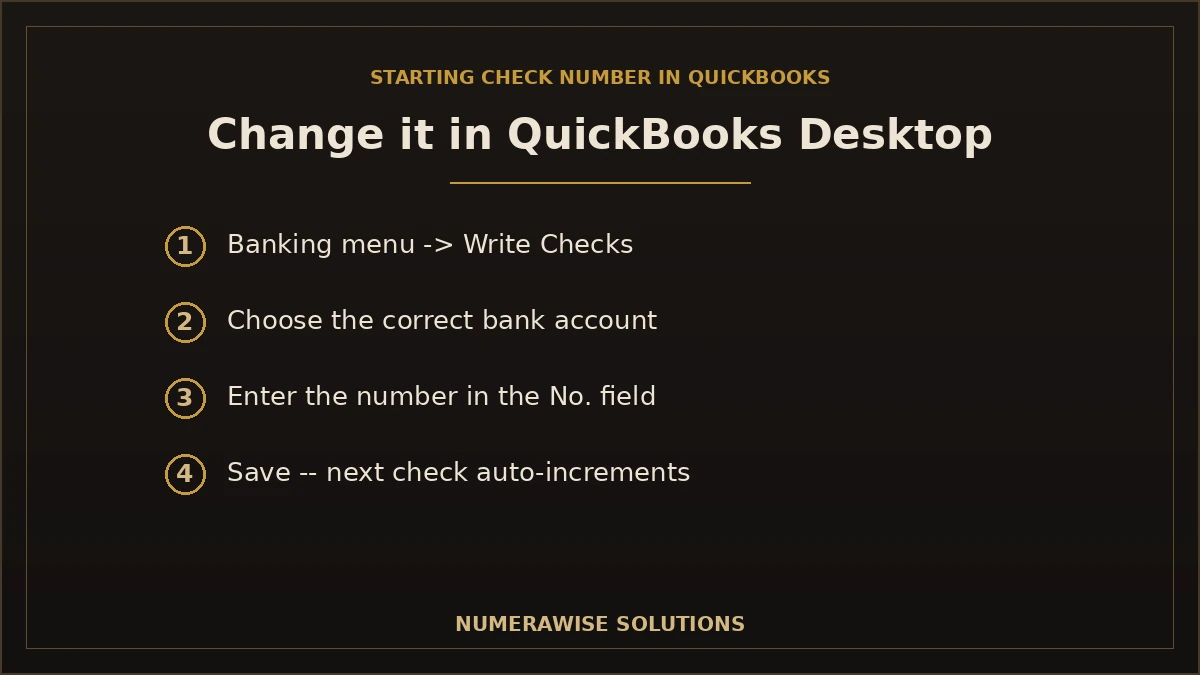
In QuickBooks Desktop, the check number lives on the check itself, so you set it when you write a check. Follow these steps:
- Open QuickBooks Desktop and open your company file.
- Go to the Banking menu at the top of the screen.
- Select Write Checks from the menu.
- Choose the correct bank account from the Bank Account dropdown at the top of the check.
- Enter the correct check number in the No. field — for example, type 1051 if that is your next physical check. Make sure “Print Later” is unchecked if you are recording a handwritten check.
- Fill in the payee, amount, and details, then Save & Close. QuickBooks will number the next check one higher automatically.
Once you set the number correctly on one check, QuickBooks continues the sequence from there. You only need to reset it when something has knocked it out of order.
Common mistakes to avoid
Do not leave “Print Later” checked if you are recording a check you already wrote by hand — that clears the number field. And always confirm the correct bank account first; each account keeps its own check sequence, so editing the wrong one throws off both.
How to change the check number while printing checks in QuickBooks Desktop
When you print a batch of checks, QuickBooks asks for the starting check number right before printing — this is where most numbering corrections happen. Here is how:
- Open Print Checks. Go to File → Print Forms → Checks, or click Print in the check window.
- Select the payment account so QuickBooks pulls the right checks and sequence.
- Update the starting check number. In the print dialog, the “First Check Number” field shows the number of the first physical check loaded in your printer. Change it to match the actual check stock — for example, 1051.
- Print your correctly numbered checks. QuickBooks numbers the batch in sequence from the starting number you entered.
This is the single most important field to check before every print run. Confirm that the number in the dialog matches the top check sitting in your printer tray, and your printed checks and QuickBooks records will always agree.
How to change the check number in QuickBooks Online
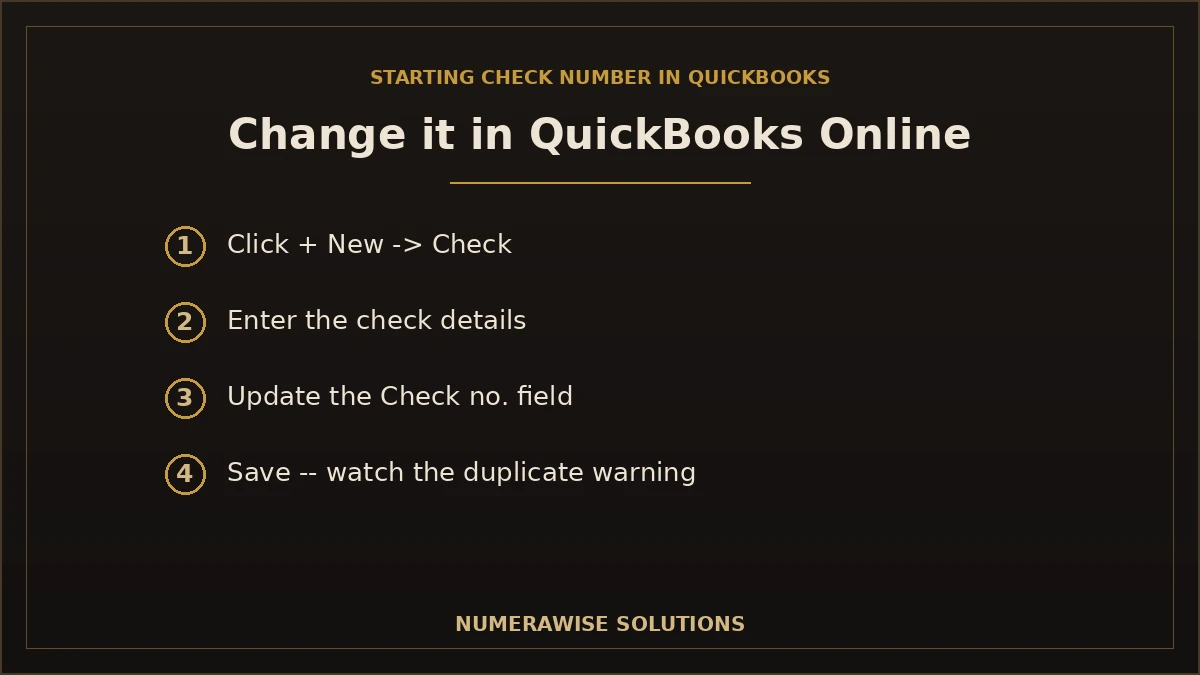
QuickBooks Online handles check numbers on each check transaction. To set or change one:
- Click + New in the left menu.
- Select Check under the Vendors column.
- Enter the check details — payee, bank account, date, and amount.
- Update the Check no. field. Type the correct number, such as 1051. If you are printing, choose “Print later” and set the starting number in the print dialog instead.
- Save the transaction. QuickBooks Online will suggest the next number in sequence for future checks.
To avoid duplicate check numbers in QuickBooks Online, let it auto-fill the next number rather than typing one in from memory, and watch for its duplicate-number warning — QuickBooks Online will alert you if a check number already exists. If you see that warning, stop and check your register before saving, because two checks with the same number will break your reconciliation.
How to fix QuickBooks starting check number problems
Here are the most common check-number problems and how to solve each one:
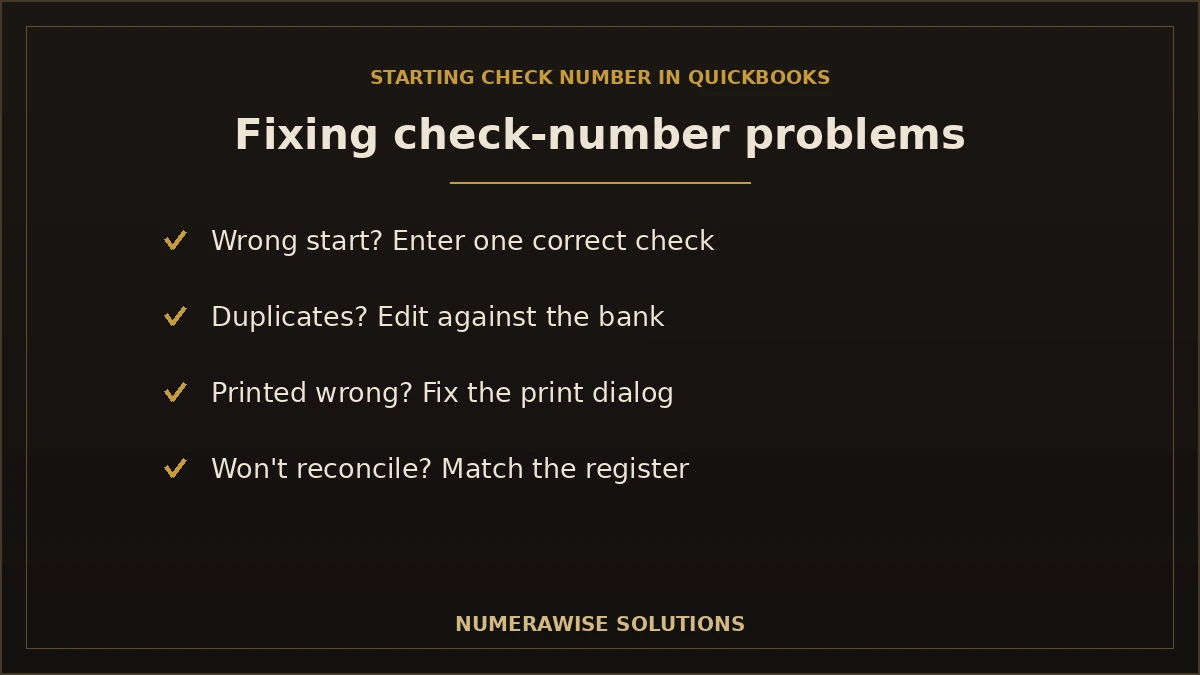
QuickBooks starts checks at the wrong number
Write or print one check with the correct number (for example, 1051). QuickBooks will continue the sequence from there. This usually happens on a new bank account that has no prior check to increment from.
Duplicate check numbers
Find the duplicate in your bank register, confirm which check is correct against your bank statement, and edit the number on the wrong one. QuickBooks warns about duplicates — do not dismiss the warning without checking.
Check sequence not updating
Make sure you saved the last check with the correct number and that “Print Later” is not clearing the field. Confirm you are working in the right bank account, since each has its own sequence.
Printed checks have incorrect numbers
The starting number in the print dialog did not match the check stock in the printer. Correct it before the next run, and if a batch already printed wrong, void and reissue those checks so QuickBooks and the paper agree.
Bank checks do not match QuickBooks
Compare your bank statement to your QuickBooks register and edit the QuickBooks check numbers to match the numbers that actually cleared the bank. Then reconcile so nothing is left mismatched.
Cannot edit the check number
Confirm you have permission to edit transactions, that the check is not in a closed or reconciled period, and that the transaction is not locked. An accountant or admin can adjust permissions or reopen a period if needed.
Talk to a QuickBooks Expert
Stuck on a check-number issue or a register that will not reconcile? Our QuickBooks specialists will fix it fast. Reach out today.
Contact NumerawiseCommon reasons QuickBooks check numbers are incorrect
Understanding why the numbering drifts helps you prevent it. The usual causes:
- New bank account setup. A fresh account has no previous check to continue from, so QuickBooks may start at 1.
- Imported transactions. Checks brought in from a bank feed or file may carry no number, or a different one than your stock.
- Company file conversion. Moving between QuickBooks versions or from another program can reset or misalign numbering.
- Manual entry mistakes. A typo in the number field breaks the sequence from that point forward.
- Changing check stock. Ordering new checks that start at a different number without updating QuickBooks causes a mismatch.
- Multiple users creating checks. Two people writing checks at once can create duplicates or gaps if they are not coordinating.
QuickBooks check number best practices
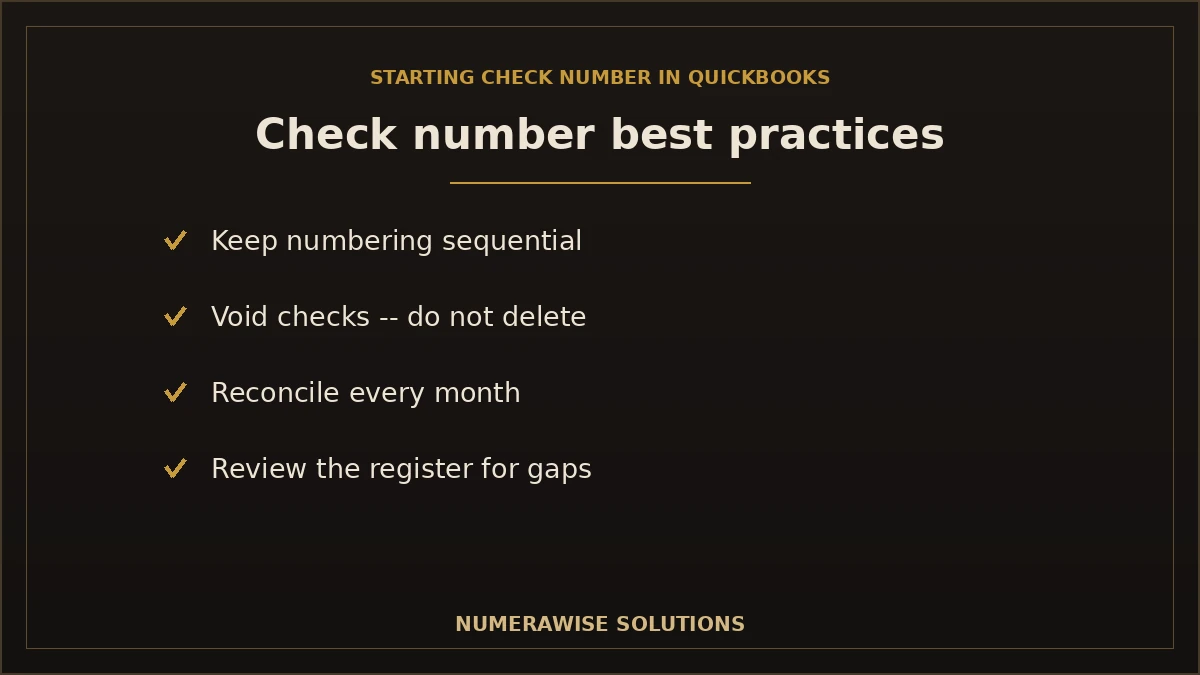
- Maintain sequential numbering. Let QuickBooks auto-increment, and only override when correcting a genuine mismatch.
- Review the bank register regularly. A quick scan catches gaps and duplicates before reconciliation.
- Avoid deleting checks unnecessarily. Void instead of delete, so the number and audit trail are preserved.
- Use proper permissions. Limit who can edit or delete checks to reduce accidental sequence breaks.
- Reconcile accounts regularly. Monthly reconciliation is the surest way to keep QuickBooks and the bank aligned.
- Keep backup copies. A recent backup lets you recover if numbering gets badly tangled.
Expert tip
Void, do not delete. Deleting a check removes the number from your sequence and leaves a gap that looks suspicious to an auditor and confuses reconciliation. Voiding keeps the number in place with a zero amount, preserving a clean, complete trail.
Starting check numbers during a QuickBooks migration
Check numbering is one of the details that most often gets disrupted during a migration, so it deserves attention whenever you move systems.
QuickBooks Desktop to QuickBooks Online
When you move from Desktop to Online, historical check numbers should carry across with the transactions, but the “next” number may need to be set for new checks. After the move, confirm your most recent check number and write your next check with the correct one so the sequence continues cleanly. Our QuickBooks Desktop to QuickBooks Online migration handles this so nothing is missed.
Other accounting software to QuickBooks
Moving from a different program adds more to watch:
- Historical check numbers. These should migrate with your transactions; we verify they came across intact.
- Bank reconciliation. We confirm reconciliation status so checks that already cleared are not double-counted.
- Transaction mapping. Checks must map to the correct bank account and number in QuickBooks.
- Data cleanup. Duplicates or missing numbers from the old system are corrected before go-live.
Getting check numbers right during a move is part of a clean migration — and it is one of the many details our QuickBooks conversion services take care of so your first reconciliation in QuickBooks ties out.
QuickBooks check number troubleshooting checklist
When a check number looks wrong, run through this quick checklist before anything else:
- ☐ Verify the bank account — confirm you are working in the correct account.
- ☐ Check the previous transaction number — what number should come next?
- ☐ Review the register — scan for gaps or duplicates.
- ☐ Confirm print settings — does the starting number match your check stock?
- ☐ Check for duplicate entries — resolve any repeated numbers.
- ☐ Reconcile the account — make sure QuickBooks matches the bank.
Nine times out of ten, the problem is the wrong bank account selected or a print-dialog number that did not match the stock. This checklist finds it fast.
Can you skip check numbers in QuickBooks?
Yes — QuickBooks lets you enter any check number, so you can skip numbers when you need to. This is normal in real bookkeeping: you might skip a number because a physical check was damaged, voided, or used outside QuickBooks. The key is to account for the gap rather than leave it a mystery. Best practice is to record the skipped check as voided so the number still appears in your register with a zero amount and a note. That keeps your sequence complete and explains the gap to anyone reviewing the books, including an auditor. Skipping numbers is fine; unexplained gaps are what cause questions.
How accountants and CPA firms manage check sequences
Professionals treat check numbering as part of a controlled process, not an afterthought. They reconcile every bank account monthly, which surfaces any gap or duplicate immediately. They void rather than delete, preserving the audit trail. They restrict who can create and edit checks, so numbering does not drift when several people touch the register. And during any migration or new-account setup, they deliberately set the starting number to match the physical stock before the first check goes out. These habits are simple, but together they keep the sequence clean across hundreds of transactions — which is exactly the discipline our team brings to every client’s books.
Quick reference: Desktop vs. Online
Where you set the check number differs slightly by version:
| Task | QuickBooks Desktop | QuickBooks Online |
|---|---|---|
| Set a check number | Banking → Write Checks → No. field | + New → Check → Check no. field |
| Set starting number for printing | Print dialog → First Check Number | Print setup → starting number |
| Duplicate warning | Yes | Yes |
| Auto-increment | Yes, per bank account | Yes, per bank account |
Why choose Numerawise Solutions for QuickBooks support?
Check-number problems are usually a symptom of something bigger — a messy register, an incomplete migration, or books that have not been reconciled. That is our specialty. Numerawise Solutions offers:
- QuickBooks experts who know Desktop and Online inside out.
- Data cleanup specialists who fix duplicates, gaps, and broken sequences.
- Migration support that keeps check numbers and balances intact.
- Bookkeeping assistance to keep your register clean going forward.
- Bank reconciliation so QuickBooks always matches your bank.
- Error resolution for the check, register, and reconciliation issues that stump most users.
- Affordable accounting support with clear, honest pricing.
- CPA-friendly services with clean documentation your accountant will appreciate.
Whether you need a one-time fix or ongoing bookkeeping services and accounting services, we keep your QuickBooks accurate so small issues like check numbering never become big ones.
Keep your QuickBooks check numbers clean and accurate
The starting check number in QuickBooks is a small setting with an outsized impact on your books. Set it to match your physical checks, let QuickBooks increment from there, and confirm the number in the print dialog before every batch, and your records will always agree with your bank. When numbering drifts — after a new account, an import, or a migration — the fixes in this guide will get you back on track: correct one check, resolve duplicates, and reconcile. Keep your sequence clean with regular register reviews and monthly reconciliation, and check numbers will never slow down your close. And if the numbering is already tangled or a reconciliation will not tie out, Numerawise Solutions is here to fix it — and to keep your QuickBooks accurate for good.
Key takeaways
- The starting check number is the number QuickBooks assigns to your next check — keep it matched to your paper checks.
- In Desktop, set the number in Write Checks or the print dialog; in Online, use the Check no. field.
- Most problems come from a new account, an import, a migration, or the wrong account selected.
- Void, do not delete, to preserve a clean, gap-free sequence.
- Reconcile monthly to keep QuickBooks and your bank aligned.
Quick answers.
What is the starting check number in QuickBooks?
The starting check number in QuickBooks is the number QuickBooks assigns to the next check you write or print. It should match the number on your physical check stock — for example, if your last check was #1050, the starting number should be #1051. QuickBooks then increments automatically for each check after that, keeping your records aligned with your checkbook.
How do I change the starting check number in QuickBooks Desktop?
Go to the Banking menu, select Write Checks, choose the correct bank account, and type the right number in the No. field (for example, 1051). Save the check, and QuickBooks continues the sequence from there. When printing a batch, update the First Check Number in the print dialog to match the check stock in your printer before you print.
Can I change check numbers in QuickBooks Online?
Yes. Click + New, select Check, enter the check details, and update the Check no. field with the correct number. Save the transaction, and QuickBooks Online suggests the next number for future checks. If you are printing, choose Print later and set the starting number in the print dialog. Watch for QuickBooks Online's duplicate-number warning.
Why is QuickBooks assigning the wrong check number?
Usually because it has no correct prior check to continue from — common on a new bank account, after importing transactions, or following a migration. It can also happen from a typo in the number field or having the wrong bank account selected. Fix it by writing or printing one check with the correct number; QuickBooks continues the sequence from there.
How do I fix duplicate check numbers?
Find the duplicate in your bank register, confirm which check is correct against your bank statement, and edit the number on the incorrect one. QuickBooks warns you when a check number already exists — do not dismiss that warning without checking. Duplicates break reconciliation, so resolving them before you reconcile keeps your books accurate.
Can I skip check numbers in QuickBooks?
Yes, QuickBooks lets you enter any number, so you can skip one when a physical check was damaged, voided, or used outside QuickBooks. The key is to account for the gap — record the skipped check as voided so the number still appears in your register with a zero amount. Skipping numbers is fine; unexplained gaps are what raise questions.
How do I match bank checks with QuickBooks?
Compare your bank statement to your QuickBooks register and make sure each check number matches. Where they differ, edit the QuickBooks check number to match the number that actually cleared the bank, then reconcile the account. When the numbers align, checks clear and match quickly, and your monthly reconciliation ties out without hunting.
Can imported transactions affect check numbers?
Yes. Checks brought in through a bank feed or an import may arrive with no check number, or with a different number than your physical stock. This is a common reason numbering drifts. After importing, review the register, add or correct check numbers to match your actual checks, and reconcile so QuickBooks and the bank agree.
How do I reset check numbering in QuickBooks?
There is no single reset button — instead, you write or print one check with the correct number, and QuickBooks continues the sequence from there. For a new bank account, set the first check to your current stock number. If numbering is badly tangled across many transactions, a cleanup of the register is the reliable fix.
Why are my printed checks out of sequence?
The starting number in the print dialog did not match the physical check stock loaded in your printer. Always confirm that the First Check Number matches the top check in the tray before printing. If a batch already printed with wrong numbers, void and reissue those checks so your QuickBooks records and the paper checks agree.
Can multiple users create checks in QuickBooks?
Yes, but it needs coordination. When two people write checks at the same time, they can create duplicate numbers or gaps if they are not aware of each other's work. Use proper user permissions, have users confirm the next number before saving, and reconcile regularly. For busy teams, having one person or a bookkeeper own check writing reduces errors.
How does migration affect check numbers?
During a migration, historical check numbers should carry across with your transactions, but the next number for new checks often needs to be set. Moving from another program can also leave duplicates or missing numbers that need cleanup. After any migration, confirm your latest check number and write the next check correctly so the sequence continues cleanly.
How do accountants manage check sequences?
Professionals reconcile every account monthly to catch gaps and duplicates immediately, void rather than delete to preserve the audit trail, restrict who can create and edit checks, and set the starting number to match physical stock during any new-account setup or migration. These simple habits keep the sequence clean across hundreds of transactions.
Can Numerawise Solutions fix QuickBooks check issues?
Yes. Numerawise Solutions resolves check-number problems, duplicates, broken sequences, and the reconciliation issues behind them, in both QuickBooks Desktop and Online. We also handle setup, cleanup, and migration so your numbering stays clean going forward. If your register will not reconcile or your checks and bank do not match, we will diagnose and fix it.
How often should check numbers be reviewed?
Review your check sequence at least monthly, as part of your bank reconciliation. A quick scan of the register for gaps or duplicates each month catches problems while they are small and easy to fix. Businesses that write many checks, or that have several people creating them, benefit from a more frequent glance to keep the sequence clean.
Get a free scoping call.
Tell us what you’re working on. We respond same business day.

Ram · Founder & Principal
Founder of Numerawise Solutions, based in Atlanta. Intuit ProAdvisor Gold tier. Former Intuit Technical Support engineer. Has personally led two hundred accounting software conversions for US small businesses since founding the practice. Reachable directly at [email protected].
Free: The Clean-Cutover Checklist
The step-by-step checklist we use to migrate businesses to QuickBooks without losing data — bank rec, opening balances, payroll YTD, and the validation tie-out. Get it in your inbox.
No spam — just the checklist and the occasional QuickBooks tip.