Convert QuickBooks Desktop to QuickBooks Online
Comparing first? Read our QuickBooks Desktop vs Online comparison to decide, then come back to convert.
Ready to move to the cloud? This hands-on guide shows how to convert QuickBooks Desktop to QuickBooks Online — the pre-conversion checklist, the export tool steps, and how to validate every balance afterward.
Desktop-to-QBO specifics
QuickBooks Online does not support every Desktop feature
Moving QuickBooks Desktop to QuickBooks Online is Intuit’s own path, but it is not a one-for-one copy. QuickBooks Online does not carry every Desktop feature: assembly/advanced inventory and average-cost logic, price levels, memorized reports, some sales-form customizations and certain payroll data do not transfer (what Desktop Payroll does and does not carry to Online Payroll is covered separately), and Desktop list limits and closed-period detail can force summarized balances instead of full history.
We reconcile what converts, rebuild what does not — items, memorized transactions, report packs — inside QuickBooks Online, and tie the opening trial balance, AR and AP back to your Desktop file before you go live.
Other QuickBooks migration paths
Leaving or moving within QuickBooks?
Every QuickBooks edition change has its own rules about what converts and what has to be rebuilt. These pages cover the other routes:
Plenty of guides make it sound like one button. In practice, to convert QuickBooks Desktop to QuickBooks Online well, you prepare the file, run the export, and then confirm the numbers match. The tool does the heavy lifting, but the preparation and the check on either side are what keep your books accurate. Skip them and you can end up trusting a cloud file that quietly does not tie out.
This is a hands-on guide. It walks through exactly how the conversion works, a checklist to run before and after, the issues people hit and how to fix them, and when to do it yourself versus hand it to a specialist — so your conversion is clean the first time.
On QuickBooks Enterprise? The mechanism is the same, but the limits are not. See converting QuickBooks Enterprise to QuickBooks Online for the Enterprise-specific constraints.
Before you convert: is your file ready?
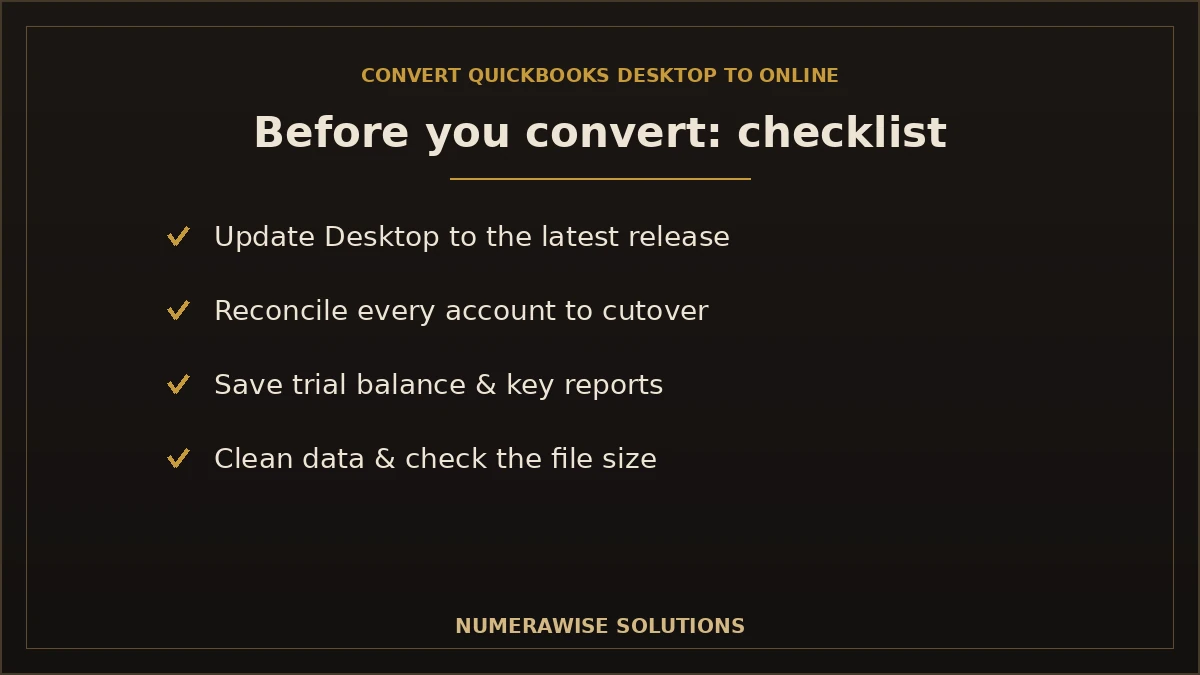
The single biggest predictor of a smooth conversion is the state of your Desktop file going in. Run this pre-conversion checklist first:
- Update QuickBooks Desktop to the latest release so the export tool works properly.
- Reconcile every account — bank and credit card — up to your cutover date.
- Run and save key reports: trial balance, profit and loss, balance sheet, A/R and A/P aging. These are your proof to check against later.
- Clean the data: merge duplicates, fix miscodings, and tidy the chart of accounts. The active account, class and user counts that remain decide whether the file lands on Plus or Advanced.
- Check your file size and target count. Very large files can exceed the tool’s limit and need condensing.
- Back up the file before you touch anything.
That saved trial balance is the most important thing you produce here — it is the yardstick you will measure the converted file against.
How to convert QuickBooks Desktop to QuickBooks Online, step by step
Intuit provides a built-in export tool inside QuickBooks Desktop. For a clean, reasonably sized file, the process looks like this:
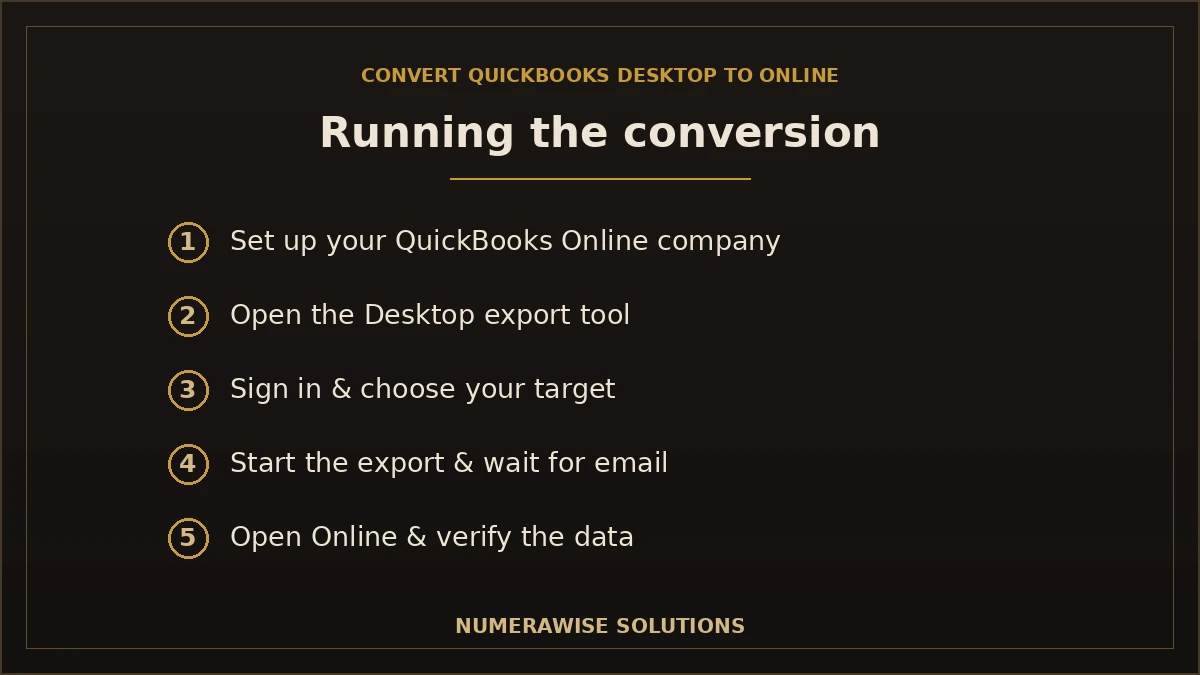
- Set up your QuickBooks Online company on a plan that fits your users and features.
- In Desktop, open the export tool (Company → Export Company File to QuickBooks Online).
- Sign in and choose your target QuickBooks Online company.
- Choose inventory options if prompted, then start the export.
- Wait for confirmation. Intuit emails you when the conversion is complete.
- Open QuickBooks Online and verify the data against your saved reports.
The export itself often finishes within a few hours for an average file. You can review Intuit’s official conversion documentation for the current tool steps, but the discipline of verifying afterward is what protects your books.
After you convert: the validation checklist
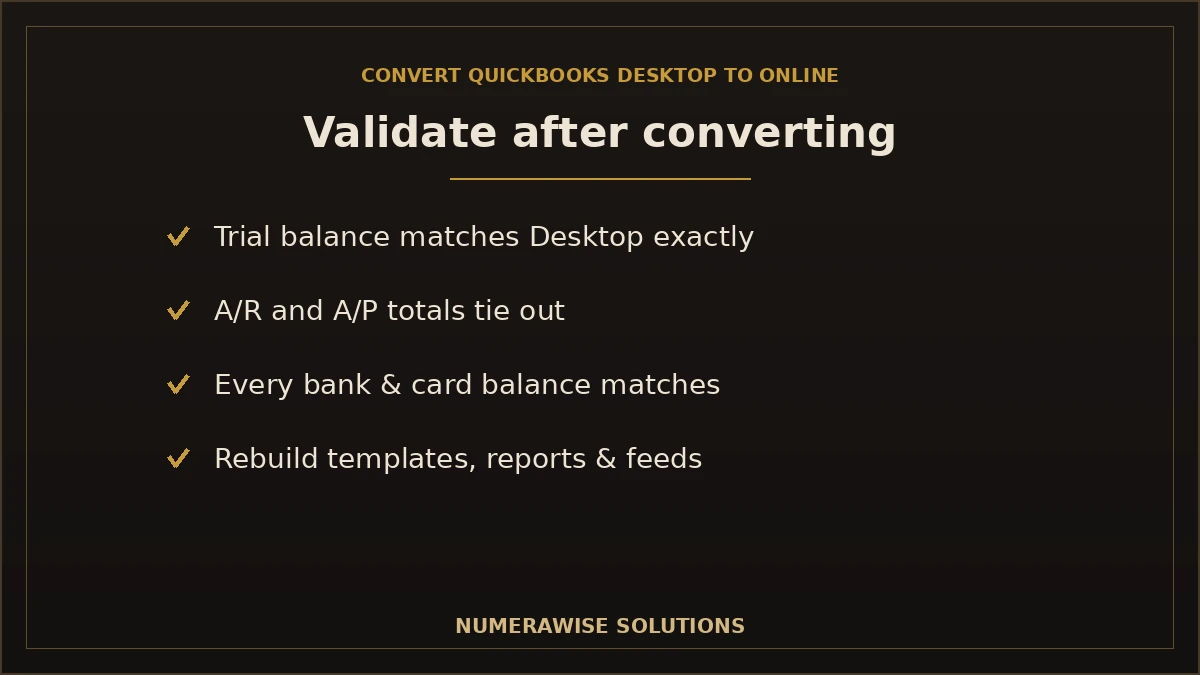
This is the step people skip and regret. Once the conversion finishes, compare QuickBooks Online against the reports you saved before you started:
| Check | Compare | Pass condition |
|---|---|---|
| Trial balance | Desktop vs. Online at cutover | Matches exactly |
| Accounts receivable | Open invoices & A/R total | Same balance |
| Accounts payable | Open bills & A/P total | Same balance |
| Bank & card balances | Each account | Ties to Desktop |
| Profit & loss | Year-to-date totals | Matches |
If everything ties, you move on to rebuilding what did not transfer. If a number is off, fix it before you rely on the file. A conversion is not done when the data moves — it is done when the numbers are proven.
What transfers and what you rebuild
Knowing this up front prevents the “where did my report go?” panic. Most financial data converts; some formatting and history do not.
| Item | Converts? | Notes |
|---|---|---|
| Chart of accounts, customers, vendors | Yes | Comes across in full |
| Transactions & trial balance | Yes | Should match Desktop |
| Open invoices & bills | Yes | A/R and A/P stay accurate |
| Inventory | Partial | Depends on method; review after |
| Payroll history | Limited | Often re-set up in QuickBooks Online |
| Reconciliation reports | No | History moves; reports rebuilt |
| Custom templates & memorized reports | No | Recreated in the new format |
After a successful conversion, plan to rebuild your invoice templates, recreate key memorized reports, and reconnect bank feeds. None of it is hard — it just needs to be on your list so nothing feels missing on day one.
Common conversion problems and how to fix them
Most issues trace back to preparation. Here are the ones people hit most:
The file is too large
Very large Desktop files can exceed the export tool’s target-count limit. The fix is to condense the file or have a specialist move it, rather than forcing an export that fails.
Balances do not match
Usually this means the Desktop file was not fully reconciled, or the cutover timing was off. Go back to your saved reports, find the difference, and correct it — do not accept a mismatch.
Inventory looks wrong
QuickBooks Online and Desktop value inventory differently. Review item counts and values after converting and adjust so they reflect reality.
Missing reports or templates
These do not convert by design. Recreate the handful you actually use in the QuickBooks Online format.
Should you convert yourself or hire a specialist?
For a small, clean file, the built-in tool is designed to be usable by a business owner. The calculation changes with size and complexity.
| Factor | DIY conversion | Professional |
|---|---|---|
| Best for | Small, clean files | Large, complex, or payroll-heavy |
| Data cleanup | Your time | Handled for you |
| Validation | You verify | Verified to the penny |
| Rebuilds | You redo templates | Rebuilt for you |
| Risk | Higher on complex files | Lower — done before |
If your file is large, near the tool’s limits, or carries payroll and inventory, a professional conversion services is usually worth it. The cost is far less than untangling a conversion that did not tie out.
Benefits of converting to QuickBooks Online
- Work from anywhere. Your books live in the cloud, reachable from any device.
- Live collaboration. You and your accountant share one file — no backups to email.
- Automatic bank feeds. Transactions import and categorize with rules.
- Always current. Automatic updates and cloud backups.
- App ecosystem. Connect payments, payroll, and inventory tools.
- Future-proof. You are on the version Intuit is actively building.
Common mistakes to avoid
- Not saving reports first. Without a pre-conversion trial balance, you cannot validate.
- Converting a messy file. Errors follow you into the cloud.
- Ignoring the size limit. Large files fail the export without prep.
- Skipping validation. Trusting the file before checking it is the costly mistake.
- Forgetting rebuilds. Templates, reports, and feeds do not convert.
- Deleting Desktop too soon. Keep it read-only for history and audit.
Best practices for a clean conversion
- Update Desktop and reconcile every account first.
- Save your trial balance and key reports before exporting.
- Clean the data and check the file size.
- Convert at a natural cutover — a new quarter or year.
- Validate every balance against the saved reports.
- Rebuild templates and reports, and reconnect bank feeds.
- Keep the Desktop file, read-only, as a backup.
How long does the conversion take?
The export itself is quick — often a few hours for an average file — but the full job runs longer once you add preparation, validation, and rebuilds. A rough guide:
| File | Typical timeline | What drives it |
|---|---|---|
| Small, clean file | A day or two | Low volume, little history |
| Growing business | A few days to a week | Payroll, inventory, more history |
| Large / complex file | One to two weeks | Size limits, cleanup, rebuilds |
Most of the time is not the export — it is making the data clean going in and verifying it coming out. That is time well spent, because it is the difference between trusting your new file and second-guessing it for months.
What happens to payroll when you convert?
Payroll is the trickiest part. Payroll history does not always convert cleanly, so it is common to bring over year-to-date summary figures and set payroll up fresh in QuickBooks Online for going forward. Those year-to-date totals are reconciled carefully because they drive tax filings. If you run payroll, convert around the start of a payroll quarter or year so employee totals stay clean and no filing is disrupted. This is the area where slowing down pays off most, since payroll errors are visible to both staff and tax authorities.
Keeping your data safe during the conversion
Your company file is your financial history, so protect it. Take a full backup before you export, work from copies rather than your only file, and never treat the conversion as final until validation passes. Keep the Desktop file and its backup accessible read-only after go-live — you may need it for reconciliation history or audit support. Once you are live, QuickBooks Online keeps your data encrypted in the cloud with automatic backups, so you no longer carry the risk of a single computer holding your only copy.
What converting costs
Intuit’s export tool is free, but a done-for-you conversion has a cost that reflects the work around it: preparing and cleaning the file, running and validating the move, and rebuilding templates, reports, and feeds. A small, tidy file is a modest project; a large or messy file with payroll and inventory takes more. The cleanup portion is usually the biggest variable and the best investment, because it decides whether you launch on a clean file or carry old problems into the cloud. Ask for a quote based on your actual file rather than a flat rate.
Getting started with your conversion
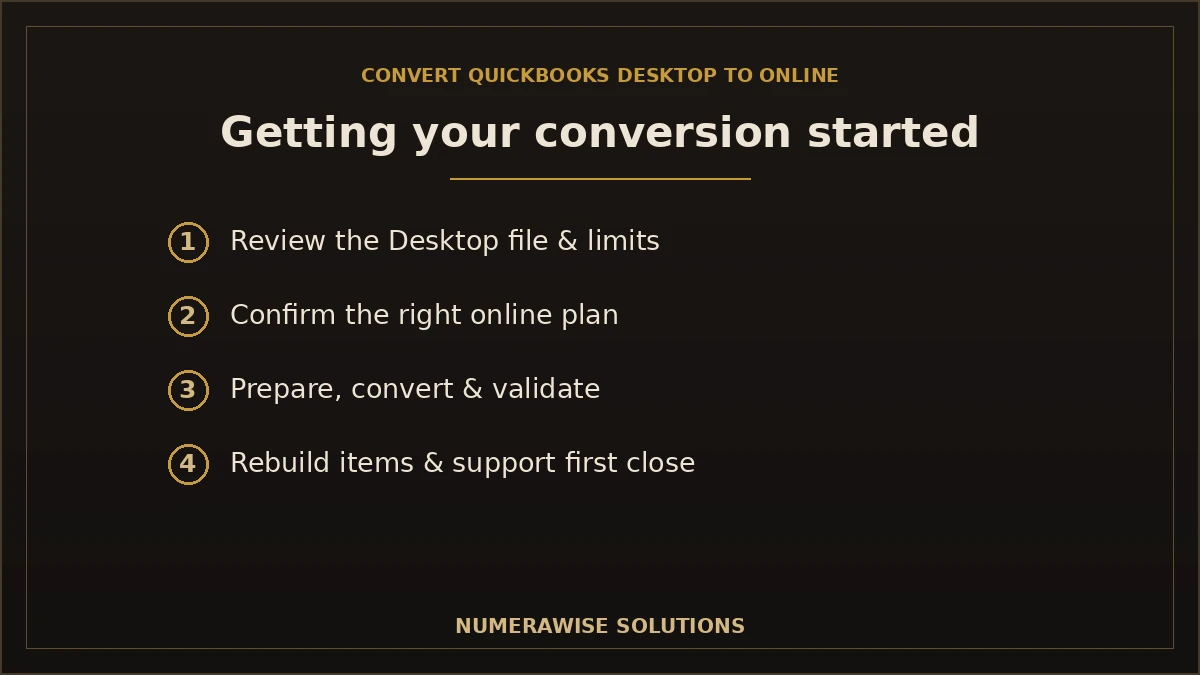
Getting started is simple. We review your Desktop file, confirm the right QuickBooks Online plan, and tell you honestly whether it needs a cleanup or is within the tool’s limits. From there we prepare, convert, and validate every balance against Desktop, rebuild what did not transfer, and support you through your first close. Whether you run a single small file or a large setup with payroll and inventory, the first step is the same: a quick review of your file and a clear plan for the conversion.
Will the converted file look the same?
Your financial position stays the same; the presentation changes. Income, expenses, receivables, payables, and equity all convert, so a profit and loss or balance sheet as of the cutover date reflects what Desktop showed. What looks different is navigation and reporting — QuickBooks Online groups and formats reports its own way, and Desktop’s deeply customized or memorized reports have to be rebuilt in the cloud format. That rebuild is quick once you know which reports you actually rely on. The learning curve is real but short; most teams are comfortable within a couple of weeks, and the anywhere-access quickly outweighs it. If a core total does not match after converting, treat it as a sign the validation is unfinished, not a quirk to accept — the numbers should tie out exactly before you rely on the file.
One more practical tip: convert during a quiet window and give yourself a day or two afterward to validate and settle in before you depend on the new file. Trying to convert in the middle of tax season or a busy close is how avoidable mistakes creep in. A calm cutover, a saved set of reports, and an unhurried validation pass are worth more than any shortcut — they turn a nerve-wracking switch into a routine, checkable project.
Why choose Numerawise to convert your file
At Numerawise Solutions, QuickBooks work is what we do every day. We manage the whole conversion — preparing and cleaning your Desktop file, running the export, and validating that every balance ties out to Desktop before you rely on the cloud file — then rebuilding the templates, reports, and feeds that do not transfer. Our conversion services handle files of every size, including large ones that exceed the automated tool’s limits.
We work remotely through secure tools, so you get a specialist who has converted many files, not a first attempt on your live books, and we can continue with ongoing bookkeeping services once you are live. For a broader overview of the move, see our QuickBooks Desktop to Online migration. Either way, the result is the same: a validated QuickBooks Online file and no gap in your day-to-day.
The bottom line on converting QuickBooks Desktop to QuickBooks Online
Converting is a controlled project, not a leap of faith. Prepare the Desktop file, save your reports, run Intuit’s export tool, and verify every balance before you trust the cloud file — then rebuild the templates and reports that do not carry over. Handle the size limits, reconcile first, and pick a quiet cutover, and the whole thing goes smoothly. For most businesses, the smart move is to let a specialist run it so the books stay accurate and you keep working without a gap. Done right, choosing to convert QuickBooks Desktop to QuickBooks Online gives you cloud access, easier collaboration, and a platform built for where accounting is going — with your numbers fully intact.
Key takeaways
- Prepare first: update, reconcile, and save your trial balance before converting.
- Use Intuit’s built-in export tool, then verify the data landed.
- Validate every balance against your saved reports — that proves it worked.
- Rebuild templates, reports, and feeds that do not convert.
- Watch the file-size limit and keep Desktop read-only as a backup.
Quick answers.
How do I convert QuickBooks Desktop to QuickBooks Online?
You convert QuickBooks Desktop to QuickBooks Online using Intuit's built-in export tool (Company → Export Company File to QuickBooks Online). First update Desktop, reconcile accounts, and save your trial balance. Then run the export into your new QuickBooks Online company, and afterward verify every balance matches Desktop. Preparation and validation on either side of the export are what keep the conversion clean.
Is it free to convert QuickBooks Desktop to QuickBooks Online?
Intuit's export tool itself is free. What has a cost is a done-for-you conversion — preparing and cleaning the file, running and validating the move, and rebuilding templates, reports, and bank feeds. A small, tidy file is a modest project; a large or messy one takes more. The cleanup is usually the biggest variable and the best investment for a clean result.
What should I do before converting?
Run a pre-conversion checklist: update QuickBooks Desktop to the latest release, reconcile every account to the cutover date, and save your trial balance, profit and loss, balance sheet, and A/R and A/P aging. Then clean the data, check your file size against the tool's limit, and back up the file. Those saved reports are your proof to validate the converted file against.
How do I know the conversion worked?
Validate the numbers. Compare the QuickBooks Online trial balance, accounts receivable, accounts payable, bank balances, and year-to-date profit and loss against the reports you saved before converting. Everything should match Desktop as of the cutover date. If a balance is off, the conversion is not finished. Verifying — not just running the export — is what proves your cloud books are accurate.
What does not convert to QuickBooks Online?
Your accounts, customers, vendors, transactions, and trial balance convert. Reconciliation reports, memorized reports, custom templates, and the audit trail do not — they are rebuilt in QuickBooks Online. Payroll and some inventory convert with limits. Plan to recreate the handful of templates and reports you actually use and to reconnect bank feeds after the conversion.
Is there a file-size limit when converting?
Yes. Intuit's export tool has a target-count limit, and very large Desktop files can exceed it. Those files need to be condensed or moved with specialist help rather than forcing an export that fails. Complex inventory and long payroll history also add friction. Checking your file size before you start prevents a failed conversion.
Can I convert if I use payroll?
Yes, but handle payroll carefully. Payroll history does not always convert cleanly, so it is common to carry over year-to-date summary figures and set payroll up fresh in QuickBooks Online going forward, reconciling the totals for tax. Converting around the start of a payroll quarter or year keeps employee totals clean and avoids disrupting your filings.
Can I keep using QuickBooks Desktop after converting?
Keep your Desktop file and a backup accessible read-only after go-live — do not delete it right away. You may need it for reconciliation history, audit support, or reference. Some businesses keep Desktop briefly for peace of mind, but running both for long doubles the work. The cleaner path is a validated conversion with Desktop retained as history.
Should I convert myself or hire a professional?
For a small, clean file, Intuit's tool is designed to be usable by an owner. For large files, payroll, inventory, or anything near the size limits, a professional is strongly recommended. They prepare the file, run and validate the conversion, and rebuild what does not transfer — on experience, not a first attempt on your live books. The cost is usually far less than fixing a botched conversion.
How long does it take to convert QuickBooks Desktop to QuickBooks Online?
The export often finishes in a few hours for an average file. The full project — preparation, validation, and rebuilding templates and reports — usually takes a day or two for a small file and up to one to two weeks for large or complex ones. Most of the time goes to clean data going in and verified balances coming out, not the export itself.
Get a free scoping call.
Tell us what you’re working on. We respond same business day.

Ram · Founder & Principal
Founder of Numerawise Solutions, established MMXXIV in Atlanta. Intuit ProAdvisor Gold tier. Former Intuit Technical Support engineer. Has personally led two hundred accounting software conversions for US small businesses since founding the practice. Reachable directly at [email protected].
Free: The Clean-Cutover Checklist
The step-by-step checklist we use to migrate businesses to QuickBooks without losing data — bank rec, opening balances, payroll YTD, and the validation tie-out. Get it in your inbox.
No spam — just the checklist and the occasional QuickBooks tip.