How to Use QuickBooks CAMPs
Manage your QuickBooks Desktop account the easy way. This guide shows you how to use QuickBooks CAMPs — the Customer Account Management Portal — to view licenses, download software, update billing, and fix common errors.
If you run QuickBooks Desktop, sooner or later you need your license number, a fresh download, or a way to update the card on file — and hunting through emails is no way to find them. That is what CAMPs is for. Knowing how to use QuickBooks CAMPs means you can manage your entire Desktop account yourself, in minutes, without calling support. This guide walks you through everything: what CAMPs is, how to sign in, every task you can do, the errors people hit, and how to fix them.
It is written for business owners, accountants, bookkeepers, and IT admins — anyone who manages a QuickBooks Desktop subscription. No jargon, just clear steps. And if you would rather someone handle your QuickBooks account, licenses, and support for you, that is exactly what our team does.
Need Help Managing Your QuickBooks Account?
Our QuickBooks experts handle account management, Desktop support, subscriptions, and troubleshooting. Contact Numerawise Solutions today.
Contact NumerawiseWhat is QuickBooks CAMPs?
QuickBooks CAMPs stands for Customer Account Management Portal. It is a secure Intuit website where you manage the account behind your QuickBooks Desktop product. Think of it as the control panel for your QuickBooks Desktop subscription — separate from the software itself.
Inside CAMPs you can see the products you own, look up license and product numbers, download or re-download your software, change the payment method and billing details, renew or review subscriptions, and control who is allowed to manage the account. Everything about the account — not the bookkeeping data — lives here.
Who can access CAMPs?
CAMPs is accessed with your Intuit Account — the same email and password tied to your QuickBooks purchase. The primary contact on the account has full access, and additional authorized users can be granted access to help manage it. If you are an accountant or IT admin managing QuickBooks for a client or company, you typically need to be added as an authorized user.
Which QuickBooks products does CAMPs support?
CAMPs is built for QuickBooks Desktop — Pro, Premier, Enterprise, and Desktop Payroll — because those products use license and product numbers that need managing. QuickBooks Online is managed differently, from within the QuickBooks Online account itself. So if you are a Desktop user, CAMPs is your portal.
In plain English
CAMPs is where you go for anything about your QuickBooks Desktop account — your license number, a new download, your bill, or who can manage it. It is not where your books live; it is where your account and subscription live.
Benefits of using QuickBooks CAMPs
CAMPs replaces phone calls and lost emails with self-service. The main benefits:
- Centralized account management. Everything about your Desktop account in one dashboard.
- Manage subscriptions. View, renew, or review your QuickBooks and payroll subscriptions.
- View licenses. Find your license and product numbers instantly — no digging through email.
- Download products. Re-download QuickBooks Desktop, including older versions you own.
- Update billing information. Change the card on file and billing address in seconds.
- Manage authorized users. Add or remove the people allowed to manage the account.
- Improve account security. Control access and keep your contact details current.
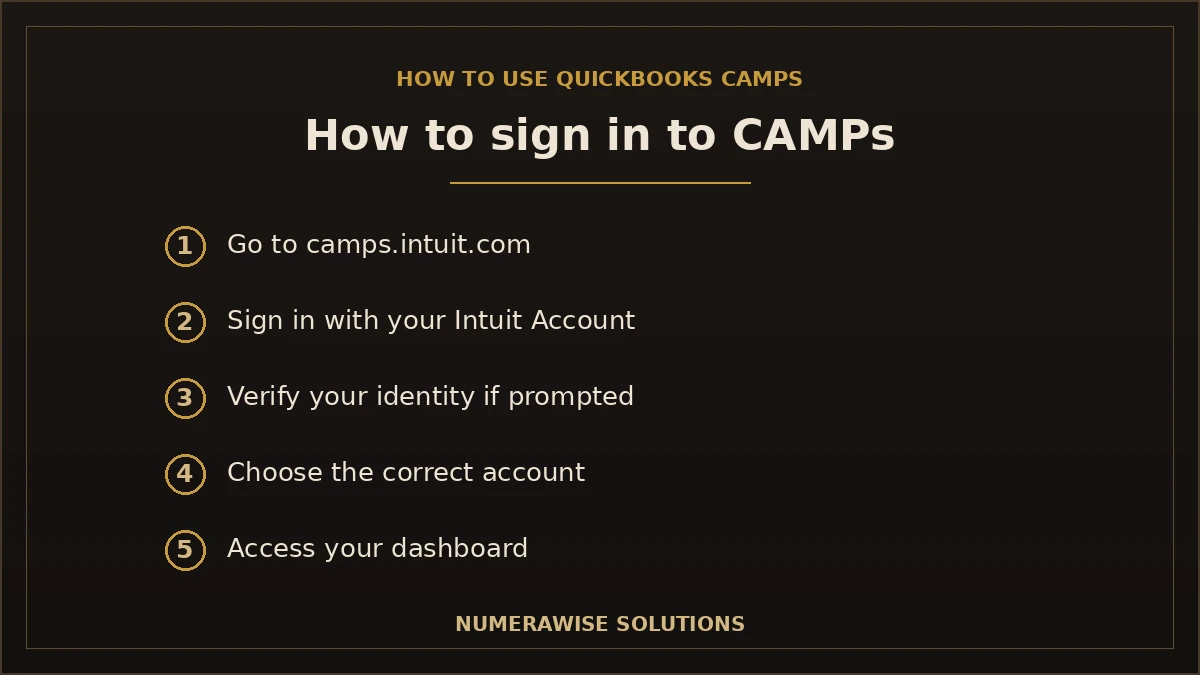
How to sign in to QuickBooks CAMPs
Signing in takes under a minute. Here is the step-by-step:
- Visit the official CAMPs portal. Go to camps.intuit.com in your web browser. Always type it yourself rather than clicking links in unexpected emails.
- Sign in with your Intuit Account. Enter the email (or user ID) and password tied to your QuickBooks purchase.
- Verify your identity if prompted. Intuit may send a one-time code to your email or phone for security — enter it to continue.
- Choose the correct company or account. If your Intuit login is linked to more than one, select the account you want to manage.
- Access your account dashboard. You are in — the dashboard shows your products, licenses, billing, and more.
Multiple accounts? Read this
If you manage several QuickBooks accounts — common for accountants and bookkeepers — the same Intuit login may show a list of accounts. Pick the right one before making changes, and double-check the product and license shown so you are editing the correct subscription.
How to use QuickBooks CAMPs
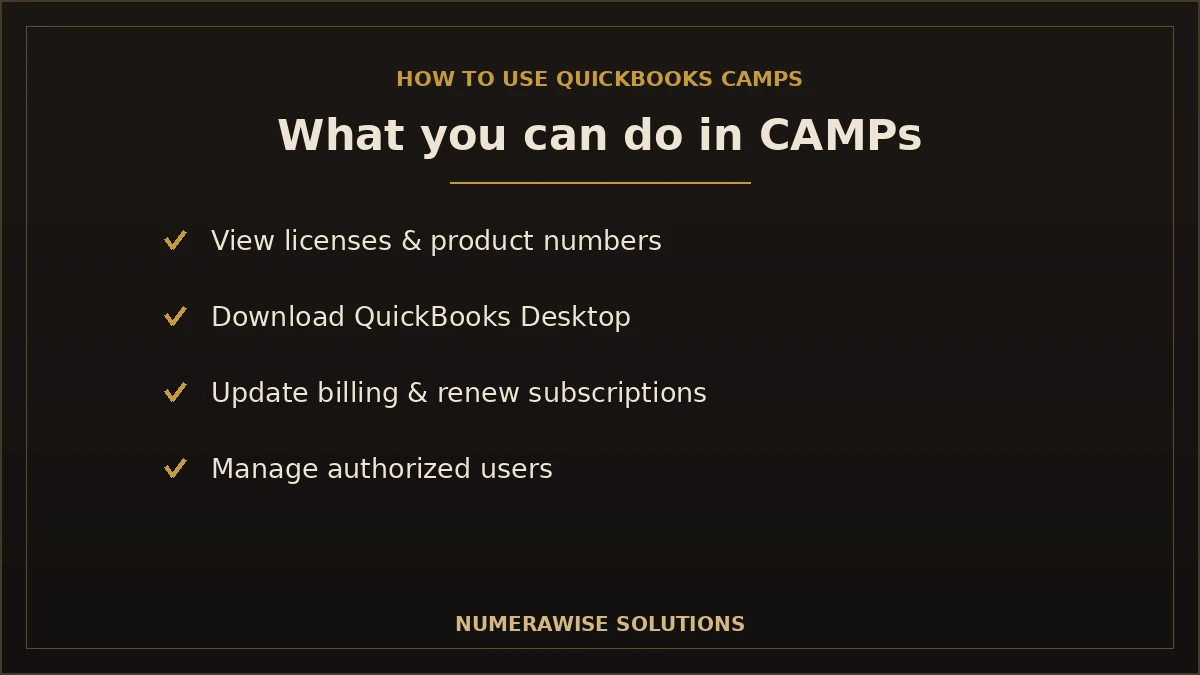
Once you are in, CAMPs lets you handle nearly everything about your Desktop account. Here is what you can do and where to find it.
Manage profile information
Update the account’s email address, mailing address, and phone number so Intuit’s notices and renewal reminders reach the right person.
View QuickBooks licenses and product information
Under products and services, you can see your license number, product number, and product year — the details you need when installing, registering, or getting support.
Download QuickBooks Desktop
Re-download your QuickBooks Desktop software directly from CAMPs, including versions you already own. This is the fastest way to reinstall on a new computer.
Update payment methods and billing
Change the credit card on file, update the billing address, and keep your subscription from lapsing because a card expired.
Renew subscriptions
Review your subscription status and renew before it expires, so you keep receiving updates, security patches, and payroll tax tables.
Manage authorized users
Add trusted people — a bookkeeper, an accountant, an IT admin — as authorized users, or remove those who no longer need access.
View purchase history and payroll subscriptions
See what you have bought and, where applicable, manage your QuickBooks Desktop Payroll subscription alongside your accounting product.
Because CAMPs handles the account and not your books, it pairs naturally with the rest of your QuickBooks setup. If you are also moving to the cloud, our QuickBooks Desktop to QuickBooks Online migration takes care of the transition, and QuickBooks data conversion handles moving data from other systems.
QuickBooks CAMPs dashboard overview
The CAMPs dashboard is organized into clear sections. Here is what each one is for and when to use it:
| Section | Purpose | When to use it |
|---|---|---|
| Account / Profile | Your contact and account details | Updating email, address, or phone |
| Products & Services | Licenses, product numbers, and years | Installing, registering, or contacting support |
| Subscriptions | Status and renewal of your plans | Renewing or checking what is active |
| Billing / Payments | Payment method and billing address | Updating a card or fixing a failed charge |
| Downloads | Software downloads for products you own | Reinstalling or setting up a new computer |
| Authorized Users | Who can manage the account | Adding or removing an accountant or admin |
| Support / Notifications | Help options and account alerts | Getting help or reviewing important notices |
You do not need all of these often — but when you do need one, knowing exactly where it lives saves a support call.
Common tasks you can perform in CAMPs
Here are the specific tasks people use CAMPs for most, with the short version of each.
Update your email address
Open your profile, edit the email tied to the account, and save. Confirm any verification Intuit sends so notices keep arriving.
Change your password
Passwords are managed through your Intuit Account settings. Use a strong, unique password and update it if you suspect any risk.
Update your credit card
Go to billing or payments, replace the card on file, and save — the most common reason a subscription lapses is an expired card no one updated.
Change company information
Edit the business name and address on the account so invoices and records match your current details.
Transfer or view license information
Look up your license and product numbers under products and services. If you are moving QuickBooks to a new computer, you use these same numbers to reinstall.
Add or remove an authorized user
In the authorized users section, invite a new person by email, or remove someone who has left. Keep this list short and current for security.
Download older versions
From downloads, grab the version you own — useful when reinstalling a specific supported year of QuickBooks Desktop.
Renew a subscription
Check subscription status and renew before it expires so you keep updates, security fixes, and payroll tax tables.
View license numbers
Your license numbers live under products and services — the first place to look when installing or calling for support.
Talk to a QuickBooks Expert
From license lookups to reinstalls and renewals, we handle QuickBooks Desktop account tasks so you do not have to. Reach out today.
Contact NumerawiseCommon QuickBooks CAMPs errors and how to fix them
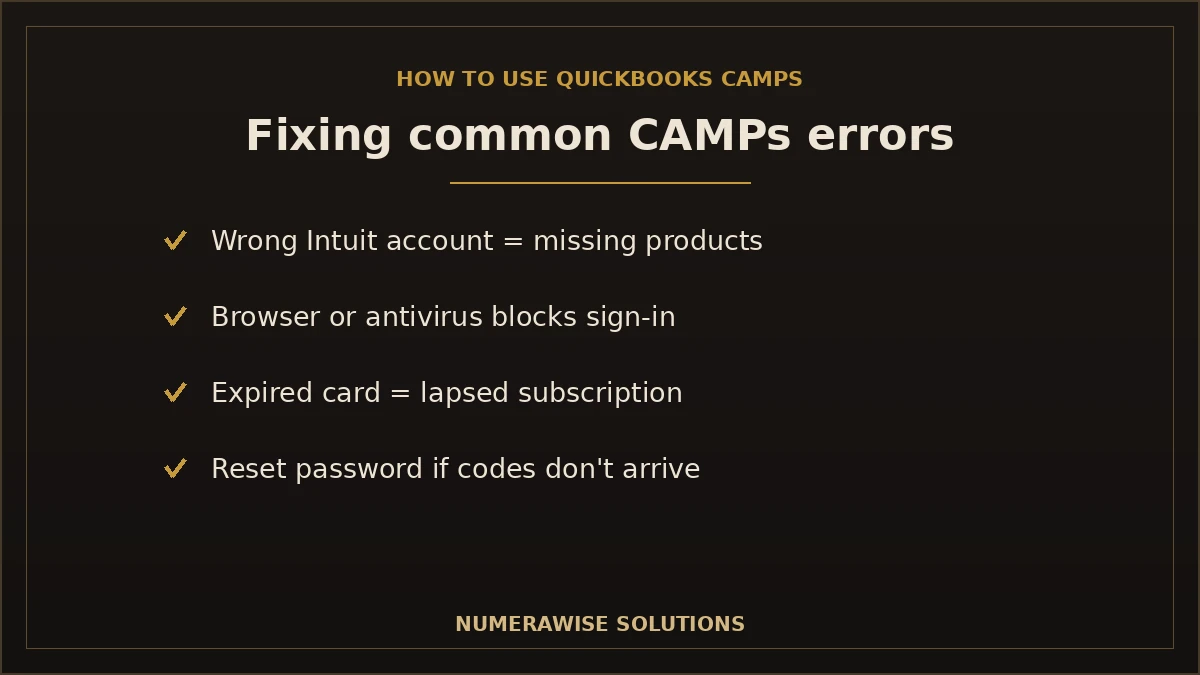
Most CAMPs problems are quick to solve. Here are the ones people hit most, with fixes.
| Problem | Likely cause | Fix |
|---|---|---|
| Cannot sign in | Wrong login, browser, or antivirus blocking | Confirm the Intuit email/password; try another browser or incognito; pause antivirus temporarily |
| Forgot Intuit password | Lost or changed password | Use “I forgot my user ID or password” on the sign-in page to reset by email or phone |
| Missing products | Signed in with the wrong Intuit account | Sign in with the email used to buy QuickBooks; check other accounts you may own |
| Subscription not showing | Wrong account or a lapsed plan | Verify the correct account; check billing for a failed payment |
| License not found | Product not registered to this login | Confirm you are on the account that purchased it; contact support if it was bought elsewhere |
| Access denied | Not an authorized user | Ask the primary contact to add you as an authorized user |
| Verification problems | Code not arriving | Check spam; confirm the phone/email on file is current; request a new code |
| Browser issues | Cache, cookies, or extensions | Clear cache and cookies, disable extensions, or use a different browser |
| Payment update fails | Card details or browser issue | Re-enter card carefully; try another browser; confirm the card is valid |
A quick pattern: most sign-in failures come down to the wrong Intuit account, a browser or antivirus getting in the way, or an expired card. Work through those three and you will solve the large majority of CAMPs issues. For stubborn cases, our QuickBooks cleanup and account support can step in.
QuickBooks CAMPs best practices
A few habits keep your account secure and hassle-free:
- Enable multi-factor authentication on your Intuit Account so a password alone cannot unlock it.
- Keep billing details current. Update cards before they expire to avoid a lapsed subscription.
- Limit authorized users. Only give account access to people who truly need it, and remove them when they leave.
- Review subscription status regularly. Check what is active so you are never surprised by a renewal or an expiry.
- Save your license information. Keep your license and product numbers somewhere safe for quick reinstalls.
- Keep contact information updated so verification codes and important notices always reach you.
Security tip
Treat your Intuit Account like online banking. Multi-factor authentication and a short, current authorized-user list are the two changes that most reduce the risk of someone tampering with your QuickBooks account.
CAMPs vs. QuickBooks Online account management
A common point of confusion: CAMPs is not where you manage QuickBooks Online. The two products handle accounts differently.
| QuickBooks Desktop (CAMPs) | QuickBooks Online | |
|---|---|---|
| Where you manage it | camps.intuit.com | Inside your QuickBooks Online account |
| Licenses | License & product numbers | No license numbers — subscription based |
| Downloads | Yes, you download the software | Nothing to download; runs in a browser |
| Billing & users | Managed in CAMPs | Managed in QBO settings |
If you use QuickBooks Desktop, CAMPs is your portal. If you have moved to QuickBooks Online, you manage everything from within QBO instead. Businesses running both simply use each product’s own tools.
When you actually need CAMPs: real examples
CAMPs is not something you log into daily — it is the tool you reach for at specific moments. A few real situations:
- New computer. You are setting up QuickBooks on a new machine and need your license number and a fresh download.
- Expired card. A renewal charge failed because the card on file expired, and your subscription is about to lapse.
- New bookkeeper. You hired an accountant who needs authorized access to manage the account.
- Lost license. You cannot find the product and license numbers you need to reinstall or register.
- Renewal decision. Your subscription is coming up and you want to review what is active before it renews.
In every case, CAMPs answers the question in a couple of minutes — if you know where to look, which is exactly what this guide covers.
Browser and access tips for a smooth experience
Because CAMPs runs in your web browser, most access problems are browser-related rather than account-related. A few habits prevent the majority of them: use a current, mainstream browser; if a page will not load or a change will not save, try an incognito or private window, which ignores extensions and old cookies; clear your cache if the dashboard looks stale; and pause aggressive antivirus or ad-blockers briefly if sign-in stalls, since they occasionally interfere with Intuit’s security checks. Keeping the phone number and email on your Intuit Account current also matters, because that is where verification codes are sent — an outdated number is a frequent, avoidable reason people get locked out.
How Numerawise Solutions can help
CAMPs is self-service, but not everyone wants to manage licenses, downloads, and account issues themselves — especially when something breaks or you are moving systems. Numerawise Solutions handles the QuickBooks side of your business end to end:
- QuickBooks installation and setup on new computers, using your CAMPs license details.
- QuickBooks Desktop support for account, license, and product issues.
- License assistance — lookups, registrations, and reinstalls done for you.
- QuickBooks migration, including QuickBooks Desktop to QuickBooks Online migration when you are ready for the cloud.
- Subscription management so renewals and billing never lapse.
- QuickBooks troubleshooting for CAMPs sign-in and account errors.
- Payroll support through our payroll services.
- Bookkeeping services to keep your books clean alongside your account.
- Training so your team can use QuickBooks and CAMPs confidently.
- Consulting on the right QuickBooks products, plans, and setup for your business.
Whether you need a one-time reinstall, ongoing bookkeeping services, or a full outsourced accounting services, we make QuickBooks something you never have to worry about.
Take control of your QuickBooks account with CAMPs
Learning how to use QuickBooks CAMPs puts you in control of your QuickBooks Desktop account — your licenses, downloads, billing, subscriptions, and who can manage them, all in one secure portal. Sign in at camps.intuit.com with your Intuit Account, and you can handle in minutes what used to mean a support call. Keep multi-factor authentication on, your billing current, and your authorized-user list short, and CAMPs becomes a quiet, reliable tool rather than a source of stress. And when something goes wrong — a login that will not work, a subscription that vanished, a migration you would rather not tackle alone — Numerawise Solutions is here to handle the QuickBooks side so you can get back to running your business.
Key takeaways
- CAMPs (Customer Account Management Portal) at camps.intuit.com manages your QuickBooks Desktop account.
- Sign in with your Intuit Account to view licenses, download software, update billing, and manage users.
- It is for QuickBooks Desktop — Pro, Premier, Enterprise, and Desktop Payroll; QuickBooks Online is managed separately.
- Most errors trace to the wrong Intuit account, a browser/antivirus block, or an expired card.
- Secure it with multi-factor authentication, current billing, and a short authorized-user list.
Quick answers.
What is QuickBooks CAMPs?
QuickBooks CAMPs stands for Customer Account Management Portal. It is Intuit's secure online portal at camps.intuit.com where QuickBooks Desktop users manage their account — viewing license and product numbers, downloading software, updating billing, renewing subscriptions, and managing authorized users. It handles the account and subscription side of QuickBooks, not your actual bookkeeping data.
How do I log in to QuickBooks CAMPs?
Go to camps.intuit.com and sign in with your Intuit Account — the email or user ID and password tied to your QuickBooks purchase. If prompted, enter the one-time verification code Intuit sends to your email or phone. If your login is linked to more than one account, choose the correct one, and you will land on your account dashboard.
Can I manage multiple companies in CAMPs?
Yes. If your Intuit login is connected to several QuickBooks accounts — common for accountants and bookkeepers — CAMPs shows a list, and you select which account to manage. Always confirm the product and license shown before making changes, so you are editing the correct company's subscription rather than another one on your login.
How do I update my payment method in CAMPs?
Sign in to CAMPs, open the billing or payments section, replace the card on file, and save. An expired card is the most common reason a QuickBooks subscription lapses, so update it before the expiry date. If the update fails, re-enter the details carefully or try a different browser, since browser issues sometimes block the change.
Where can I find my QuickBooks license number?
Your license and product numbers are under the products and services section of CAMPs. These are the numbers you need to install, register, or reinstall QuickBooks Desktop, and to get support. It is smart to save them somewhere secure so you are not hunting for them when you set up QuickBooks on a new computer.
Can I download QuickBooks from CAMPs?
Yes. CAMPs lets you download the QuickBooks Desktop software for products you own, including supported older versions. This is the fastest way to reinstall on a new machine or recover after a computer failure. You download from CAMPs and then use your license and product numbers from the same portal to activate the software.
How do I add authorized users in CAMPs?
Sign in as the primary contact, open the authorized users section, and invite the new person by email. This lets a bookkeeper, accountant, or IT admin help manage the account. Keep the list short and current — remove anyone who leaves — because authorized users can make account changes, so it is an important security control.
What if I forgot my Intuit password?
On the CAMPs sign-in page, use the "I forgot my user ID or password" link. Intuit will let you reset it using the email or phone number on your account. If codes are not arriving, check your spam folder and confirm your contact details are current. Keeping your phone and email up to date prevents most lockouts.
Can I manage payroll subscriptions in CAMPs?
Yes, where applicable. If you have QuickBooks Desktop Payroll, you can view and manage that subscription in CAMPs alongside your accounting product. Keeping payroll active matters because it delivers the payroll tax tables and forms you need to stay compliant, so review its status and renew before it lapses.
Why can't I see my products in CAMPs?
Almost always because you signed in with the wrong Intuit account. Products appear under the account that purchased them, so sign in with the exact email used to buy QuickBooks. Also check whether you have more than one Intuit login. If a product was bought through a reseller, it may be registered elsewhere — contact support to confirm.
Is QuickBooks CAMPs only for QuickBooks Desktop?
Yes. CAMPs is designed for QuickBooks Desktop products — Pro, Premier, Enterprise, and Desktop Payroll — because those use license and product numbers that need managing. QuickBooks Online is managed from within the QuickBooks Online account itself, not through CAMPs. If you use Desktop, CAMPs is your portal; if you use Online, you manage everything in QBO.
How do I renew my QuickBooks subscription in CAMPs?
Sign in, open the subscriptions section, review your status, and renew before the expiration date. Renewing keeps your updates, security patches, and payroll tax tables flowing. Make sure your payment method is current first, because a renewal will fail on an expired card — the most common reason a subscription unexpectedly lapses.
Why can't I sign in to CAMPs?
The usual causes are the wrong Intuit login, a browser problem, or antivirus interference. Confirm your email and password, then try a different browser or an incognito window, and temporarily pause aggressive antivirus or ad-blockers. Clearing your cache and cookies also helps. If it still fails, reset your password or have a specialist check the account.
Can accountants access a client's CAMPs account?
Yes, if the client adds them as an authorized user. The primary contact invites the accountant by email through the authorized users section, granting access to manage licenses, downloads, billing, and subscriptions. This is standard practice for firms managing QuickBooks for clients, and access can be removed at any time when the engagement ends.
Does CAMPs store my bookkeeping data?
No. CAMPs manages your account and subscription — licenses, downloads, billing, and users — not your financial records. Your bookkeeping data lives in your QuickBooks company file on your computer or hosting service. This separation is why CAMPs is safe to use for account tasks: it never touches the actual transactions in your books.
Do I need a professional to manage QuickBooks CAMPs?
Not necessarily — CAMPs is built for self-service, and this guide covers the common tasks. But when something breaks, a subscription vanishes, or you are reinstalling, migrating, or setting up new users, a QuickBooks specialist saves time and avoids mistakes. Many businesses handle routine tasks themselves and bring in help like Numerawise Solutions for setup, troubleshooting, and migrations.
Get a free scoping call.
Tell us what you’re working on. We respond same business day.

Ram · Founder & Principal
Founder of Numerawise Solutions, based in Atlanta. Intuit ProAdvisor Gold tier. Former Intuit Technical Support engineer. Has personally led two hundred accounting software conversions for US small businesses since founding the practice. Reachable directly at [email protected].
Free: The Clean-Cutover Checklist
The step-by-step checklist we use to migrate businesses to QuickBooks without losing data — bank rec, opening balances, payroll YTD, and the validation tie-out. Get it in your inbox.
No spam — just the checklist and the occasional QuickBooks tip.
Managing Desktop licenses in CAMPS? Read this first.
If you’re in CAMPS because a license lapsed or a version aged out: QuickBooks Desktop 2023 was discontinued May 31, 2026, Desktop 2024 ends May 31, 2027, and Intuit no longer sells new Pro/Premier subscriptions to US customers. Before you wrestle with license management, check where your version stands on the discontinuation schedule — the license question and the “what do we move to” question are usually the same question.
Fastest answer: email a photo of your Ctrl+1 screen to [email protected] — fixed quote for your options within one business day, or call (877) 290-4522.