QuickBooks Enterprise to QuickBooks Online Conversion Services
Numerawise Solutions migrates your accounts, balances, and complete transaction history from QuickBooks Enterprise into QuickBooks Online through our QuickBooks Enterprise to QuickBooks Online conversion service. Every figure is reconciled against the original file and verified before go-live, and the work is performed by Intuit ProAdvisors.
Complimentary file review · Fixed-price quote within 24 hours · Intuit ProAdvisor Gold
Enterprise-to-QBO specifics
Enterprise carries features QuickBooks Online simply does not have
QuickBooks Enterprise runs Advanced Inventory (FIFO, lot/serial, multiple warehouses), Advanced Pricing, higher list limits and deeper user roles — none of which QuickBooks Online reproduces one-for-one. A move down to QuickBooks Online is therefore part conversion, part redesign: we map what QBO supports, decide detail-versus-summary for the history that will not fit, and rebuild inventory and pricing logic in a QBO-workable form.
Then we reconcile the opening trial balance, AR and AP to your Enterprise reports before go-live, so nothing quietly changes value in the move.
Other QuickBooks migration paths
Leaving or moving within QuickBooks?
Every QuickBooks edition change has its own rules about what converts and what has to be rebuilt. These pages cover the other routes:
QuickBooks Enterprise → QuickBooks Online
A managed conversion from QuickBooks Enterprise to QuickBooks Online
QuickBooks Enterprise is Intuit's largest Desktop edition for bigger firms. A move to QuickBooks Online should leave you with a clean, fully reconciled set of books. Automated imports regularly fall short of that standard, summarizing history into totals and discarding the reconciliation status that makes the accounts dependable. Numerawise Solutions performs the complete QuickBooks Enterprise to QuickBooks Online migration as a managed engagement, verifying every balance against the original file so the accounts are reliable from the first day.
Numerawise Solutions is an Atlanta-based practice of Intuit ProAdvisors (Gold tier) and experienced bookkeepers, with more than 200 completed conversions. The fee is fixed and agreed before the engagement begins, and your information remains confidential throughout.
Before you switch
What to know before you move off Enterprise
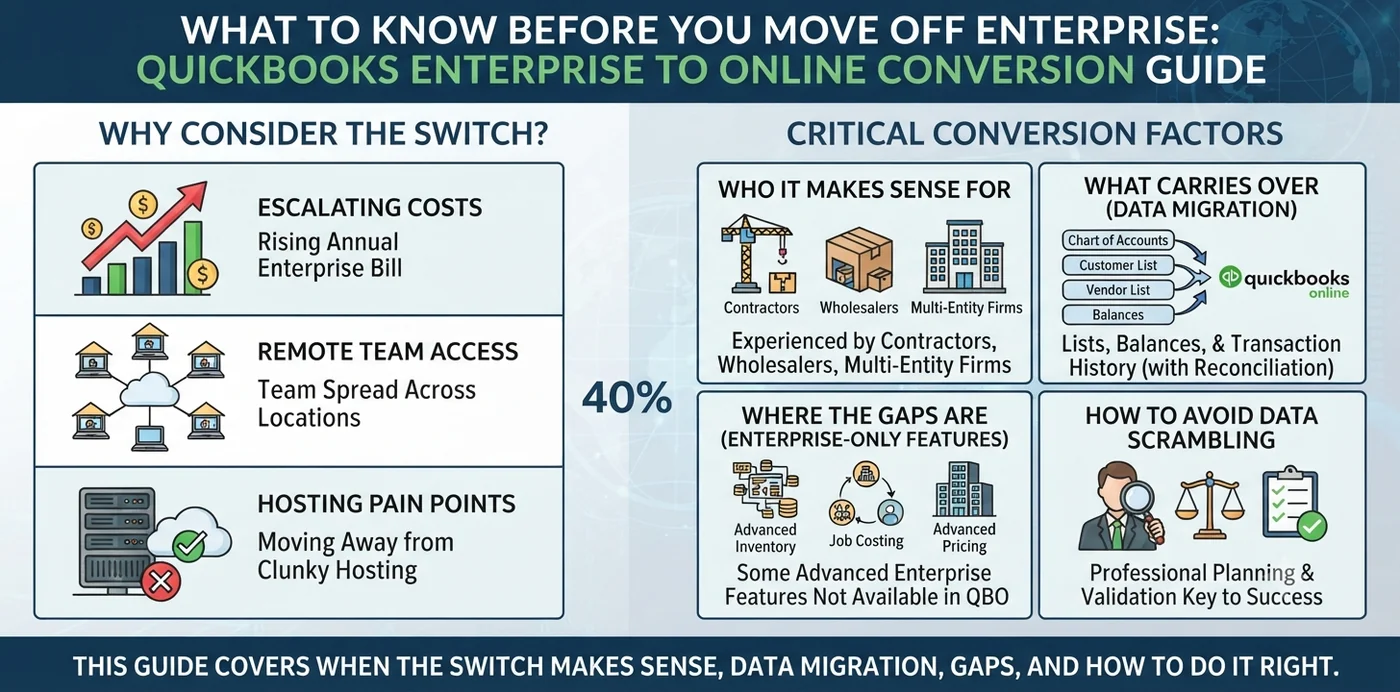
Most of the Enterprise users who call us are not in a panic. Their software still works fine. What has changed is the math — the annual Enterprise bill keeps climbing, the team is spread across home offices, and paying a hosting provider to reach a desktop file is starting to feel backward. That is usually when a QuickBooks Enterprise to QuickBooks Online conversion lands on the table.
Here is the part most sales pages skip: this move is not right for everyone. Enterprise does things QuickBooks Online simply cannot, and a good conversion starts by checking whether those things matter to you. We have handled these projects for contractors, wholesalers, and multi-entity firms with years of history on the books — this guide covers when the switch makes sense, what carries over, where the gaps are, and how to get it done without scrambling your numbers.
Why convert
Why businesses move from Enterprise to the cloud
The reasons to convert look different for Enterprise than they do for Pro or Premier, so it is worth being clear about what is actually pushing the decision.
Enterprise is not going away — so why convert?
Unlike the older Pro and Premier editions, QuickBooks Desktop Enterprise is not being discontinued. Intuit still sells and supports it, with no published end-of-life date. Individual version years still retire on the usual rolling schedule, but the product line itself is sticking around. So nobody is forcing you off Enterprise — the pressure is financial and practical instead of a hard deadline.
The real drivers behind a conversion
When clients decide to make the move, the same handful of reasons come up again and again:
- Rising costs. Enterprise pricing has been climbing year over year, and many businesses also pay a separate provider to host the file in the cloud.
- Remote and hybrid teams. Reaching a desktop file from five locations is clumsy. A browser-based system removes that friction.
- No servers to babysit. Moving to the cloud means no local server, no hosting bill, and no manual backups to manage.
- Automatic updates. You stop tracking version sunsets and security patches altogether.
- Modern automation. QuickBooks Online and Intuit Enterprise Suite lean on AI to match transactions, flag issues, and speed up the close.
What actually transfers
What a QuickBooks Enterprise to QuickBooks Online conversion moves
A QuickBooks Enterprise to QuickBooks Online conversion moves your company file — accounts, customers, vendors, balances, and transaction history — from the desktop software into a cloud account you open in any browser. Intuit’s built-in migration tool handles the transfer, and it is free. But Enterprise files bring a few wrinkles that smaller Desktop files do not.
The 60-day window and file-size limits
Two technical limits shape the project. First, the 60-day clock: you can only import your file within 60 days of creating your QuickBooks Online account, so build that account only when your file is truly ready. Second, the target limit: every transaction creates internal links called targets. The tool tops out at 4,000,000 targets, and per Intuit’s documentation, files above roughly 750,000 can hit discrepancies (especially inventory) and slow transfers. Enterprise files hold up to a million names and items, so they cross this line more often than smaller files. Press F2 or Ctrl+1 to check your count. If you are over the limit, you will condense the file first or start fresh in QuickBooks Online with opening balances.
What comes across and what does not
Your core numbers move; the advanced machinery and outside connections usually do not.
| Transfers (may need adjustments) | Needs manual setup or rework |
|---|---|
| Chart of accounts | Company name, address, and email |
| Customer and vendor lists | Bank and credit-card connections |
| Open invoices, bills, and balances | Custom Enterprise report templates |
| Most transaction history | ODBC / Advanced Reporting connections |
| Basic inventory items | Advanced inventory (bins, serial/lot, assemblies) |
| Reconciled transactions | Sales orders and advanced pricing rules |
The feature gaps you need to plan for
This is where an honest conversion earns its keep. QuickBooks Online is excellent software, but it does not replicate several Enterprise features that product-based businesses lean on:
- Sales orders with backorder control and fulfillment worksheets.
- Multiple warehouse sites with bin locations and inventory transfers.
- Serial and lot tracking, including expiration dates.
- Barcode scanning for pick, pack, ship, and cycle counts.
- Inventory assemblies with editable bills of materials.
- Average Cost inventory — QuickBooks Online uses FIFO only, which can shift your cost of goods sold.
If your business depends on any of these, you have three sensible paths: keep Enterprise (cloud-hosted if you want remote access), pair QuickBooks Online with a third-party inventory or manufacturing app, or look at Intuit Enterprise Suite for the reporting side. The wrong move is converting first and discovering the gap later.
Choose your destination
QBO Advanced vs. Intuit Enterprise Suite
“Moving to the cloud” is not one choice — it is a fork in the road. Most Enterprise users land on QuickBooks Online Advanced, but larger or multi-entity operations often need Intuit Enterprise Suite (IES) instead.
| Feature | QuickBooks Enterprise | QBO Advanced | Intuit Enterprise Suite |
|---|---|---|---|
| Where it runs | Installed (cloud hosting optional) | Cloud, any browser | Cloud, any browser |
| Max users | Up to 40 | Up to 25 | Scales higher (custom) |
| Best fit | Inventory-heavy, manufacturing, wholesale | Single-entity SMBs wanting cloud + automation | Multi-entity, project-heavy mid-market |
| Advanced inventory | Yes | No (basic, FIFO only) | No |
| Multi-entity reporting | Limited | One company per subscription | Native multi-entity |
| List capacity | Up to ~1 million names/items | Large, but lower | High |
| Pricing model | Annual subscription (rising) | Monthly subscription | Custom quote |
A few takeaways: if you run more than one company, QuickBooks Online keeps each entity in its own subscription, while Intuit Enterprise Suite consolidates them under one login. And if your team is near the 25-user ceiling on QBO Advanced, that alone may point you toward IES. Pricing on all three changes often, so confirm current rates on Intuit’s official product pages before you commit.
Our process
How the conversion works, step by step
Here is the sequence we follow, grouped into three phases. For Enterprise, the first phase carries the most weight.
Phase 1 — Assess fit and prepare the file
Run a feature-gap assessment
List the Enterprise features you actually use, then confirm whether QuickBooks Online, IES, or a third-party app covers each one. Decide your destination here.
Choose your plan, but wait to create the account
The 60-day clock starts the moment you do.
Check your target count
Press F2 or Ctrl+1. If you are near or over the limit, plan to condense or start with opening balances.
Clean the lists
Mark unused customers, vendors, and items inactive. Clear stray unbilled charges. Reconcile bank and credit-card accounts.
Print baseline reports in Enterprise
Save your Trial Balance, Profit and Loss, Balance Sheet, A/R and A/P aging, and Sales Tax Liability on an accrual basis across all dates.
Mind payroll timing
Wait two to three business days after your last payroll run, and migrate a few days before your next one.
Phase 2 — Run the export
Start the export
In QuickBooks Desktop Enterprise, press Ctrl+1 to open the Product Information window, then press Ctrl+B+Q and select OK.
Pick your destination company
If it already holds data, QuickBooks warns you before replacing it — read that prompt carefully, because the replacement cannot be undone.
Let it run
Large files can take several hours. You will get a confirmation email when the move finishes.
Phase 3 — Verify and rebuild
Reconcile your reports
Re-run the same reports in QuickBooks Online — accrual basis, all dates — and match them line by line.
Rebuild what did not transfer
Set up inventory in its new form, reconnect bank feeds and apps, recreate templates and recurring transactions, and configure user roles and permissions.
The payoff
Benefits of converting Enterprise to QuickBooks Online
When the fit is right, the payoff shows up quickly:
- Lower total cost for many businesses, especially once you drop hosting fees and rising license renewals.
- True anywhere access without paying a third party to host a desktop file.
- No version sunsets or manual backups to track — Intuit handles updates and security.
- Easier collaboration for remote teams, your bookkeeper, and your CPA in one shared file.
- A large app marketplace and AI automation for bank matching, bill capture, and reporting.
- Simpler IT, with no local server to maintain.
Pitfalls
Common mistakes during an Enterprise conversion
These are the errors that turn a clean project into a stressful one:
- Skipping the feature-gap assessment. The number-one Enterprise mistake is converting first and finding out later that QuickBooks Online cannot run your inventory.
- Underestimating file size. Large Enterprise files blow past the target limit and need condensing.
- Picking the wrong destination. Choosing QBO Advanced when the business needed Intuit Enterprise Suite — or the reverse.
- Forgetting the 25-user ceiling. Teams that need more seats hit a wall on QBO Advanced.
- Ignoring the inventory costing change. The Average-Cost-to-FIFO switch can move your cost of goods sold.
- Assuming custom reports and ODBC carry over. They do not.
- Deleting the Enterprise backup. Prior-year detail and advanced data live there. Keep it archived.
Do it right
Best practices for a smooth conversion
- Start with discovery, not export. Map must-have features to QBO, IES, or an add-on before you touch the migration tool.
- Clean and condense the file so you are not importing clutter.
- Reconcile baseline reports on an accrual basis, all dates, in both systems.
- Run both systems in parallel for a month, then retire Enterprise once the numbers match.
- Keep the Enterprise file archived. The IRS expects you to retain supporting records for years, so do not delete your history.
- Bring in a specialist for large or complex files. Heavy inventory, multiple entities, or millions of targets are exactly where expert help pays off.
Why Numerawise
Why choose Numerawise Solutions
We are an Atlanta-based bookkeeping firm, and software conversions are a core part of what we do. We have moved company files out of Foundation, Sage 50, Xero, and QuickBooks Desktop Enterprise into QuickBooks Online, QuickBooks Desktop, and Intuit Enterprise Suite — for construction contractors, wholesalers, and investment firms carrying years of history.
That background matters here, because an Enterprise conversion is rarely just clicking “export.” It starts with an honest assessment of whether the cloud fits your workflows, and it ends with the reconciliation that makes your books trustworthy on day one. Work with us and you get more than a file transfer: our QuickBooks conversion services handle the fit assessment, the move, and the post-migration validation; our outsourced bookkeeping keeps your new file accurate month after month; if your records need work first, our catch-up and cleanup bookkeeping gets them current; and our payroll services make sure that piece survives the transition intact. If you are weighing the move, we will tell you straight whether it makes sense — before you commit.
Final thoughts
Do the homework up front
A QuickBooks Enterprise to QuickBooks Online conversion can be one of the smartest moves you make — or a frustrating one — and the difference comes down to homework done up front. Match your must-have features against what QuickBooks Online or Intuit Enterprise Suite actually offers. If there is a gap in inventory or reporting, plan the workaround before you export, not after. Clean the file, condense it if it is large, and reconcile every key report once the data lands. Keep your Enterprise backup archived for the history that does not travel. Done right, you trade rising license fees, hosting bills, and version sunsets for software your whole team can open from a browser.
In short
Key takeaways
- QuickBooks Desktop Enterprise is not being discontinued — conversions are driven by cost, cloud access, and collaboration, not a deadline.
- The biggest risk is feature loss: QuickBooks Online cannot match Enterprise’s advanced inventory, sales orders, or 40-user capacity. Assess fit first.
- You have 60 days from creating your QuickBooks Online account to import, and the tool caps near 4,000,000 targets (discrepancies likely above 750,000).
- Most Enterprise users move to QuickBooks Online Advanced (up to 25 users); multi-entity operations often need Intuit Enterprise Suite.
- Inventory switches from Average Cost to FIFO, which can change your cost of goods sold — involve your accountant.
- Reconcile Trial Balance, P&L, Balance Sheet, and A/R and A/P aging in both systems before going live.
- Keep your Enterprise file archived for advanced data and prior-year detail that will not transfer.
Who performs the work
Led by an Intuit ProAdvisor

Ram — Founder & Principal
Ram is the founder of Numerawise Solutions in Atlanta. An Intuit ProAdvisor (Gold tier) and a former Intuit Technical Support engineer, he has personally led more than 200 accounting-software conversions, including QuickBooks Enterprise and QuickBooks Online engagements, for small and mid-market firms across the United States.
More about Ram Verified on UpworkCommon questions
QuickBooks Enterprise to QuickBooks Online conversion FAQs
Can you convert QuickBooks Enterprise to QuickBooks Online?
Yes. Intuit’s built-in migration tool moves Enterprise data into QuickBooks Online, including your accounts, lists, balances, and most transactions. The catch is that some advanced Enterprise features do not carry over. A successful conversion starts by confirming the cloud can handle your workflows, then cleaning and preparing the file before you export.
Will I lose my advanced inventory features?
Likely yes, at least in their current form. QuickBooks Online does not offer Enterprise’s sales orders, bin locations, serial and lot tracking, barcode scanning, or assemblies. If those are essential, you can keep Enterprise, add a third-party inventory app to QuickBooks Online, or evaluate other tools. This is why a feature-gap review should always come before the conversion.
How long does a QuickBooks Enterprise to QuickBooks Online conversion take?
The data transfer itself ranges from a couple of hours to a full business day for large Enterprise files. The full project is longer once you add preparation, cleanup, and verification — usually several days, plus a month of running both systems in parallel. Bigger files with heavy inventory and history sit at the longer end.
What is the difference between QBO Advanced and Intuit Enterprise Suite?
QuickBooks Online Advanced is cloud accounting for a single company, supporting up to 25 users with automation and custom reporting. Intuit Enterprise Suite is a larger cloud platform built for multi-entity businesses that need consolidated reporting and higher user counts. Most Enterprise converts choose Advanced; firms with several entities often need Intuit Enterprise Suite instead.
My Enterprise file is huge — can it still be converted?
Often, yes, but it needs prep. The migration tool caps near 4,000,000 targets, and files above roughly 750,000 can hit discrepancies. Enterprise files hold up to a million names and items, so check your count with F2 or Ctrl+1. If you are over the line, condense the file or start fresh in QuickBooks Online with opening balances and a clean cutoff date.
Does QuickBooks Online support as many users as Enterprise?
No. QuickBooks Enterprise scales to 40 users, while QuickBooks Online Advanced supports up to 25 billable users. If your team is already close to that ceiling, plan for it before you convert. Businesses that need more seats usually move to Intuit Enterprise Suite, which scales higher under a custom plan rather than a fixed user cap.
Can I keep using QuickBooks Enterprise after converting?
Yes. Converting does not disable or delete your Enterprise file — it stays exactly as it was. Most businesses run both systems in parallel for a month and keep the Enterprise backup permanently for historical reference. That archived file is especially important for advanced inventory data and prior-year detail that does not transfer to QuickBooks Online.
Will my inventory costing method change?
It can. Enterprise supports Average Cost (and other methods through Advanced Inventory), but QuickBooks Online uses FIFO only. Switching costing methods can change your cost of goods sold and may carry tax implications. The safest approach is to convert at the start of a fiscal year, or check with your accountant before any mid-year conversion.
Do I need professional conversion services, or can I do it myself?
A small, clean Enterprise file with simple inventory can be a do-it-yourself project if you follow the steps carefully. Large files, complex inventory, multiple entities, or messy history are where professional QuickBooks data conversion services earn their keep. The assessment, cleanup, and reconciliation are the stages where most self-managed conversions run into trouble.
Is it cheaper to convert to QuickBooks Online than stay on Enterprise?
For many businesses, yes — especially once you factor in rising Enterprise renewals and separate cloud-hosting fees. QuickBooks Online’s monthly subscription often comes in lower, with updates and backups included. But the comparison depends on your user count, features, and whether you need Intuit Enterprise Suite. Run the numbers against your current all-in cost before deciding.
Begin
Ready to move from QuickBooks Enterprise to QuickBooks Online?
Provide a few details and we will email a fixed-price quote within one business day, with your QuickBooks Enterprise history reconciled into a clean QuickBooks Online file.