QuickBooks Online to QuickBooks Enterprise Conversion Services
Numerawise Solutions migrates your accounts, balances, and complete transaction history from QuickBooks Online into QuickBooks Enterprise through our QuickBooks Online to QuickBooks Enterprise conversion service. Every figure is reconciled against the original file and verified before go-live, and the work is performed by Intuit ProAdvisors.
Complimentary file review · Fixed-price quote within 24 hours · Intuit ProAdvisor Gold
QBO-to-Enterprise specifics
The direction Intuit supports least — so we rebuild it properly
Going from QuickBooks Online back to QuickBooks Enterprise is the direction Intuit supports least well: there is no clean automatic importer, so it is an export-and-rebuild. Lists — customers, vendors, items and the chart of accounts — are exported and imported, and transaction history comes in as detail where possible or as summarized opening balances where it will not.
We rebuild the file correctly in Enterprise, re-establish inventory, classes and user roles, and reconcile the opening balances, AR and AP to your QuickBooks Online reports before you rely on it.
Other QuickBooks migration paths
Leaving or moving within QuickBooks?
Every QuickBooks edition change has its own rules about what converts and what has to be rebuilt. These pages cover the other routes:
Move without losing data
How to move from QuickBooks Online to Enterprise without losing your data
You put your books in QuickBooks Online for the convenience — log in from anywhere, no server to babysit. Then the limits showed up: inventory that will not behave, reports that stop short, job costing that is not really job costing, or a per-user bill that keeps climbing. That is usually when a QuickBooks Online to QuickBooks Enterprise conversion turns from an idea into a plan.
We have walked businesses through this switch more than a few times, so here is the straight version: yes, you can do it, and Intuit even gives you a free tool — but that tool comes with real limits most people do not discover until they are already stuck halfway through. This guide lays out how the conversion actually works, what transfers and what does not, and the smart way to move years of data into Enterprise without losing the detail you depend on.
The basics
What is a QuickBooks Online to QuickBooks Enterprise conversion?
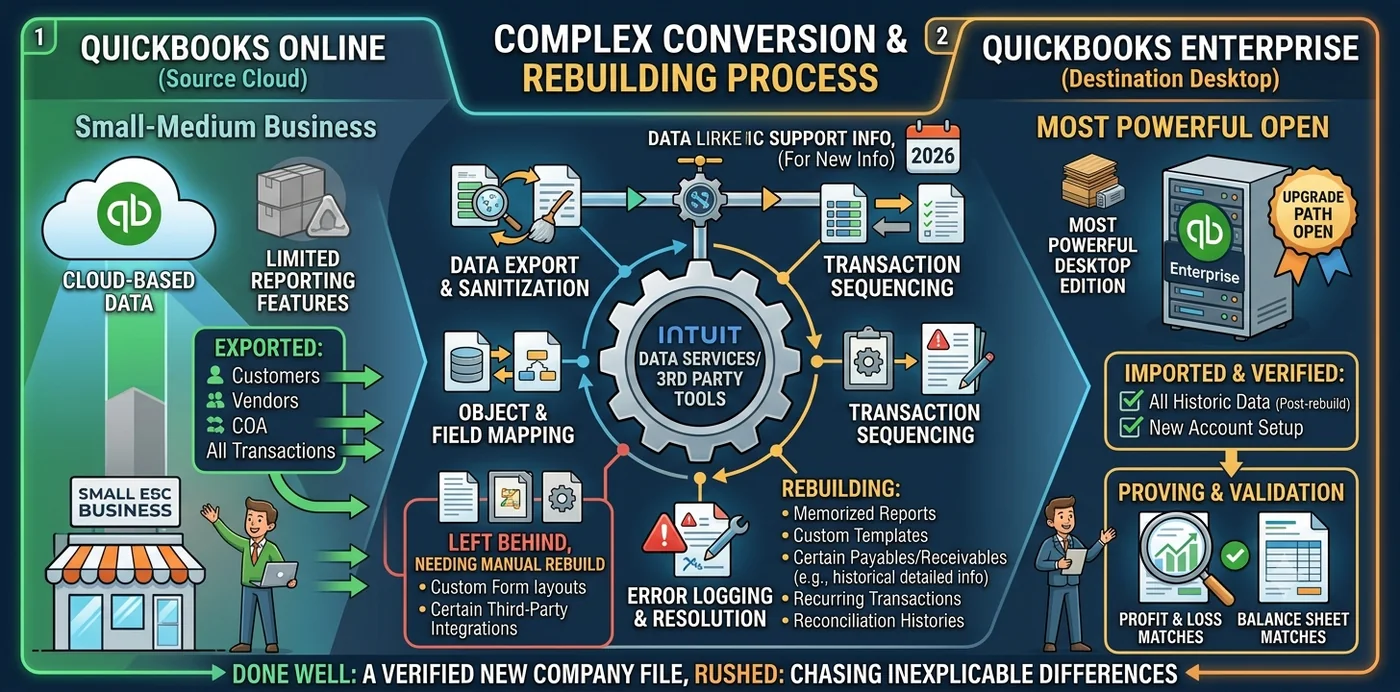
A QuickBooks Online to QuickBooks Enterprise conversion is the process of moving your accounting data out of cloud-based QuickBooks Online and into QuickBooks Desktop Enterprise, the most powerful edition in Intuit’s desktop lineup.
Because the two products are built differently, this is not a simple sync. The work involves exporting your data from QuickBooks Online, importing it into an Enterprise company file, rebuilding the pieces the tools leave behind, and then proving the new file matches the old one. Done well, your Profit & Loss and Balance Sheet in Enterprise line up with your final QuickBooks Online reports. Rushed, you spend the next month chasing differences you cannot explain.
Why switch
Not sure you have outgrown Online yet? Setting up QuickBooks Online for a small manufacturer covers the item types, what Intuit offers for assemblies today, and the three signs (sub-assemblies, multi-site stock and landed cost, user caps) that mean Enterprise is the better starting point.
Why businesses move from QuickBooks Online to Enterprise
Nobody changes accounting systems on a whim — there is almost always a clear reason driving the QuickBooks Online to Desktop migration. Here are the ones we run into most.
Real inventory control
QuickBooks Online handles basic stock, but it falls short on assemblies, bills of materials, multiple costing methods, and multi-location tracking. Enterprise was built for that, and if your warehouse has any complexity, this alone is often the deciding factor.
True job costing and order management
Contractors and project-based businesses need accurate job costing, sales orders, and batch invoicing. Enterprise delivers all three with depth the online version simply does not match.
Industry-specific editions
Enterprise ships in tailored versions — Contractor, Manufacturing & Wholesale, Retail, Nonprofit, and Professional Services — each adding reports and features that fit how those businesses actually run.
Performance and cost at scale
Large lists and high transaction volumes can drag QuickBooks Online down, and once you are paying for higher online tiers with several users, the math sometimes favors a desktop license. Enterprise supports up to 40 users and lets you manage multiple companies without separate subscriptions. See the full QuickBooks Enterprise offering.
The native tool
How the conversion works — and the free tool’s limits
Here is the part that surprises people. Intuit does offer a free migration tool that exports your QuickBooks Online data into QuickBooks Desktop, including Enterprise. But it carries limits you need to know before you rely on it. According to Intuit’s own support documentation:
- It only works on certain plans. The tool supports QuickBooks Online Simple Start, Essentials, and Plus. It does not export QuickBooks Online Advanced or Accountant directly to Desktop — a big one, because larger businesses eyeing Enterprise are often on Advanced.
- It captures about 18 months of transactions. Anything older comes across as opening balances only, not full detail. (If your account is under 60 days old, the full history exports.)
- Inventory does not come along. The tool does not export products, services, or stock quantities — you rebuild inventory in Enterprise yourself.
- Payroll stays behind. Employee records, year-to-date totals, and tax filings do not migrate.
- It is generally a one-time export. Once you export and close out, you usually cannot run it again for that company — get your data selection right the first time.
- It can be temperamental. On complex files, real users report exports that bring over almost nothing. For messy or large data, a specialist usually beats the free tool.
None of this means the tool is useless. For a clean Simple Start, Essentials, or Plus file with under 18 months of history and no heavy inventory, it does the job. For everything else, you have better options.
What moves, what doesn’t
What transfers, and what does not
Knowing the gaps upfront is what separates a calm migration from a panicked one. Here is the honest breakdown for the native tool.
| Transfers with the tool | Comes over with limits | Does not transfer |
|---|---|---|
| Chart of accounts | Transactions — about the last 18 months | Inventory items and quantities |
| Customers and sub-customers | Older history (as opening balances only) | Payroll (employees, YTD, filings) |
| Vendors | Multi-currency (foreign amounts may not convert cleanly) | Bank reconciliation history |
| Account balances | Some transactions land as journal entries | Attachments and documents |
| Trial balance figures | Recurring templates, custom fields, workflows, audit log |
- Inventory is on you. Because stock data does not export, plan to rebuild your item list in Enterprise and set the correct costing method from the start.
- Reconciliation status resets. Your accounts will look unreconciled in Enterprise after the move — reconcile them using your final QuickBooks Online statements.
Methods compared
Conversion methods compared
There is more than one road into Enterprise. Pick the one that fits your data, not just your budget.
| Method | Best for | Pros | Watch-outs |
|---|---|---|---|
| Intuit’s free migration tool | Simple Start, Essentials, or Plus with under 18 months of history and simple inventory | Free, official, no third party | No Advanced or Accountant support; 18-month limit; inventory and payroll excluded; usually one export |
| Specialist conversion service | QBO Advanced, several years of history, real inventory or job costing | Handles the gaps, rebuilds inventory, validates reports | Cost varies by volume; needs admin access to your account |
| Manual export and import | Small books needing lists and open balances only | Full control, low cost | Tedious; transactions need apps or re-entry; opening balances by journal |
The takeaway: if you are on QuickBooks Online Advanced, or you need years of detail and clean inventory, the free tool will not get you there. That is where a guided QBO to Enterprise data migration earns its keep.
The process
How to convert QuickBooks Online to Enterprise, step by step
This is the sequence we follow for the native-tool route. Skip the prep and you will feel it later.
Confirm you qualify
Check that you are on Simple Start, Essentials, or Plus, that you have admin access in QuickBooks Online, and that Enterprise is installed.
Reconcile and clean up in QuickBooks Online
Reconcile every bank and credit-card account, note the ending balances, and save copies of your P&L, Balance Sheet, Trial Balance, A/R and A/P aging, and sales-tax reports. You will need these to check the new file.
Open QuickBooks Enterprise
Install it and leave it on the “No Company Open” screen.
Download the migration tool
In QuickBooks Online, go to the Export Overview page, select Get Started, and download the tool while Enterprise is open on your computer.
Choose and request your data
Select your financial data, with or without transactions, then request and download the export file.
Import into Enterprise
Run the migration tool inside Enterprise, browse to your downloaded file, grant the certificate permission, and let the import finish. Large files can take hours.
Validate and rebuild
Compare your P&L and Balance Sheet in both systems. Rebuild inventory, re-enter payroll year-to-date figures, recreate templates and recurring entries, and reconcile your accounts.
The payoff
The benefits of moving to Enterprise
When the conversion is handled properly, the upgrade pays off:
- Advanced inventory with assemblies, bills of materials, and multiple costing methods.
- Deeper job costing so you see real profit by project, not just by account.
- Industry-specific tools for construction, manufacturing, nonprofits, and more.
- Up to 40 users and multiple companies without extra subscriptions.
- Stronger reporting with far more customization than the online version offers.
- Offline access and data control, with your file living on your own systems.
Pitfalls
Common mistakes to avoid
Most rough migrations trace back to the same handful of slip-ups:
- Assuming inventory transfers. It does not through the native tool — plan to rebuild it.
- Forgetting the 18-month window. Older history arrives as opening balances, not detail.
- Not realizing Advanced is not supported. If you are on QBO Advanced, the free tool will not export to Desktop.
- Burning your one export on a test. You usually get one shot, so confirm your data selection first.
- Expecting payroll to follow. Re-enter year-to-date figures instead.
- Keying data into Enterprise before importing. Start with a clean file to avoid clashes.
- Skipping validation. If you do not compare reports, you will not catch errors until tax season.
Do it right
Best practices for a clean conversion
A few habits make all the difference:
- Check plan eligibility before you start. It decides whether the free tool is even an option.
- Convert at a period close. Reconcile first, then export your reports as an audit trail. Intuit keeps your data accessible for about a year after you cancel — use that window.
- Decide on full history versus opening balances. If you need more than 18 months of detail, plan a specialist conversion from the start.
- Rebuild inventory deliberately with the right costing method, not in a rush.
- Handle payroll at a quarter or year boundary and loop in Intuit Payroll early.
- Run both systems in parallel for a month and validate three reports — P&L, Balance Sheet, and aging.
- Bring in a certified pro. A QuickBooks ProAdvisor catches what the tools miss.
If you also work across platforms, the same care applies whether you are handling a Xero to QuickBooks Enterprise conversion or weighing QuickBooks Online migration services in the other direction.
Why Numerawise
Why choose Numerawise Solutions
We spend our days inside QuickBooks files for businesses with real complexity — construction job costing, inventory-heavy operations, multi-entity reconciliation, and high transaction volumes. That experience shapes how we approach every QuickBooks Enterprise migration.
- We confirm eligibility and pick the right method, so you are not blindsided by the free tool’s limits.
- We rebuild what does not transfer — inventory with correct costing, payroll year-to-date, templates, and recurring entries.
- We validate your reports before and after, so the numbers match rather than “look close.”
- You walk away with a working file and a clear post-conversion checklist, not a half-finished project.
Our QuickBooks data migration and ongoing QuickBooks bookkeeping services mean we stay with you after the switch, making sure Enterprise actually fits how your business runs.
Final thoughts
Plan it, do not wing it
A QuickBooks Online to QuickBooks Enterprise conversion rewards businesses that plan it and punishes the ones that wing it. The free tool is real and helpful, but its limits — no Advanced support, an 18-month window, no inventory, no payroll, and a single export — catch people off guard every day. Know what transfers, decide early how much history you need, and validate your reports at the end. Do that, and you land in a file built for serious inventory, job costing, and reporting, on the desktop edition Intuit still actively backs.
In short
Key takeaways
- A QuickBooks Online to QuickBooks Enterprise conversion moves your books from the cloud into QuickBooks Desktop Enterprise, and it takes planning.
- Intuit’s free migration tool works only for Simple Start, Essentials, and Plus — not QuickBooks Online Advanced or Accountant.
- The native tool brings over roughly 18 months of transactions; older periods arrive as opening balances.
- Inventory, payroll, reconciliation history, and attachments do not transfer through the free tool.
- The export is usually one-time per company, so get your data selection right.
- For Advanced plans, multiple years, or complex inventory, a specialist conversion service beats the free tool.
Who performs the work
Led by an Intuit ProAdvisor

Ram — Founder & Principal
Ram is the founder of Numerawise Solutions in Atlanta. An Intuit ProAdvisor (Gold tier) and a former Intuit Technical Support engineer, he has personally led more than 200 accounting-software conversions, including QuickBooks Online and QuickBooks Enterprise engagements, for small and mid-market firms across the United States.
More about Ram Verified on UpworkCommon questions
QuickBooks Online to QuickBooks Enterprise conversion FAQs
Can you convert QuickBooks Online to QuickBooks Enterprise?
Yes. If you are on QuickBooks Online Simple Start, Essentials, or Plus, Intuit’s free migration tool exports your data into Enterprise. If you are on QuickBooks Online Advanced, or you have years of history and detailed inventory, the free tool will not work well, so a specialist conversion service is the better route for an accurate move.
Does the conversion move inventory?
No. The native migration tool does not export your products, services, or stock quantities. You rebuild your item list directly in Enterprise after the move and set the correct costing method. This is one of the most common surprises, so plan inventory as its own step rather than assuming it follows your other data.
How much transaction history transfers from QuickBooks Online?
The migration tool brings over roughly the last 18 months of transactions. Anything older comes across as opening balances only, without the underlying detail. If you need several years of full history in Enterprise, the free tool will not cover it, and a specialist conversion is the way to preserve that level of detail.
Is there a free way to convert QBO to Enterprise?
Yes, Intuit’s migration tool is free and official, but it has limits. It supports only Simple Start, Essentials, and Plus, captures about 18 months of transactions, skips inventory and payroll, and is generally a one-time export per company. For QuickBooks Online Advanced or complex books, those limits make a paid conversion the safer choice.
Does payroll transfer during the migration?
No. Employee records, year-to-date totals, and tax filings do not migrate through the export tool. Plan to re-enter year-to-date payroll figures in Enterprise, ideally at the start of a quarter or calendar year. Contacting Intuit Payroll early keeps your filings and tax calculations accurate after the switch.
Why move from QuickBooks Online to Enterprise?
Most businesses switch for advanced inventory (assemblies and bills of materials), true job costing, sales orders, and industry-specific editions. Others move because large data slows the online version down, or because higher online tiers get expensive with multiple users. Enterprise supports up to 40 users and richer reporting than QuickBooks Online provides.
How long does the conversion take?
The native import itself can run from minutes to a few hours, depending on data size. Add prep and validation, and a straightforward move usually takes a few days. Complex conversions handled by a specialist often take several business days plus a validation period to confirm reports match and inventory is rebuilt correctly.
Can I switch back to QuickBooks Online later?
Yes, but not through the same automatic path. QuickBooks Online does not offer a one-click reverse of the export. Moving back means exporting your Enterprise data and importing or re-entering it in QuickBooks Online, which is its own project. Most businesses that move to Enterprise stay there for the added power.
Is QuickBooks Enterprise being discontinued in 2026?
No. As of mid-2026, Intuit has not announced an end-of-life for QuickBooks Desktop Enterprise. It remains the only desktop edition Intuit still actively sells to new customers and supports, after new sales of Pro, Premier, and Mac ended in 2024. Keep your edition current, since individual version years retire on a rolling schedule.
Begin
Ready to move from QuickBooks Online to QuickBooks Enterprise?
Provide a few details and we will email a fixed-price quote within one business day, with your QuickBooks Online history reconciled into a clean QuickBooks Enterprise file.